Speed
Give a sprite a velocity, so the game engine keeps it moving by itself until something changes it.
A car in a racing game, a cloud drifting past, a ball in pong: none of them is pushed by hand every frame. The game is told a speed, and keeps them moving.
The plane moved only while you held a key. Many things in a game move with nobody pressing anything: clouds, cars, enemies. They have a velocity: a speed across (vx) and down (vy), in pixels per second. The game engine moves the sprite a little every frame (one redraw of the screen, about 30 times a second).
- Predict: Read the code and say what it will do before you run anything. A wrong guess is fine: it shows you what to look for.
- Run: Run it and compare the result with your prediction.
- Investigate: Trace how each line of code connects to what you see.
- Modify: Change the code on purpose and check the result.
- Make: Build something new using what you have learned. Expect a few tries; that is normal.
Make your prediction first. Help opens once you've locked it in.
Predict

Show as code
scene.setBackgroundColor(9)
let ball = sprites.create(img`
. 2 2 .
2 2 2 2
2 2 2 2
. 2 2 .
`, SpriteKind.Player)
ball.setPosition(20, 60)
ball.setVelocity(50, 0)
There is no loop here: the blocks in on start run once. Lock in what you think the ball will do.
Run
Watch the ball. Press the restart button under the simulator to see it again.
Show as code
scene.setBackgroundColor(9)
let ball = sprites.create(img`
. 2 2 .
2 2 2 2
2 2 2 2
. 2 2 .
`, SpriteKind.Player)
ball.setPosition(20, 60)
ball.setVelocity(50, 0)
Investigate
Watch the cloud drift and bounce.
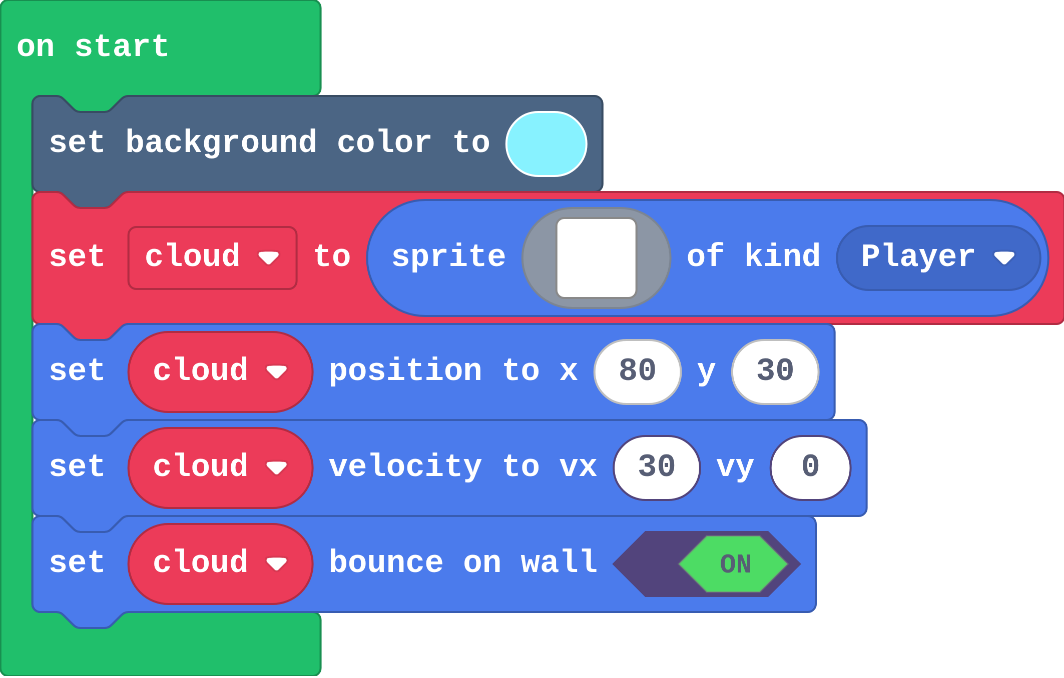
Show as code
scene.setBackgroundColor(9)
let cloud = sprites.create(img`
    . . . 1 1 . . . . .
    . 1 1 1 1 1 . . . .
    1 1 1 1 1 1 1 1 1 .
    1 1 1 1 1 1 1 1 1 1
    . 1 1 1 1 1 1 1 1 .
    `, SpriteKind.Player)
cloud.setPosition(80, 30)
cloud.setVelocity(30, 0)
cloud.setBounceOnWall(true)
Leo's event:

Show as code
controller.A.onEvent(ControllerButtonEvent.Pressed, function () {
    rocket.vx = 30
})
Match each block with what it does to a sprite.
The cloud starts at x 80 with a velocity of 30 across. After 2 seconds, how many pixels has it moved?
Modify
Give the cloud a speed down of 20 as well as 30 across. Watch it bounce off every wall.
Need a hint?
The second number in set velocity is the speed down. Make it 20.
Make B (enter on the keyboard) stop the cloud.
Need a hint?
Drag in on B button pressed from Controller.
Another hint
Inside it: set cloud velocity to 0, 0.
Make the cloud drift at a slant: 30 across and 20 down, so it bounces off every wall.
This ticks by itself when your blocks do what is asked.
Make B stop the cloud.
This ticks by itself when your blocks do what is asked.
Mix it up

Show as code
scene.setBackgroundColor(15)
let star = sprites.create(img`
    . 5 .
    5 5 5
    . 5 .
    `, SpriteKind.Player)
star.setPosition(150, 20)
Make
Make a sky game:
- the player flies the plane with the arrow keys
- the plane cannot leave the screen
- a cloud drifts by itself and bounces off the walls
Try to fly through the cloud. (Nothing happens yet: next lesson sprites notice when they touch.)
Need a hint?
Plane: move with buttons (Controller) and set stay in screen (Sprites).
Another hint
Cloud: a new sprite with its own name, then set velocity and set bounce on wall (both in Sprites).
Another hint
Give the cloud a velocity down as well as across, so it drifts at a slant and bounces off every wall.
A plane the player flies that stays on the screen, and a cloud with a velocity that bounces off the walls.
This ticks by itself when your blocks do what is asked.
Change a conveyor belt
This factory belt carries boxes to the right, and the worker moves along the floor. Make the belt run twice as fast, add a third box, then make A stop the belt by setting each box's vx to 0.
For teachers
Students give sprites a velocity, and see that the engine keeps a sprite moving every frame until something changes it, while setting a position moves it once. About 40 minutes.
Open the teacher guide: answers, solutions, slides and a worksheet.
Students will be able to
- I can give a sprite a velocity so it moves by itself.
- I can make it bounce off the walls, and stop it.
- I can explain the difference between setting a position and setting a velocity.
Before class
A position (x, y) is where a sprite is now. Setting it moves the sprite once. A velocity (vx across, vy down) is a speed in pixels per second: the game engine moves the sprite a little every frame (about 30 a second), and keeps doing it until something changes the velocity. So set velocity to 50, 0 does not mean "move 50 pixels"; it means "keep moving right at 50 pixels a second", off the edge if nothing stops it.
Running the lesson
- Predict: most students choose 'moves 50 pixels and stops'. The ball sailing off the screen is the lesson's surprise.
- Run: ask 'what would make it stop?' Nothing in the program changes the speed, so nothing does.
- Investigate: the number task connects speed and distance. Leo's rocket is the same idea as the Predict, inside an event.
- Modify: a slant needs both numbers. B sets the velocity to 0.
- Mix it up: screen positions, from lesson 1.
- Make: the cloud needs its own variable name.
The hard part (on purpose)
Position versus velocity: one sets where a sprite is, the other how it keeps moving. Ask which one the engine changes every frame.
When students get stuck
- The sprite flies off the screen and is gone. Ask: What stops it at the edge? Fix: Add set bounce on wall (for a drifting sprite) or set stay in screen (for the player).
- A press of A sends the sprite sliding away for ever. Ask: Did you change its position or its velocity? Fix: For a hop, change x (position). Changing vx changes its speed, which lasts until something sets it again.
- The cloud does not move at all. Ask: Which sprite does the set velocity block name? Fix: Choose the cloud in the block's dropdown; it may still name the plane.
Stretch and support
Stretch: Give the cloud a velocity that changes on A (faster) and B (stop), and add a second cloud drifting the other way.
Support: Give students the cloud sprite already made, and ask them to add only set velocity and set bounce on wall.
Where it leads
Next lesson sprites notice each other: an overlap event runs when the plane touches a cloud or a coin. Class idea: measure a sprite's speed with a stopwatch.
What each step is for
- Investigate: A velocity is a speed in pixels per second: the engine moves the sprite a little every frame, so it keeps moving until something changes the velocity. Setting a position moves it once.
- Modify: Both numbers of a velocity count: across and down together make a slant. Setting the velocity to 0 stops the engine moving it.
- Mix it up: x counts across from the left; y counts down from the top.
- Give a sprite a velocity so it moves by itself.
- Make it bounce off the walls, and stop it.
- Explain the difference between setting a position and setting a velocity.