Move with the controller
Hand a sprite to the arrow keys with move with buttons, and choose how fast it goes across and down.
In every game you have played, a button press becomes movement on the screen. One block makes that link.
Last lesson every sprite stood still. Now the player steers one. move with buttons (in Controller) hands a sprite to the arrow keys (or W, A, S, D). Click the + on the block to show its two numbers: the speed across and the speed up and down, in pixels per second.
Click the simulator first, so it hears the keyboard. The A button is space (or Z) on the keyboard.
- Predict: Read the code and say what it will do before you run anything. A wrong guess is fine: it shows you what to look for.
- Run: Run it and compare the result with your prediction.
- Investigate: Trace how each line of code connects to what you see.
- Modify: Change the code on purpose and check the result.
- Make: Build something new using what you have learned. Expect a few tries; that is normal.
Make your prediction first. Help opens once you've locked it in.
Predict

Show as code
scene.setBackgroundColor(9)
let plane = sprites.create(img`
. . . . 2 . . .
2 . . . 2 2 . .
2 2 1 1 1 1 1 2
2 . . . 2 2 . .
. . . . 2 . . .
`, SpriteKind.Player)
plane.setPosition(80, 60)
controller.moveSprite(plane, 100, 0)
Lock in your prediction, then try it.
Run
Click the game screen, then press each arrow key.
Show as code
scene.setBackgroundColor(9)
let plane = sprites.create(img`
. . . . 2 . . .
2 . . . 2 2 . .
2 2 1 1 1 1 1 2
2 . . . 2 2 . .
. . . . 2 . . .
`, SpriteKind.Player)
plane.setPosition(80, 60)
controller.moveSprite(plane, 100, 0)
Investigate
Fly the plane with the arrow keys. Press A (space) and see what that event does.
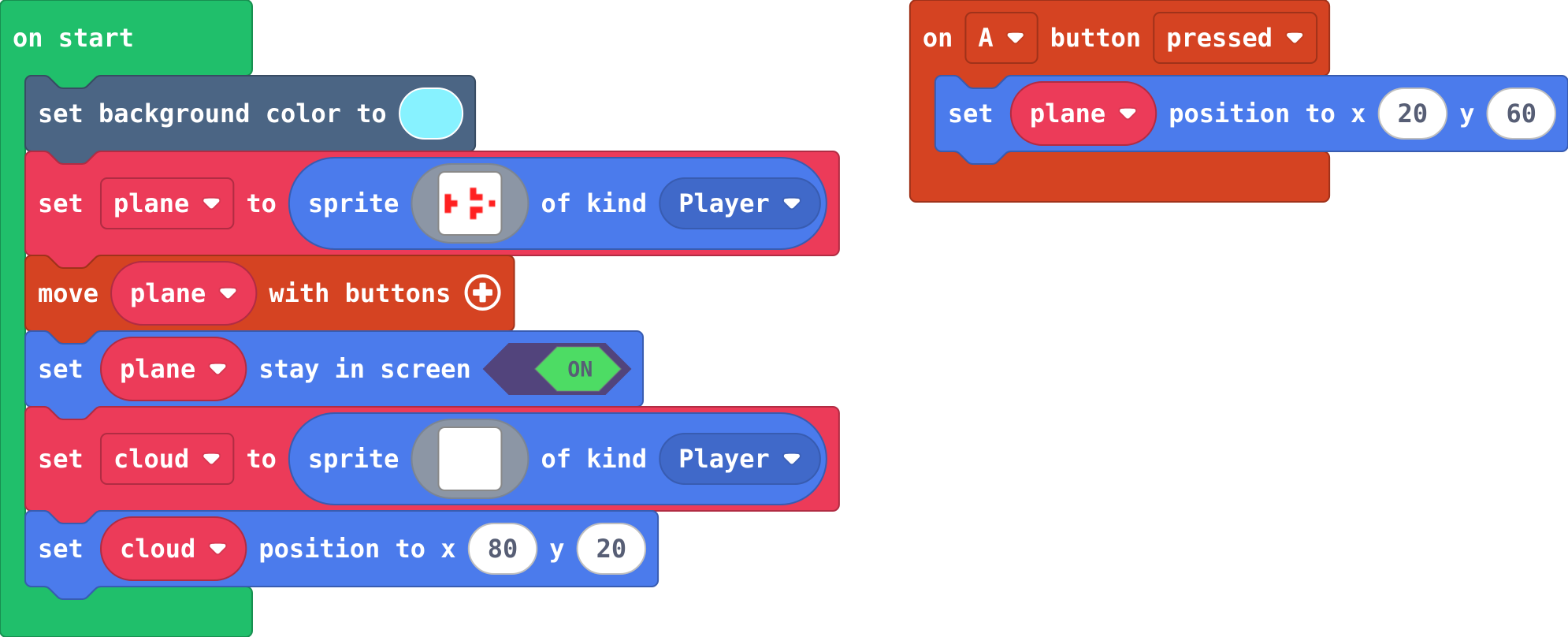
Show as code
scene.setBackgroundColor(9)
let plane = sprites.create(img`
    . . . . 2 . . .
    2 . . . 2 2 . .
    2 2 1 1 1 1 1 2
    2 . . . 2 2 . .
    . . . . 2 . . .
    `, SpriteKind.Player)
controller.moveSprite(plane)
plane.setStayInScreen(true)
let cloud = sprites.create(img`
    . . . 1 1 . . . . .
    . 1 1 1 1 1 . . . .
    1 1 1 1 1 1 1 1 1 .
    1 1 1 1 1 1 1 1 1 1
    . 1 1 1 1 1 1 1 1 .
    `, SpriteKind.Player)
cloud.setPosition(80, 20)
controller.A.onEvent(ControllerButtonEvent.Pressed, function () {
    plane.setPosition(20, 60)
})
Match each block with what it does to a sprite.
Modify
Make the plane fly left and right only, like a ship along the bottom of the screen.
Need a hint?
Click the + on the move plane with buttons block to show two speeds.
Another hint
The second number is the speed up and down. 0 means no up and down at all.
Add an event: each press of A dashes the plane 30 pixels to the right. Press it a few times.
Need a hint?
Drag in on A button pressed from Controller.
Another hint
From Sprites, drag change plane x by inside it, and make it 30.
Make the plane fly only left and right, not up and down.
This ticks by itself when your blocks do what is asked.
Make A dash the plane 30 pixels to the right, once per press.
This ticks by itself when your blocks do what is asked.
Make
Make a ship for a space game:
- it sits near the bottom of the screen
- the arrow keys move it left and right only
- it cannot leave the screen
Need a hint?
move with buttons is in Controller. Click + to show the two speeds.
Another hint
Across only: the second speed is 0. set stay in screen is in Sprites.
A ship along the bottom of the screen that moves only left and right, and cannot leave the screen.
This ticks by itself when your blocks do what is asked.
Change a goalkeeper
This goalkeeper guards a goal on the left. Make it move up and down only, a bit slower, and keep it on the screen.
For teachers
Students hand a sprite to the arrow keys with move with buttons, and see that its two numbers are speeds across and down, not a place. About 40 minutes.
Open the teacher guide: answers, solutions, slides and a worksheet.
Students will be able to
- I can let the player steer a sprite with the arrow keys.
- I can choose which way a sprite can move, and how fast.
- I can keep a sprite on the screen.
Before class
move with buttons (Controller) hands a sprite to the arrow keys: it moves while a key is held. Its two numbers (click + to show them) are the speeds across and up and down, in pixels per second; 0 stops movement that way. They are not a position. on A button pressed is an event: it runs each time A (space or Z) is pressed. Students must click the simulator before it hears keys.
Running the lesson
- Predict: some students read the numbers as a place (100, 0). Ask what happens while a key is held.
- Run: all four arrows. Up and down do nothing.
- Investigate: Kim's cloud shows that the block steers only the sprite it names.
- Modify: the dash changes x by 30: a position change, once per press.
- Make: speeds 100 and 0, plus stay in screen.
The hard part (on purpose)
Reading the two numbers as speeds, not a place. Ask what each number does while a key is held.
When students get stuck
- The arrow keys do nothing. Ask: Did you click the simulator? Is there a move with buttons block? Fix: Click once on the game screen so it hears the keyboard, and check move with buttons names the right sprite.
- The sprite flies off the edge. Ask: What stops it at the edge? Fix: Add set stay in screen for that sprite.
- The sprite moves up and down when it should not. Ask: Which number is the speed up and down? Fix: Click + on move with buttons; set the second number to 0.
Stretch and support
Stretch: Make A dash right and B dash left, and make the ship faster across than the plane was.
Support: Give students the ship with move with buttons already in, and ask them only to set the two speeds and keep it on the screen.
Where it leads
Next lesson: a speed the engine applies by itself, so a sprite keeps moving with nobody pressing anything.
What each step is for
- Investigate: move with buttons links the arrow keys to one sprite, and its two numbers are its speeds across and down: a speed of 0 means it cannot move that way.
- Modify: The two numbers set which way the player can move, and how fast. A position change in an event moves a sprite once per press.
- Let the player steer a sprite with the arrow keys.
- Choose which way a sprite can move, and how fast.
- Keep a sprite on the screen.