Speed
Students give sprites a velocity, and see that the engine keeps a sprite moving every frame until something changes it, while setting a position moves it once.
Classroom resources
Load these into Waypoints Prepare: choose Load URL and paste the copied address, or download the file and import it. In Prepare, the worksheet's Teacher edition shows the answers; the student copy hides them.
Students will be able to
- I can give a sprite a velocity so it moves by itself.
- I can make it bounce off the walls, and stop it.
- I can explain the difference between setting a position and setting a velocity.
Timing
Predict and Run 7 min · Investigate 10 min · Modify 8 min · Mix it up 3 min · Make 8 min · Conveyor belt 4 min
Before class
A position (x, y) is where a sprite is now. Setting it moves the sprite once. A velocity (vx across, vy down) is a speed in pixels per second: the game engine moves the sprite a little every frame (about 30 a second), and keeps doing it until something changes the velocity. So set velocity to 50, 0 does not mean "move 50 pixels"; it means "keep moving right at 50 pixels a second", off the edge if nothing stops it.
Running the lesson
- Predict: most students choose 'moves 50 pixels and stops'. The ball sailing off the screen is the lesson's surprise.
- Run: ask 'what would make it stop?' Nothing in the program changes the speed, so nothing does.
- Investigate: the number task connects speed and distance. Leo's rocket is the same idea as the Predict, inside an event.
- Modify: a slant needs both numbers. B sets the velocity to 0.
- Mix it up: screen positions, from lesson 1.
- Make: the cloud needs its own variable name.
In class
On the slides at these points. Students can do the whole lesson on their own; these are for the room. In the deck, the Run, Modify and Make slides have the live playground in them (the tutorial link is the backup), and the notes above are in each slide's speaker notes.
- Walk at a speed (investigate, 4 min)
One student walks across the room at 'one step a second' and keeps going until someone calls a new speed.
Nobody pushes them each step. That is what the engine does with a velocity.
The hard part (on purpose)
Position versus velocity: one sets where a sprite is, the other how it keeps moving. Ask which one the engine changes every frame.
When students get stuck
| What you will see | A question to ask | The fix |
|---|---|---|
| The sprite flies off the screen and is gone. | What stops it at the edge? | Add set bounce on wall (for a drifting sprite) or set stay in screen (for the player). |
| A press of A sends the sprite sliding away for ever. | Did you change its position or its velocity? | For a hop, change x (position). Changing vx changes its speed, which lasts until something sets it again. |
| The cloud does not move at all. | Which sprite does the set velocity block name? | Choose the cloud in the block's dropdown; it may still name the plane. |
Answers to the checks
- Predict: The ball's velocity is set to 50 across and 0 down. What does the ball do?
It keeps moving right and leaves the screen. A velocity is a speed (50 pixels every second), not a distance, so the engine keeps moving the ball until something changes the speed. - What does it do?: Match each block with what it does to a sprite.
set position → A. puts it at one place, once; set velocity → C. keeps it moving by itself, a little every frame; set bounce on wall → B. turns it back when it hits an edge - How far?: The cloud starts at x 80 with a velocity of 30 across. After 2 seconds, how many pixels has it moved?
60
A velocity of 30 means 30 pixels every second. In 2 seconds the engine moves it 30 + 30 = 60 pixels, a tiny step each frame. - Leo's rocket: Leo wants A to make his rocket hop 30 pixels to the right. He sets vx to 30 when A is pressed. What happens?
The rocket keeps sliding right, off the edge of the screen
vx is a speed, not a distance. Setting it to 30 starts the rocket moving 30 pixels every second, and nothing sets it back to 0. A hop changes the position: change x by 30. - Mix it up: The star is placed at (150, 20). Where does it appear?
Near the top right corner
x 150 is near the right edge (the screen is 160 across), and y 20 is near the top, because y counts down.
Solutions
One possible solution for each task. Other correct programs are fine.
Modify › A slant
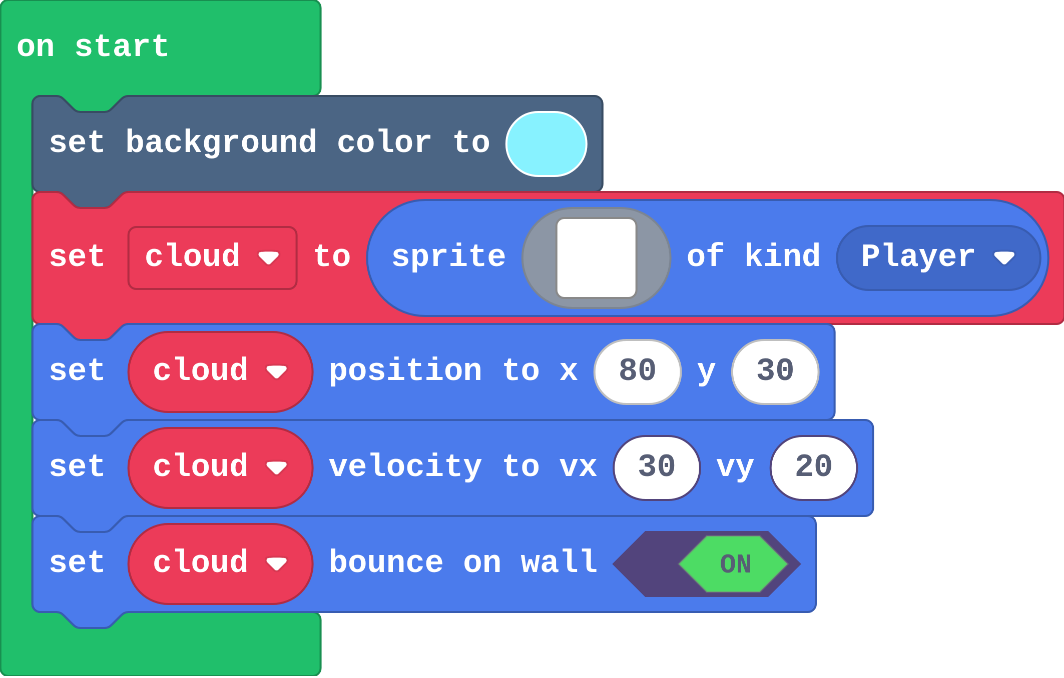
Show as code
scene.setBackgroundColor(9)
let cloud = sprites.create(img`
    . . . 1 1 . . . . .
    . 1 1 1 1 1 . . . .
    1 1 1 1 1 1 1 1 1 .
    1 1 1 1 1 1 1 1 1 1
    . 1 1 1 1 1 1 1 1 .
    `, SpriteKind.Player)
cloud.setPosition(80, 30)
cloud.setVelocity(30, 20)
cloud.setBounceOnWall(true)
Modify › Stop
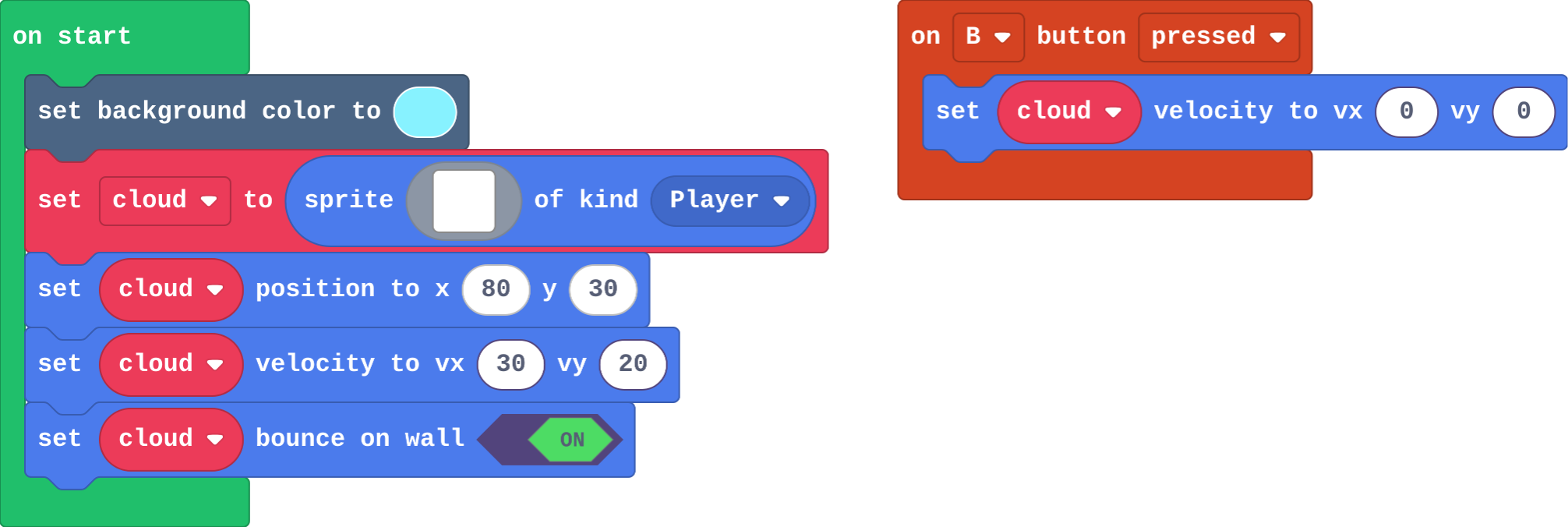
Show as code
scene.setBackgroundColor(9)
let cloud = sprites.create(img`
    . . . 1 1 . . . . .
    . 1 1 1 1 1 . . . .
    1 1 1 1 1 1 1 1 1 .
    1 1 1 1 1 1 1 1 1 1
    . 1 1 1 1 1 1 1 1 .
    `, SpriteKind.Player)
cloud.setPosition(80, 30)
cloud.setVelocity(30, 20)
cloud.setBounceOnWall(true)
controller.B.onEvent(ControllerButtonEvent.Pressed, function () {
    cloud.setVelocity(0, 0)
})
Make
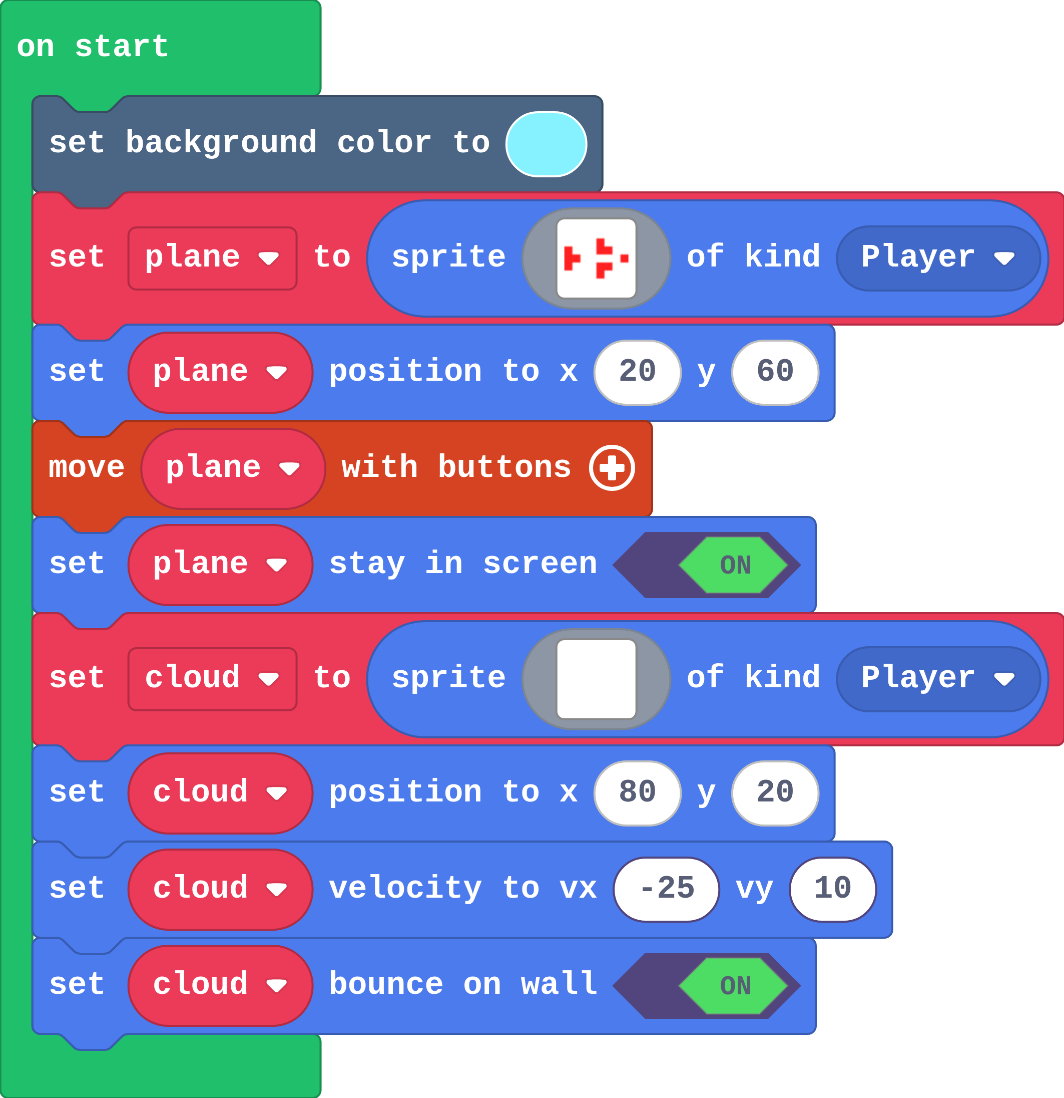
Show as code
scene.setBackgroundColor(9)
let plane = sprites.create(img`
    . . . . 2 . . .
    2 . . . 2 2 . .
    2 2 1 1 1 1 1 2
    2 . . . 2 2 . .
    . . . . 2 . . .
    `, SpriteKind.Player)
plane.setPosition(20, 60)
controller.moveSprite(plane)
plane.setStayInScreen(true)
let cloud = sprites.create(img`
    . . . 1 1 . . . . .
    . 1 1 1 1 1 . . . .
    1 1 1 1 1 1 1 1 1 .
    1 1 1 1 1 1 1 1 1 1
    . 1 1 1 1 1 1 1 1 .
    `, SpriteKind.Player)
cloud.setPosition(80, 20)
cloud.setVelocity(-25, 10)
cloud.setBounceOnWall(true)
Change a conveyor belt
Open task: any program that does what the step asks.
Stretch and support
Stretch: Give the cloud a velocity that changes on A (faster) and B (stop), and add a second cloud drifting the other way.
Support: Give students the cloud sprite already made, and ask them to add only set velocity and set bounce on wall.
Exit ticket
A sprite has vx set to 20. Will it move 20 pixels, or keep moving? Why?
It keeps moving. vx is a speed (20 pixels every second), and the engine moves the sprite every frame until something changes vx.
What each step is for
- Investigate: A velocity is a speed in pixels per second: the engine moves the sprite a little every frame, so it keeps moving until something changes the velocity. Setting a position moves it once.
- Modify: Both numbers of a velocity count: across and down together make a slant. Setting the velocity to 0 stops the engine moving it.
- Mix it up: x counts across from the left; y counts down from the top.
Where it leads
Next lesson sprites notice each other: an overlap event runs when the plane touches a cloud or a coin. Class idea: measure a sprite's speed with a stopwatch.