---
marp: true
theme: default
html: true
---

# Speed

Arcade Foundations · Sprites and movement

<!-- Speaker note: Students give sprites a velocity, and see that the engine keeps a sprite moving every frame until something changes it, while setting a position moves it once. About 40 minutes (Predict and Run 7 min · Investigate 10 min · Modify 8 min · Mix it up 3 min · Make 8 min · Conveyor belt 4 min). -->

---

## Today

**We are learning to** give a sprite a velocity, so the game engine keeps it moving by itself until something changes it.

- I can give a sprite a velocity so it moves by itself.
- I can make it bounce off the walls, and stop it.
- I can explain the difference between setting a position and setting a velocity.

<!-- Speaker note: Before class: A **position** (x, y) is where a sprite is **now**. Setting it moves the sprite once. A **velocity** (vx across, vy down) is a **speed in pixels per second**: the game engine moves the sprite a little every **frame** (about 30 a second), and keeps doing it until something changes the velocity. So *set velocity to 50, 0* does not mean "move 50 pixels"; it means "keep moving right at 50 pixels a second", off the edge if nothing stops it. Teacher: Mix it up: screen positions, from lesson 1. -->

---

## Why it matters

> A car in a racing game, a cloud drifting past, a ball in pong: none of them is pushed by hand every frame. The game is told a speed, and keeps them moving.

<!-- Speaker note: The plane moved only while you held a key. Many things in a game move with nobody pressing anything: clouds, cars, enemies. They have a **velocity**: a speed across (**vx**) and down (**vy**), in pixels per second. The **game engine** moves the sprite a little every **frame** (one redraw of the screen, about 30 times a second). -->

---

<span style="background:#dbeafe; color:#1a1a1a; border:1.5px solid #3b82f6; padding:6px 18px; border-radius:8px; font-size:1em; font-weight:500;">💬 Discussion</span>

## Predict

![h:290](https://studio.learningwaypoints.com/tutorials/_pictures/makecode/code/bd0877dbbd08.png?v=e8da5d5192867461)

**The ball's velocity is set to 50 across and 0 down. What does the ball do?**

- Moves 50 pixels right, then stops
- Keeps moving right, off the edge of the screen
- Jumps to x 50 and stays there
- Moves 50 pixels down, then stops

<!-- Speaker note: What happens: It keeps moving right and leaves the screen. A velocity is a speed (50 pixels every second), not a distance, so the engine keeps moving the ball until something changes the speed. Take two or three predictions before anyone runs it. -->

<!-- Speaker note: Teacher: most students choose 'moves 50 pixels and stops'. The ball sailing off the screen is the lesson's surprise. -->

---

<span style="background:#dcfce7; color:#1a1a1a; border:1.5px solid #22c55e; padding:6px 18px; border-radius:8px; font-size:1em; font-weight:500;">✅ Check</span>

## What happened?

* It keeps moving right and leaves the screen. A velocity is a speed (50 pixels every second), not a distance, so the engine keeps moving the ball until something changes the speed.

<!-- Speaker note: Reveal after running. Ask who predicted it, and what made them think so. -->

---

<span style="background:#fef3c7; color:#1a1a1a; border:1.5px solid #f59e0b; padding:6px 18px; border-radius:8px; font-size:1em; font-weight:500;">✍️ Activity</span>

## Run it

Open the lesson at this step and try it together.

[studio.learningwaypoints.com/tutorials/code/arcade/arcade-speed/?full=step-2#step-2](https://studio.learningwaypoints.com/tutorials/code/arcade/arcade-speed/?full=step-2#step-2)

<!-- Speaker note: Watch the ball. Press the restart button under the simulator to see it again. Students should be able to say: I watched the ball and compared it with my prediction. -->

<!-- Speaker note: Teacher: ask 'what would make it stop?' Nothing in the program changes the speed, so nothing does. -->

---

<span style="background:#dbeafe; color:#1a1a1a; border:1.5px solid #3b82f6; padding:6px 18px; border-radius:8px; font-size:1em; font-weight:500;">💬 Discussion</span>

## Investigate

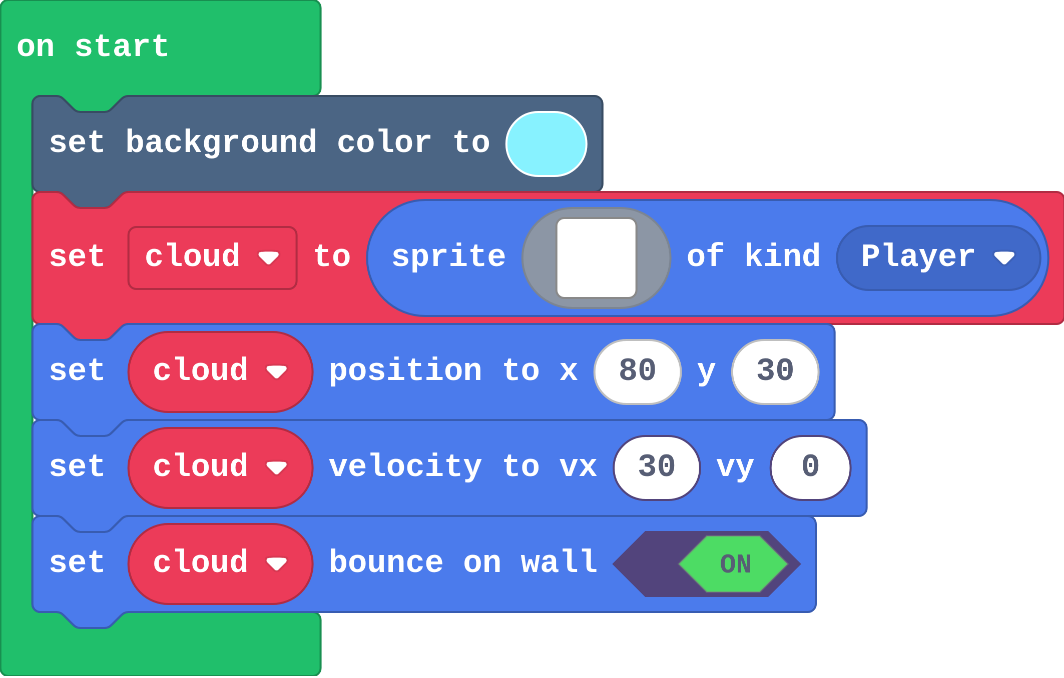
![h:338](https://studio.learningwaypoints.com/tutorials/_pictures/makecode/code/6fd861e9fc62.png?v=e2941ac7444fa6ec)

<!-- Speaker note: Watch the cloud drift and bounce. What this step is for: A velocity is a speed in pixels per second: the engine moves the sprite a little every frame, so it keeps moving until something changes the velocity. Setting a position moves it once. -->

<!-- Speaker note: Teacher: the number task connects speed and distance. Leo's rocket is the same idea as the Predict, inside an event. -->

---

<span style="background:#dcfce7; color:#1a1a1a; border:1.5px solid #22c55e; padding:6px 18px; border-radius:8px; font-size:1em; font-weight:500;">✅ Check</span>

## What does it do?

**Match each block with what it does to a sprite.**

| | |
|---|---|
| `set position` | A. turns it back when it hits an edge |
| `set velocity` | B. keeps it moving by itself, a little every frame |
| `set bounce on wall` | C. puts it at one place, once |

* Answer: set position → C. puts it at one place, once; set velocity → B. keeps it moving by itself, a little every frame; set bounce on wall → A. turns it back when it hits an edge

<!-- Speaker note:  -->

<style scoped>pre, marp-pre { font-size: 0.5em; line-height: 1.25; } section { font-size: 24px; }</style>

---

<span style="background:#dcfce7; color:#1a1a1a; border:1.5px solid #22c55e; padding:6px 18px; border-radius:8px; font-size:1em; font-weight:500;">✅ Check</span>

## How far?

**The cloud starts at x 80 with a velocity of 30 across. After 2 seconds, how many pixels has it moved?**

* Answer: 60

<!-- Speaker note: A velocity of 30 means 30 pixels every second. In 2 seconds the engine moves it 30 + 30 = 60 pixels, a tiny step each frame. -->

---

<span style="background:#dcfce7; color:#1a1a1a; border:1.5px solid #22c55e; padding:6px 18px; border-radius:8px; font-size:1em; font-weight:500;">✅ Check</span>

## Leo's rocket

Leo's event:

![h:128](https://studio.learningwaypoints.com/tutorials/_pictures/makecode/code/6a4a28478c56.png?v=9b920872bb173760)

**Leo wants A to make his rocket hop 30 pixels to the right. He sets vx to 30 when A is pressed. What happens?**

- Nothing: vx only works in on start
- The rocket hops 30 pixels and stops
- The rocket keeps sliding right, off the edge of the screen
- The rocket moves 30 pixels up

* Answer: The rocket keeps sliding right, off the edge of the screen

<!-- Speaker note: vx is a speed, not a distance. Setting it to 30 starts the rocket moving 30 pixels every second, and nothing sets it back to 0. A hop changes the position: change x by 30. -->

<style scoped>pre, marp-pre { font-size: 0.5em; line-height: 1.25; } section { font-size: 22px; }</style>

---

<span style="background:#fef3c7; color:#1a1a1a; border:1.5px solid #f59e0b; padding:6px 18px; border-radius:8px; font-size:1em; font-weight:500;">✍️ Activity</span>

## Walk at a speed <span style="font-size:.6em;color:#64748b">(4 min)</span>

One student walks across the room at 'one step a second' and keeps going until someone calls a new speed.

<!-- Speaker note: Nobody pushes them each step. That is what the engine does with a velocity. -->

---

<span style="background:#fef3c7; color:#1a1a1a; border:1.5px solid #f59e0b; padding:6px 18px; border-radius:8px; font-size:1em; font-weight:500;">✍️ Activity</span>

## Modify


- **A slant:** Give the cloud a speed **down** of 20 as well as 30 across. Watch it bounce off every wall.
- **Stop:** Make **B** (enter on the keyboard) stop the cloud.

[Open this step](https://studio.learningwaypoints.com/tutorials/code/arcade/arcade-speed/?full=step-4#step-4)

<!-- Speaker note: What this step is for: Both numbers of a velocity count: across and down together make a slant. Setting the velocity to 0 stops the engine moving it. Hints, in order: The second number in set velocity is the speed down. Make it 20. / Drag in on B button pressed from Controller. / Inside it: set cloud velocity to 0, 0. For students who need more support: Give students the cloud sprite already made, and ask them to add only set velocity and set bounce on wall. For early finishers: Give the cloud a velocity that changes on A (faster) and B (stop), and add a second cloud drifting the other way. The hard part, on purpose: Position versus velocity: one sets where a sprite is, the other how it keeps moving. Ask which one the engine changes every frame. When students get stuck: The sprite flies off the screen and is gone. Ask: What stops it at the edge? Fix: Add set bounce on wall (for a drifting sprite) or set stay in screen (for the player). / A press of A sends the sprite sliding away for ever. Ask: Did you change its position or its velocity? Fix: For a hop, change x (position). Changing vx changes its speed, which lasts until something sets it again. / The cloud does not move at all. Ask: Which sprite does the set velocity block name? Fix: Choose the cloud in the block's dropdown; it may still name the plane. -->

<!-- Speaker note: Teacher: a slant needs both numbers. B sets the velocity to 0. -->

---

<span style="background:#dbeafe; color:#1a1a1a; border:1.5px solid #3b82f6; padding:6px 18px; border-radius:8px; font-size:1em; font-weight:500;">💬 Discussion</span>

## Investigate: Mix it up

![h:242](https://studio.learningwaypoints.com/tutorials/_pictures/makecode/code/09d405f9b911.png?v=425fbbbc82aa2e0a)

<!-- Speaker note: What this step is for: x counts across from the left; y counts down from the top. -->

---

<span style="background:#dcfce7; color:#1a1a1a; border:1.5px solid #22c55e; padding:6px 18px; border-radius:8px; font-size:1em; font-weight:500;">✅ Check</span>

## Mix it up

**The star is placed at (150, 20). Where does it appear?**

- Near the bottom right corner
- Near the top right corner
- In the middle
- Near the top left corner

* Answer: Near the top right corner

<!-- Speaker note: x 150 is near the right edge (the screen is 160 across), and y 20 is near the top, because y counts down. What this step is for: x counts across from the left; y counts down from the top. -->

---

<span style="background:#fef3c7; color:#1a1a1a; border:1.5px solid #f59e0b; padding:6px 18px; border-radius:8px; font-size:1em; font-weight:500;">✍️ Activity</span>

## Make

Make a **sky game**:

- the player flies the **plane** with the arrow keys
- the plane **cannot leave** the screen
- a **cloud** drifts by itself and **bounces** off the walls

Try to fly through the cloud. (Nothing happens yet: next lesson sprites notice when they touch.)

[Open this step](https://studio.learningwaypoints.com/tutorials/code/arcade/arcade-speed/?full=step-6#step-6)

<!-- Speaker note: Hints, in order: Plane: move with buttons (Controller) and set stay in screen (Sprites). / Cloud: a new sprite with its own name, then set velocity and set bounce on wall (both in Sprites). / Give the cloud a velocity down as well as across, so it drifts at a slant and bounces off every wall. -->

<!-- Speaker note: Teacher: the cloud needs its own variable name. -->

---

<span style="background:#fef3c7; color:#1a1a1a; border:1.5px solid #f59e0b; padding:6px 18px; border-radius:8px; font-size:1em; font-weight:500;">✍️ Activity</span>

## Change a conveyor belt

This factory belt carries boxes to the right, and the worker moves along the floor. Make the belt run twice as fast, add a third box, then make **A** stop the belt by setting each box's vx to 0.

[Open this step](https://studio.learningwaypoints.com/tutorials/code/arcade/arcade-speed/?full=step-7#step-7)

---

<span style="background:#dcfce7; color:#1a1a1a; border:1.5px solid #22c55e; padding:6px 18px; border-radius:8px; font-size:1em; font-weight:500;">✅ Check</span>

## Exit ticket

**A sprite has vx set to 20. Will it move 20 pixels, or keep moving? Why?**

* It keeps moving. vx is a speed (20 pixels every second), and the engine moves the sprite every frame until something changes vx.

<!-- Speaker note: Students answer on paper or a mini whiteboard before the reveal. Anyone who cannot answer needs the main idea again next lesson. Where this leads: Next lesson sprites notice each other: an overlap event runs when the plane touches a cloud or a coin. Class idea: measure a sprite's speed with a stopwatch. -->