← Arcade Foundations

Arcade Foundations: recap

Answer each question in your head or on paper first, then check it.

Sprites and movement

1. Sprites on the screen

Try firstA sprite is at (80, 20). Is it near the top or near the bottom? How do you know?

Check your answer

Near the top. y counts down from the top edge, and 20 is small, so it is close to the top.

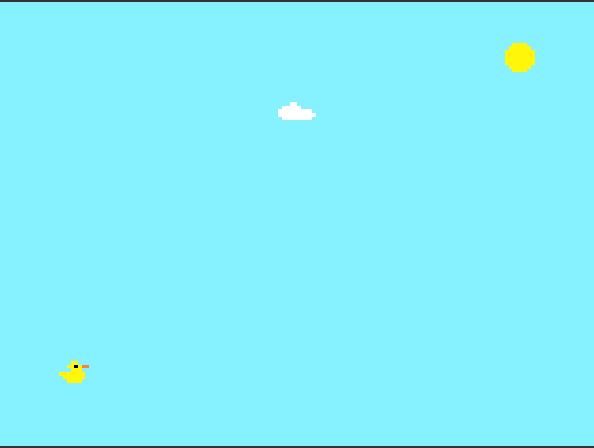
The screen is 160 pixels across and 120 down. A sprite's position is two numbers, (x, y):

  1. x counts across from the left edge.
  2. y counts down from the top edge.
  3. So (0, 0) is the top left corner, (80, 60) is the middle, and a bigger y is lower on the screen.
The program as blocks
Show as code
scene.setBackgroundColor(9)
let sun = sprites.create(img`
    . . 5 5 5 5 . .
    . 5 5 5 5 5 5 .
    5 5 5 5 5 5 5 5
    5 5 5 5 5 5 5 5
    5 5 5 5 5 5 5 5
    5 5 5 5 5 5 5 5
    . 5 5 5 5 5 5 .
    . . 5 5 5 5 . .
    `, SpriteKind.Player)
sun.setPosition(140, 15)
let cloud = sprites.create(img`
    . . . 1 1 . . . . .
    . 1 1 1 1 1 . . . .
    1 1 1 1 1 1 1 1 1 .
    1 1 1 1 1 1 1 1 1 1
    . 1 1 1 1 1 1 1 1 .
    `, SpriteKind.Player)
cloud.setPosition(80, 30)
let duck = sprites.create(img`
    . . . . . . . .
    . . . 5 5 . . .
    . . 5 5 f 5 4 4
    . . . 5 5 5 . .
    5 5 5 5 5 5 5 .
    . 5 5 5 5 5 5 .
    . . 5 5 5 5 . .
    . . . . . . . .
    `, SpriteKind.Player)
duck.setPosition(20, 100)
The example, as blocks
What this program shows in the game simulator
What it makes (a moment from the game)
The screen is 160 across and 120 down · Sound on for the voiceover
Open the lesson →

2. Move with the controller

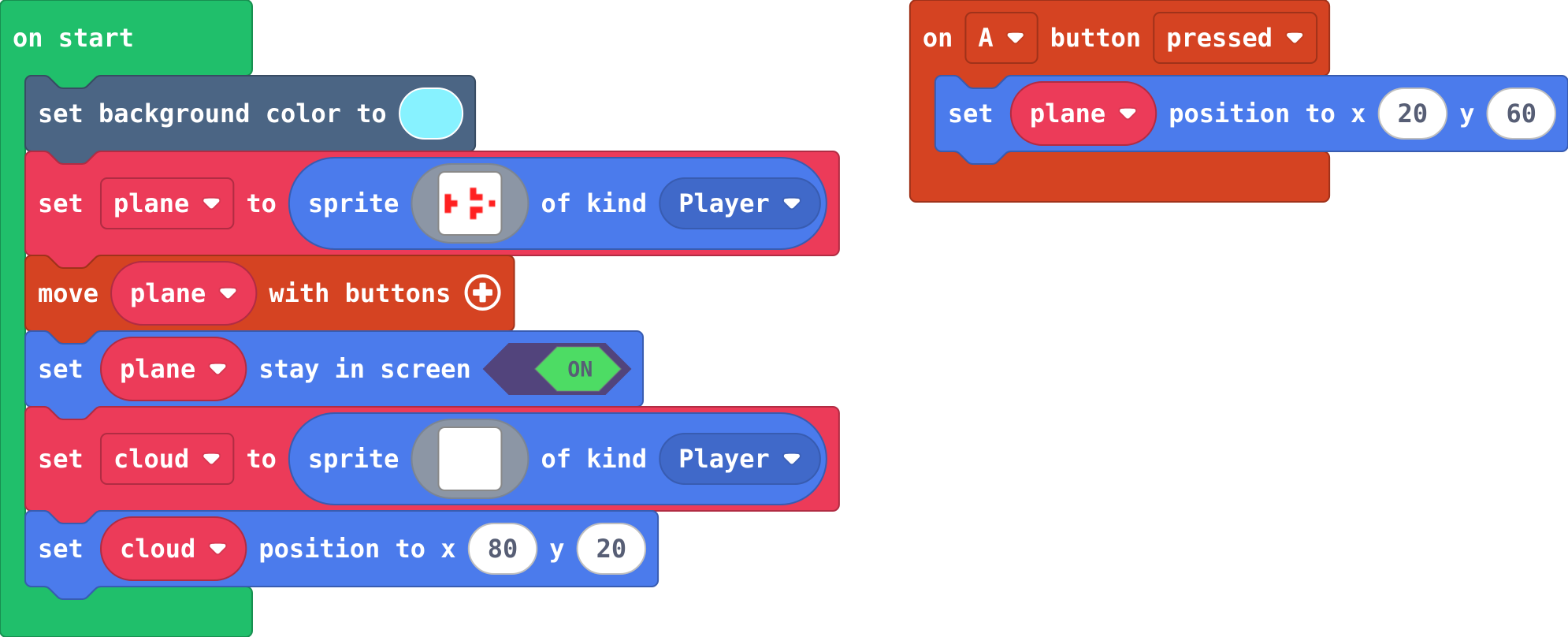
Try firstmove with buttons has speeds 0 and 80. Which arrow keys do something?

Check your answer

Only up and down. The first number, the speed across, is 0.

move with buttons hands a sprite to the arrow keys. It moves while a key is held, and stops when you let go.

Its two numbers are speeds: the first across, the second up and down, in pixels per second. A speed of 0 means it cannot move that way.

set stay in screen stops it at the edge.

The program as blocks
Show as code
scene.setBackgroundColor(9)
let plane = sprites.create(img`
    . . . . 2 . . .
    2 . . . 2 2 . .
    2 2 1 1 1 1 1 2
    2 . . . 2 2 . .
    . . . . 2 . . .
    `, SpriteKind.Player)
controller.moveSprite(plane)
plane.setStayInScreen(true)
let cloud = sprites.create(img`
    . . . 1 1 . . . . .
    . 1 1 1 1 1 . . . .
    1 1 1 1 1 1 1 1 1 .
    1 1 1 1 1 1 1 1 1 1
    . 1 1 1 1 1 1 1 1 .
    `, SpriteKind.Player)
cloud.setPosition(80, 20)
controller.A.onEvent(ControllerButtonEvent.Pressed, function () {
    plane.setPosition(20, 60)
})
The example, as blocks
What this program shows in the game simulator
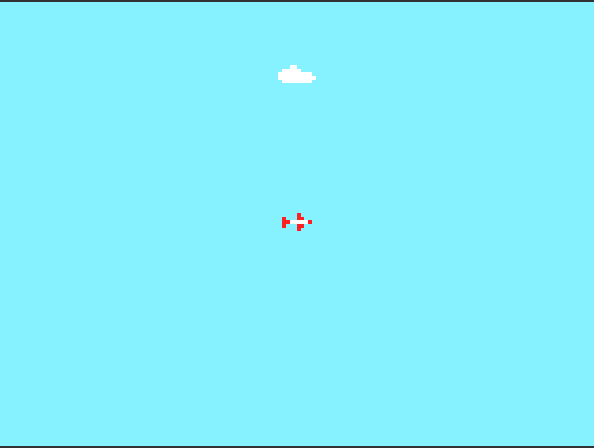
What it makes (a moment from the game)
move with buttons hands a sprite to the arrow keys · Sound on for the voiceover
Open the lesson →

3. Speed

Try firstA sprite has vx set to 20. Will it move 20 pixels, or keep moving? Why?

Check your answer

It keeps moving. vx is a speed (20 pixels every second), and the engine moves the sprite every frame until something changes vx.

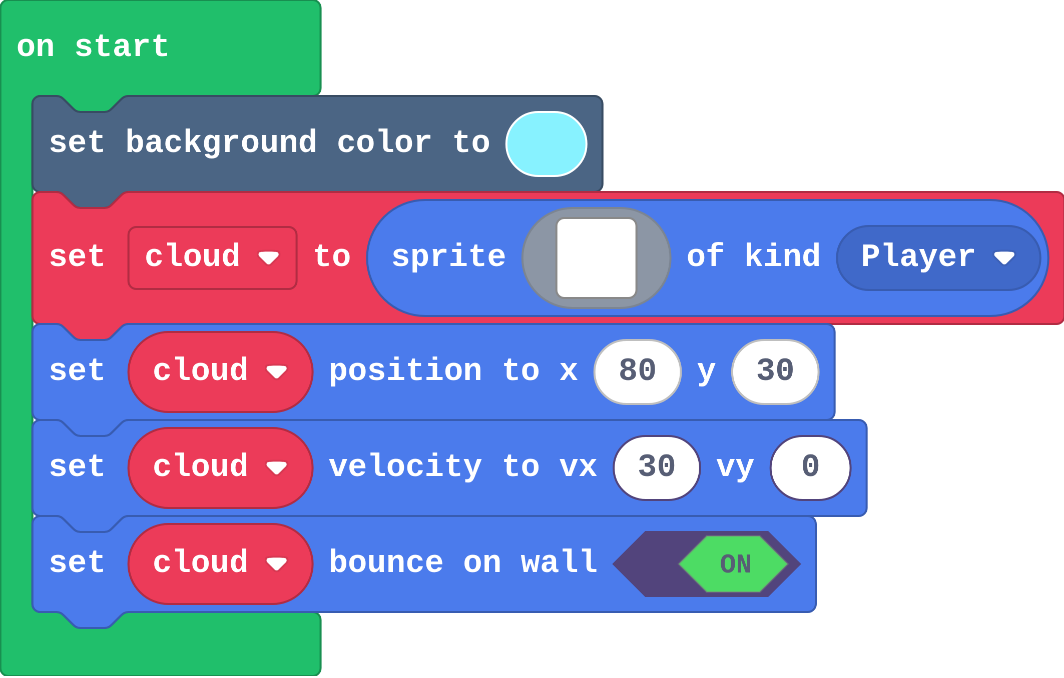
A sprite has a position and a velocity:

  1. Position (x, y) is where it is now. Setting it moves the sprite once.
  2. Velocity (vx, vy) is a speed, in pixels per second. The engine moves the sprite a little every frame, about 30 times a second.
  3. So a velocity keeps the sprite moving until something changes it: a new velocity, or a wall it bounces off.
The program as blocks
Show as code
scene.setBackgroundColor(9)
let cloud = sprites.create(img`
    . . . 1 1 . . . . .
    . 1 1 1 1 1 . . . .
    1 1 1 1 1 1 1 1 1 .
    1 1 1 1 1 1 1 1 1 1
    . 1 1 1 1 1 1 1 1 .
    `, SpriteKind.Player)
cloud.setPosition(80, 30)
cloud.setVelocity(30, 0)
cloud.setBounceOnWall(true)
The example, as blocks
What this program shows in the game simulator
What it makes (a moment from the game)
A sprite has a position and a velocity · Sound on for the voiceover
Open the lesson →

Collide and score

4. Overlaps and kinds

Try firstA coin is made of kind Player. The game has a Player–Food overlap event. Will touching the coin score? Why?

Check your answer

No. The event only runs when a Player touches a Food sprite. The coin is a Player, so no event runs. Change its kind to Food.

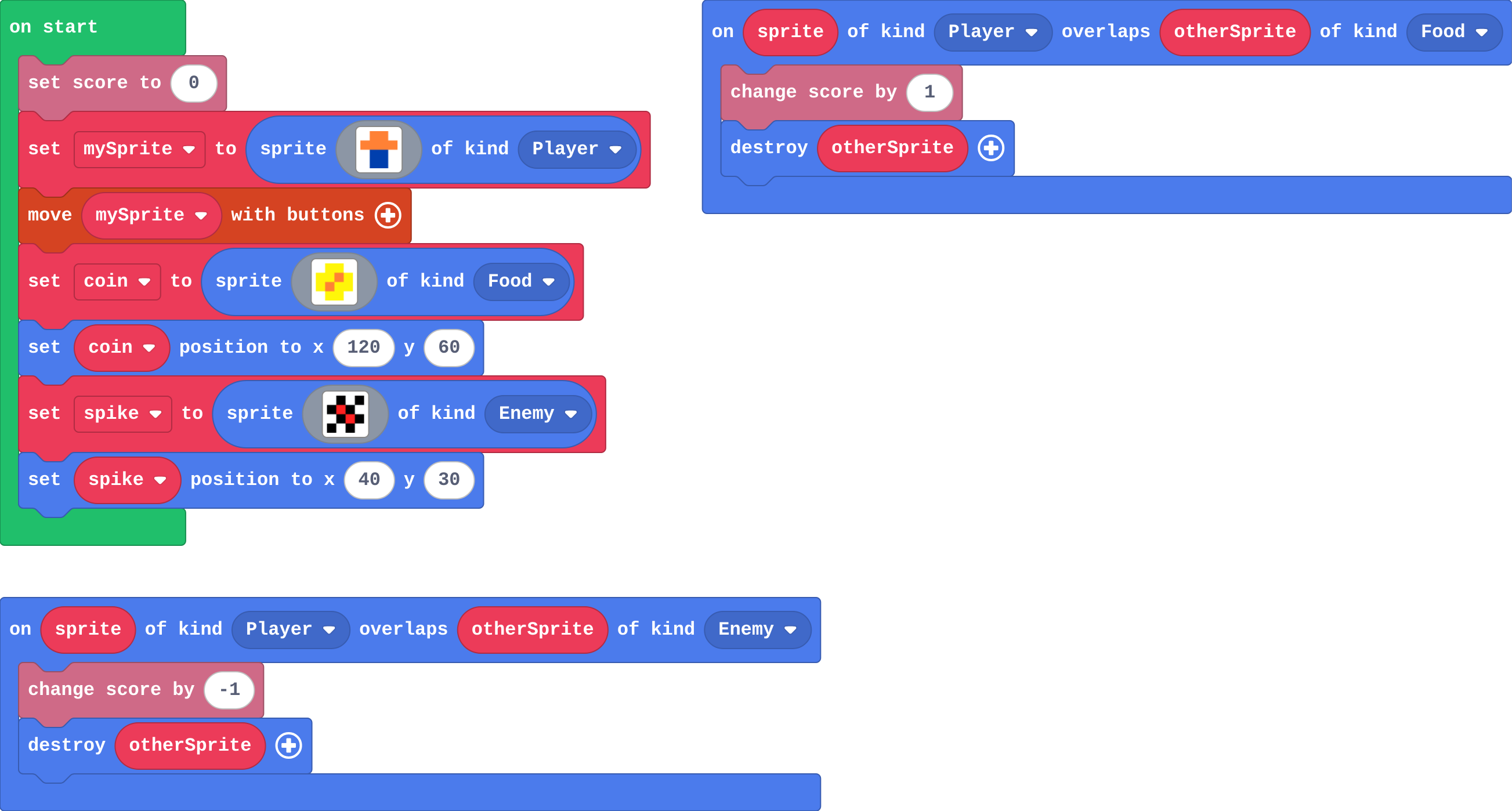
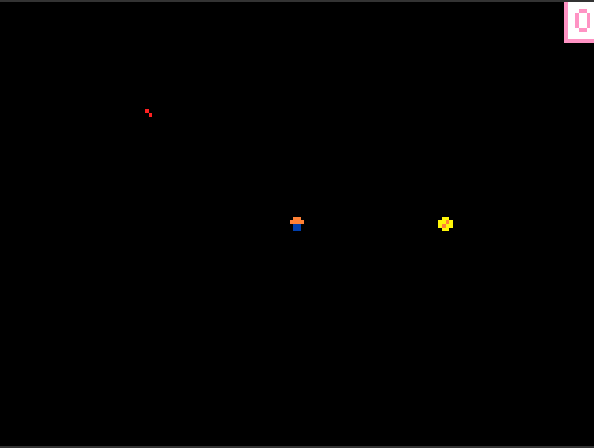
When two sprites touch, they overlap. An on overlap event names two kinds:

  1. It runs when a sprite of the first kind touches a sprite of the second kind, and for no other pair.
  2. Inside it, sprite is the first one and otherSprite the second.
  3. So the kind you choose when you create a sprite decides which overlap event its touches run.
The program as blocks
Show as code
info.setScore(0)
let mySprite = sprites.create(img`
    . 4 4 .
    4 4 4 4
    . 8 8 .
    . 8 8 .
    `, SpriteKind.Player)
controller.moveSprite(mySprite)
let coin = sprites.create(img`
    . 5 5 .
    5 5 4 5
    5 4 5 5
    . 5 5 .
    `, SpriteKind.Food)
coin.setPosition(120, 60)
let spike = sprites.create(img`
    . f . f
    f 2 f .
    . f 2 f
    f . f .
    `, SpriteKind.Enemy)
spike.setPosition(40, 30)
sprites.onOverlap(SpriteKind.Player, SpriteKind.Food, function (sprite, otherSprite) {
    info.changeScoreBy(1)
    otherSprite.destroy()
})
sprites.onOverlap(SpriteKind.Player, SpriteKind.Enemy, function (sprite, otherSprite) {
    info.changeScoreBy(-1)
    otherSprite.destroy()
})
The example, as blocks
What this program shows in the game simulator
What it makes (a moment from the game)
When two sprites touch, they overlap · Sound on for the voiceover
Open the lesson →

5. Score and lives

Try firstIn a dodge game one touch takes all three lives. What one block is missing, and why does it matter?

Check your answer

destroy otherSprite in the Player–Enemy overlap. The overlap runs every frame while the sprites touch, so without it the same enemy takes a life each frame.

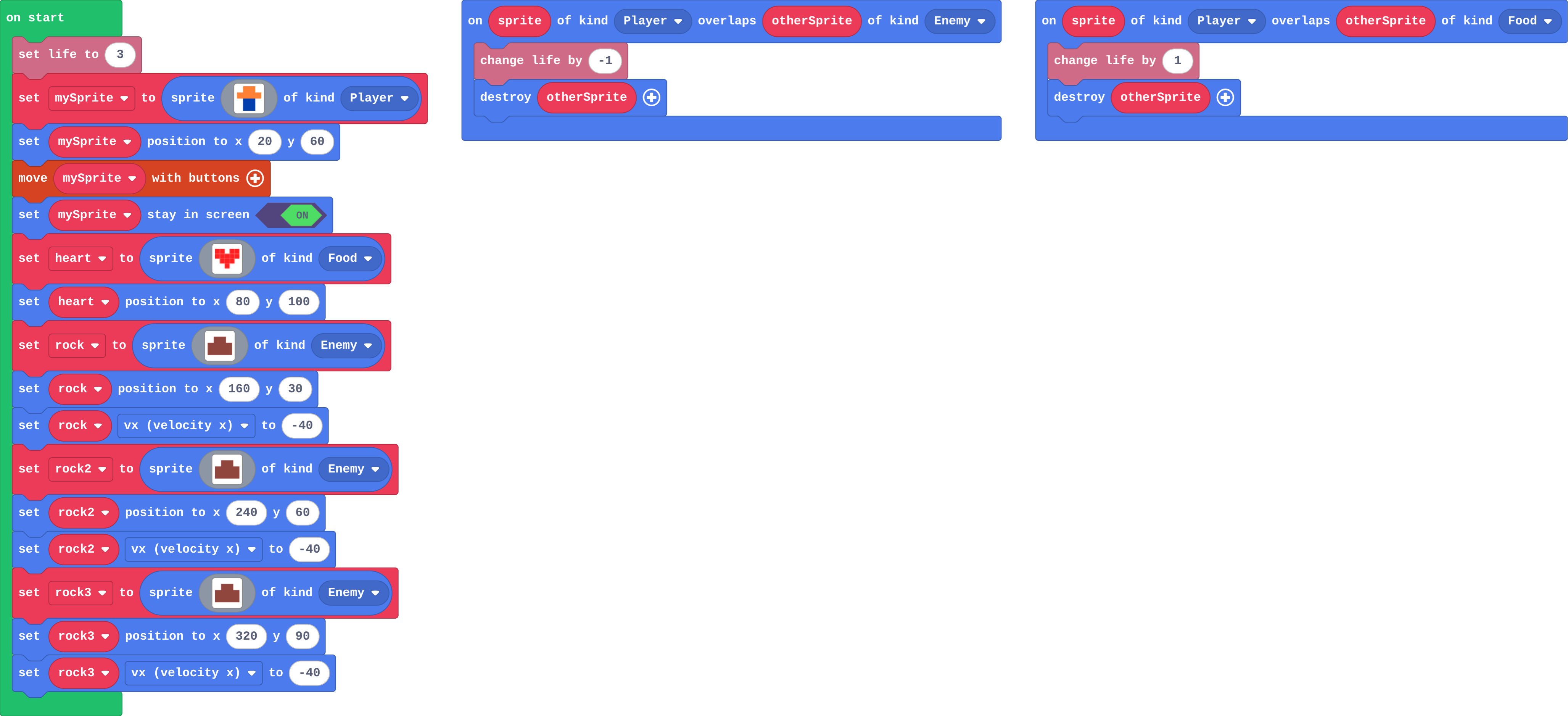
The Info blocks keep score and lives:

  1. set life shows hearts, and when the lives reach 0 the engine ends the game by itself.
  2. An overlap runs every frame while two sprites touch.
  3. So destroy the enemy (or move it) when it hits, or one touch takes every life.
The program as blocks
Show as code
info.setLife(3)
let mySprite = sprites.create(img`
    . 4 4 .
    4 4 4 4
    . 8 8 .
    . 8 8 .
    `, SpriteKind.Player)
mySprite.setPosition(20, 60)
controller.moveSprite(mySprite)
mySprite.setStayInScreen(true)
let heart = sprites.create(img`
    2 2 . 2 2
    2 2 2 2 2
    . 2 2 2 .
    . . 2 . .
    `, SpriteKind.Food)
heart.setPosition(80, 100)
let rock = sprites.create(img`
    . e e .
    e e e e
    e e e e
    `, SpriteKind.Enemy)
rock.setPosition(160, 30)
rock.vx = -40
let rock2 = sprites.create(img`
    . e e .
    e e e e
    e e e e
    `, SpriteKind.Enemy)
rock2.setPosition(240, 60)
rock2.vx = -40
let rock3 = sprites.create(img`
    . e e .
    e e e e
    e e e e
    `, SpriteKind.Enemy)
rock3.setPosition(320, 90)
rock3.vx = -40
sprites.onOverlap(SpriteKind.Player, SpriteKind.Enemy, function (sprite, otherSprite) {
    info.changeLifeBy(-1)
    otherSprite.destroy()
})
sprites.onOverlap(SpriteKind.Player, SpriteKind.Food, function (sprite, otherSprite) {
    info.changeLifeBy(1)
    otherSprite.destroy()
})
The example, as blocks
What this program shows in the game simulator
What it makes (a moment from the game)
Info keeps score and lives for you · Sound on for the voiceover
Open the lesson →

6. Timers

Try firstA timer runs every 2000 ms and makes one enemy each time. How many enemies after 10 seconds?

Check your answer

5. It runs once every two seconds.

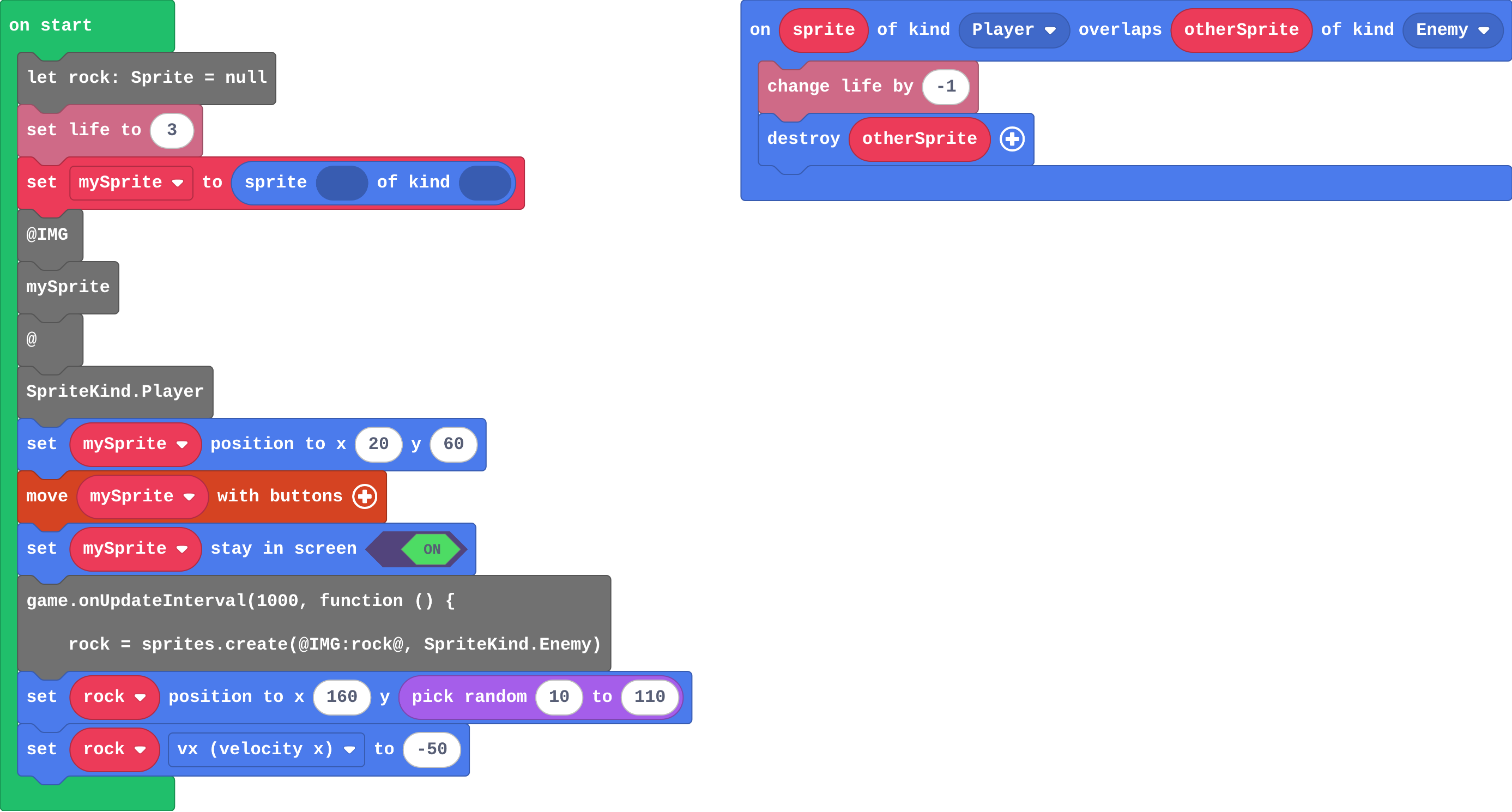
on game update every 1000 ms is a timer: it runs its blocks again every second, for as long as the game lasts. So it can make a new enemy each time.

A smaller number means more often: every 500 ms is twice a second.

pick random gives a new number each time it runs. Inside the timer, each rock gets its own height.

The program as blocks
Show as code
let rock: Sprite = null
info.setLife(3)
let mySprite = sprites.create(@IMG:mySprite@, SpriteKind.Player)
mySprite.setPosition(20, 60)
controller.moveSprite(mySprite)
mySprite.setStayInScreen(true)
game.onUpdateInterval(1000, function () {
    rock = sprites.create(@IMG:rock@, SpriteKind.Enemy)
    rock.setPosition(160, randint(10, 110))
    rock.vx = -50
})
sprites.onOverlap(SpriteKind.Player, SpriteKind.Enemy, function (sprite, otherSprite) {
    info.changeLifeBy(-1)
    otherSprite.destroy()
})
The example, as blocks
A timer runs its blocks again and again · Sound on for the voiceover
Open the lesson →

Decide

7. If, every frame

Try firstWhy does an if that checks 'player x > 150' work in on game update but not in on start?

Check your answer

on game update runs every frame, so the question keeps being asked while the player moves. on start runs once, before the game begins, so the question is asked one time and never again.

An if runs its blocks only when its question is true. Where you put it decides when it is asked:

  1. on start: once, before the game begins.
  2. on game update: every frame, about 30 times a second, for as long as the game runs.

So to keep checking something (has the car gone off the edge?), put the if in on game update.

The program as blocks
Show as code
scene.setBackgroundColor(7)
let car = sprites.create(img`
    . . 2 2 2 2 . .
    . 2 9 9 2 9 2 .
    2 2 2 2 2 2 2 2
    . f . . . . f .
    `, SpriteKind.Player)
car.setPosition(10, 60)
car.vx = 50
game.onUpdate(function () {
    if (car.x > 160) {
        car.x = 0
    }
})
The example, as blocks
What this program shows in the game simulator
What it makes (a moment from the game)
An if runs only when its question is true · Sound on for the voiceover
Open the lesson →

8. Else and chasing

Try firstAn enemy is at x 100 and the player is at x 30. Should the enemy's vx be positive or negative to chase? Why?

Check your answer

Negative. The player has a smaller x, so it is to the left, and a negative vx moves the enemy left.

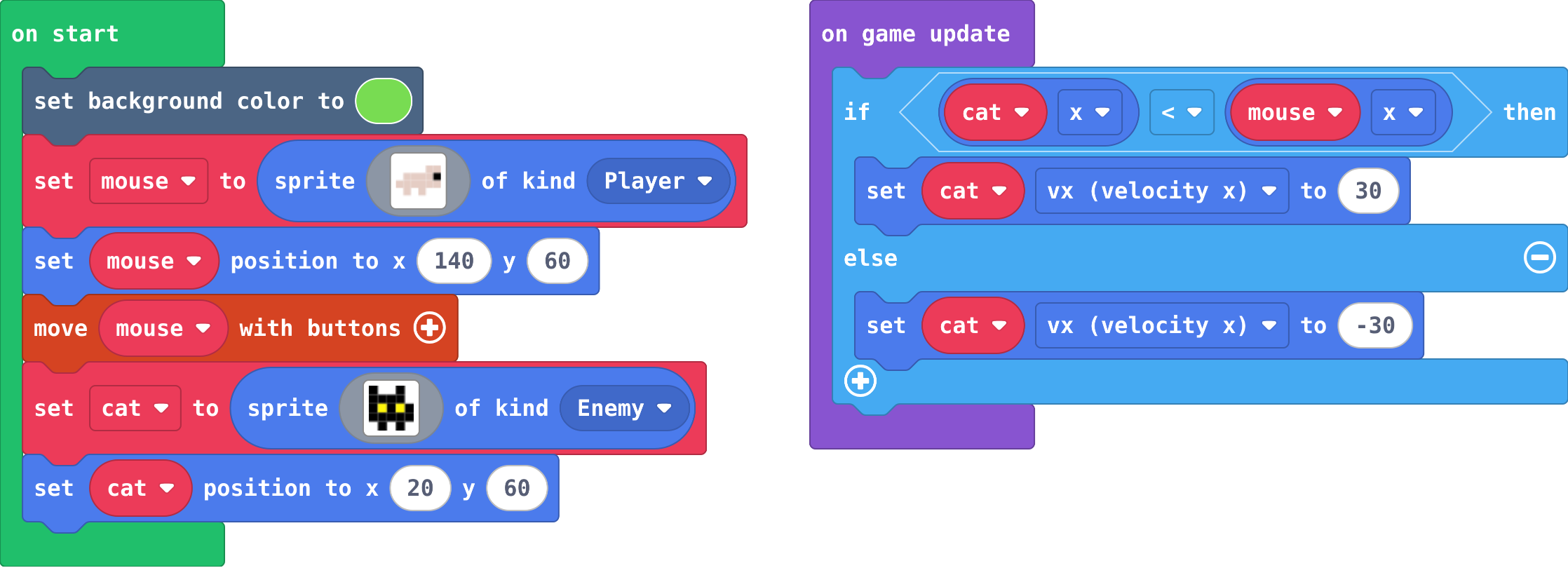
To chase, the enemy compares its position with the player's, every frame:

  1. if enemy x < player x, the player is to the right: set vx to a positive number.
  2. else, set vx to a negative number (go left).
  3. Do the same with y and vy for up and down.

if … else always runs exactly one part. The follow block does all of this steering for you.

The program as blocks
Show as code
scene.setBackgroundColor(7)
let mouse = sprites.create(img`
    . . . . d d
    . d d d d f
    d d d d d d
    . d . d . .
    `, SpriteKind.Player)
mouse.setPosition(140, 60)
controller.moveSprite(mouse)
let cat = sprites.create(img`
    f . . f .
    f f f f .
    f 5 f 5 f
    f f f f f
    . f . f .
    `, SpriteKind.Enemy)
cat.setPosition(20, 60)
game.onUpdate(function () {
    if (cat.x < mouse.x) {
        cat.vx = 30
    } else {
        cat.vx = -30
    }
})
The example, as blocks
What this program shows in the game simulator
What it makes (a moment from the game)
The enemy compares its position with the player's · Sound on for the voiceover
Open the lesson →

Fire

9. Projectiles

Try firstA shot hits an alien, but the game has only a Player–Enemy overlap event. What happens, and why?

Check your answer

Nothing. The shot is of kind Projectile, so a Player–Enemy event never runs for it.

A projectile is fired from a sprite, with its own speed. It is its own kind: Projectile.

So a hit is a Projectile–Enemy overlap, and a crash is a Player–Enemy overlap: two pairs of kinds, two events.

The engine removes a projectile when it leaves the screen.

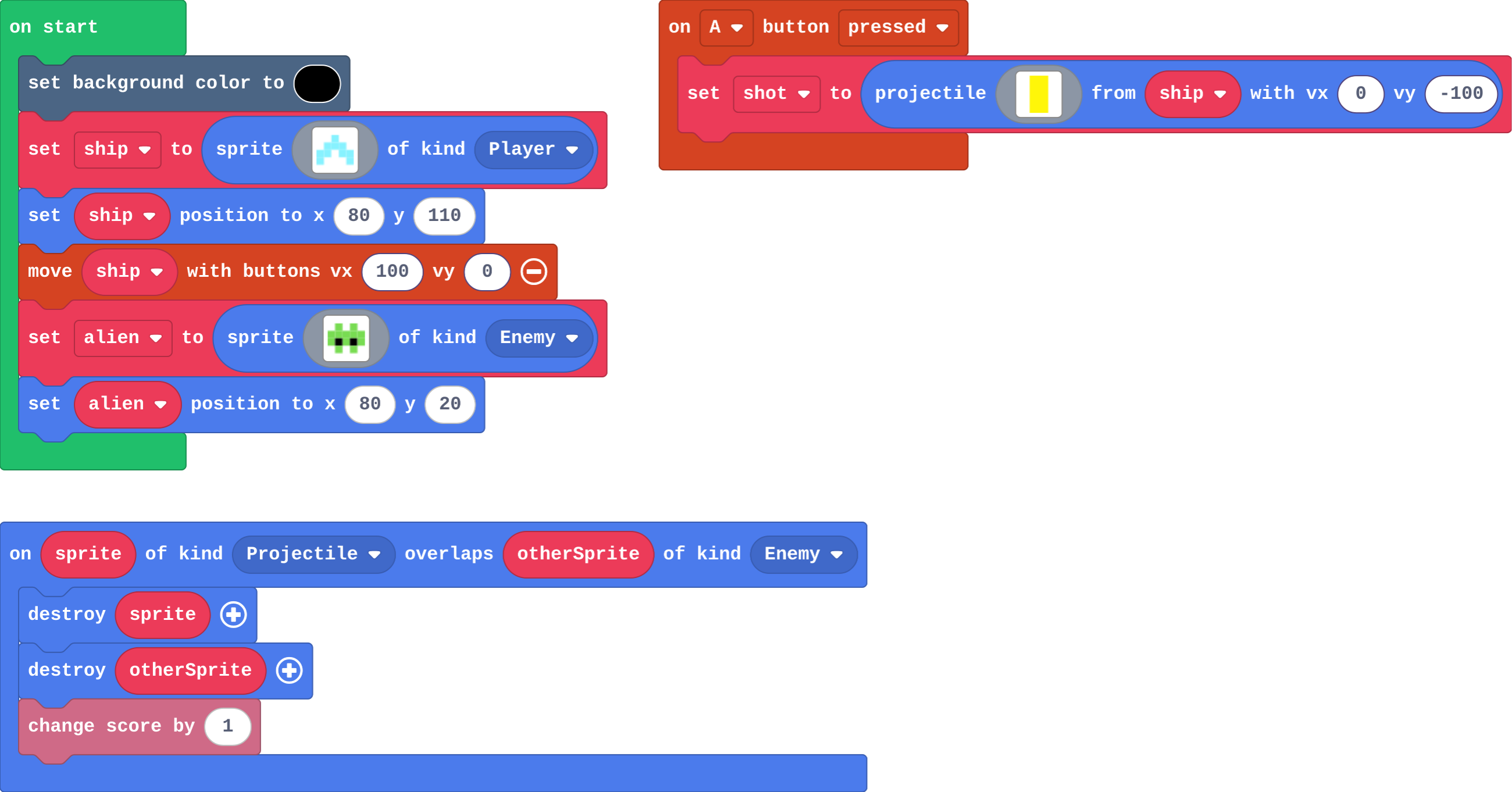
The program as blocks
Show as code
scene.setBackgroundColor(15)
let ship = sprites.create(img`
    . . 9 . .
    . 9 9 9 .
    9 9 1 9 9
    9 . . . 9
    `, SpriteKind.Player)
ship.setPosition(80, 110)
controller.moveSprite(ship, 100, 0)
let alien = sprites.create(img`
    . 7 . 7 .
    7 7 7 7 7
    7 f 7 f 7
    . 7 . 7 .
    `, SpriteKind.Enemy)
alien.setPosition(80, 20)
controller.A.onEvent(ControllerButtonEvent.Pressed, function () {
    let shot = sprites.createProjectileFromSprite(img`
        5
        5
        `, ship, 0, -100)
})
sprites.onOverlap(SpriteKind.Projectile, SpriteKind.Enemy, function (sprite, otherSprite) {
    sprite.destroy()
    otherSprite.destroy()
    info.changeScoreBy(1)
})
The example, as blocks
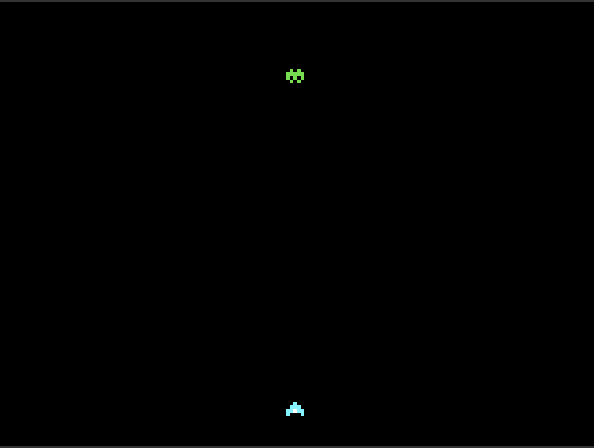
What this program shows in the game simulator
What it makes (a moment from the game)
A projectile is its own kind · Sound on for the voiceover
Open the lesson →

10. Read a game

Try firstIn Garden defender, which block would you change to give the player 5 lives at the start?

Check your answer

set life to 3, in on start: change 3 to 5.

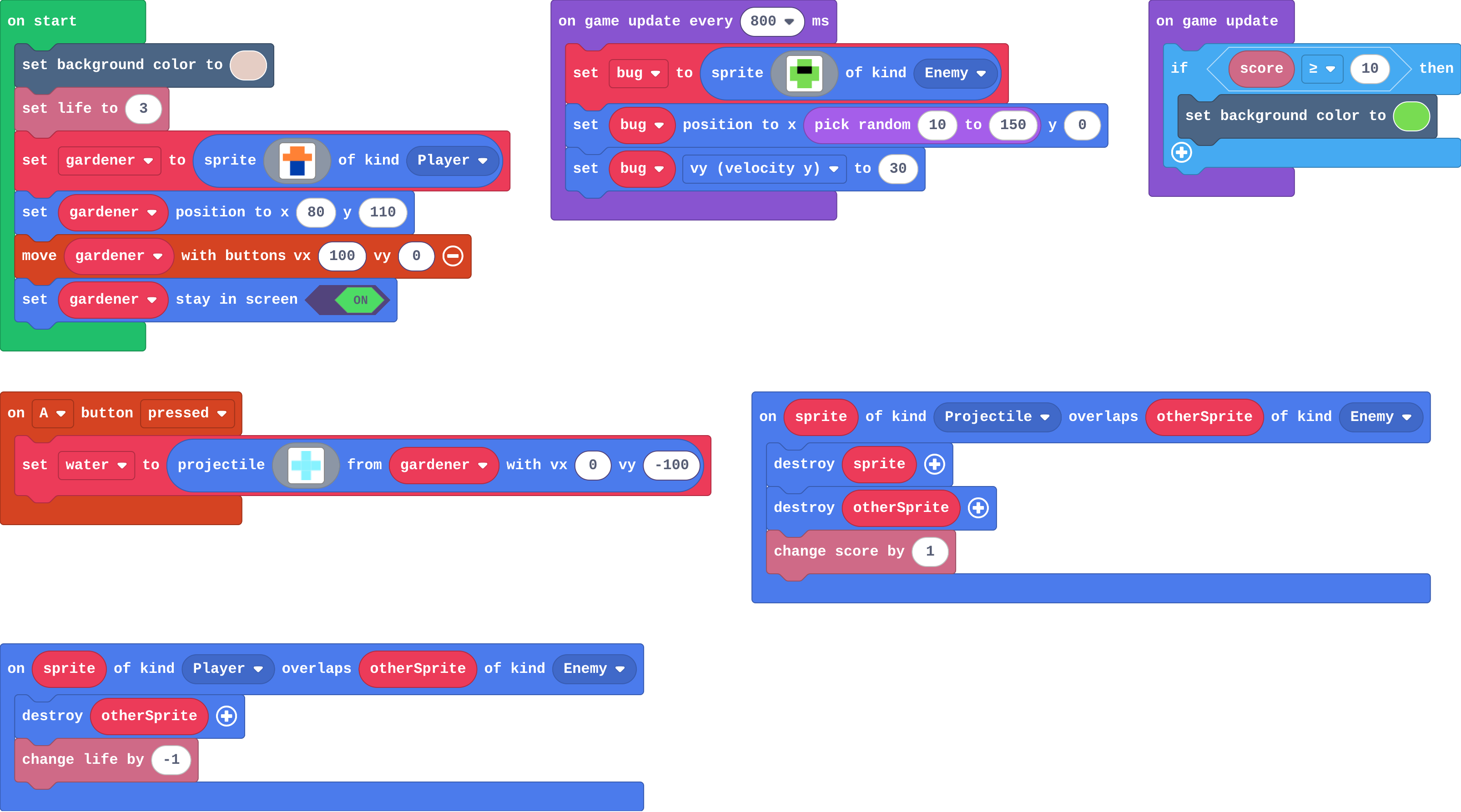
A game is a set of jobs, and each job is done by its own blocks: a timer makes enemies, the controller moves the player, overlaps decide what touches mean, on game update checks things every frame.

To change a rule, first find the blocks for that job, then change only those.

The program as blocks
Show as code
let bug: Sprite = null
scene.setBackgroundColor(13)
info.setLife(3)
let gardener = sprites.create(img`
    . 4 4 .
    4 4 4 4
    . 8 8 .
    . 8 8 .
    `, SpriteKind.Player)
gardener.setPosition(80, 110)
controller.moveSprite(gardener, 100, 0)
gardener.setStayInScreen(true)
controller.A.onEvent(ControllerButtonEvent.Pressed, function () {
    let water = sprites.createProjectileFromSprite(img`
        . 9 .
        9 9 9
        . 9 .
        `, gardener, 0, -100)
})
game.onUpdateInterval(800, function () {
    bug = sprites.create(img`
        . 7 7 .
        7 f f 7
        7 7 7 7
        . 7 7 .
        `, SpriteKind.Enemy)
    bug.setPosition(randint(10, 150), 0)
    bug.vy = 30
})
sprites.onOverlap(SpriteKind.Projectile, SpriteKind.Enemy, function (sprite, otherSprite) {
    sprite.destroy()
    otherSprite.destroy()
    info.changeScoreBy(1)
})
sprites.onOverlap(SpriteKind.Player, SpriteKind.Enemy, function (sprite, otherSprite) {
    otherSprite.destroy()
    info.changeLifeBy(-1)
})
game.onUpdate(function () {
    if (info.score() >= 10) {
        scene.setBackgroundColor(7)
    }
})
The example, as blocks
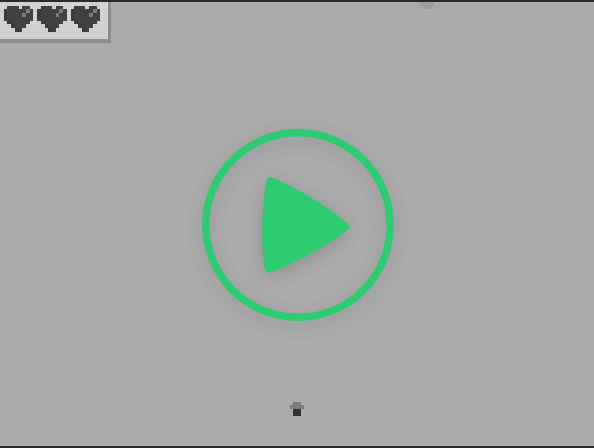
What this program shows in the game simulator
What it makes (a moment from the game)
Every block in a game has one job · Sound on for the voiceover
Open the lesson →

Final challenge: Space dodger

11. Space dodger

Try firstWhy must the rock be destroyed inside the overlap event?

Check your answer

The overlap event runs every frame the two sprites touch. Destroying the rock makes it touch once, so a hit costs one life, not all of them.

The game is four building blocks working together:

  1. A timer makes a rock every second at the right edge, at a random height.
  2. Velocity (vx −50) carries each rock left; auto destroy removes it once it leaves the screen.
  3. An overlap between Player and Enemy destroys the rock and takes a life.
  4. A second timer adds 1 to the score every second; the high score keeps your best.
The program as blocks
Show as code
let rock: Sprite = null
scene.setBackgroundColor(15)
let ship = sprites.create(img`
    8 8 . . . . . .
    8 9 9 9 9 . . .
    8 9 1 1 9 9 9 9
    8 9 9 9 9 . . .
    8 8 . . . . . .
    `, SpriteKind.Player)
ship.setPosition(20, 60)
controller.moveSprite(ship, 0, 100)
ship.setStayInScreen(true)
game.onUpdateInterval(1000, function () {
    rock = sprites.create(img`
        . e e e .
        e e d e e
        e d e e e
        . e e e .
        `, SpriteKind.Enemy)
    rock.setPosition(160, 60)
    rock.vx = -50
})
The example, as blocks
What this program shows in the game simulator
What it makes (a moment from the game)
The game is four building blocks working together · Sound on for the voiceover
Open the lesson →