Forms
Build a form from linked labels, boxes and a button, and find out that a form collects answers but does nothing with them on its own.
Every sign-up, search box, quiz and online order starts as a form like this.
A form collects what people type. Each field is a label that says what to type and a box to type in, and a button is for sending the answers.
- Predict: Read the code and say what it will do before you run anything. A wrong guess is fine: it shows you what to look for.
- Run: Run it and compare the result with your prediction.
- Investigate: Trace how each line of code connects to what you see.
- Modify: Change the code on purpose and check the result.
- Make: Build something new using what you have learned. Expect a few tries; that is normal.
Make your prediction first. Help opens once you've locked it in.
Predict
<form>
  <p><label for="name">Name</label>
  <input id="name" type="text"></p>
  <button>Send</button>
</form>
<form>, <label>, <input> and <button> are new. Read the code. What happens when someone presses Send?
Run
Type a name and press Send: a note says nothing was sent. Then click the word Name: the cursor jumps into the box, because the label is linked to it.
| Code | What it does | Why |
|---|---|---|
<form> … </form> |
Holds the fields and the button | Everything people fill in goes inside one form |
<p> around a label and its box |
Puts them together on their own line | Each <p> starts a new line, as in the first lesson |
<label for="name">Name</label> |
The words that say what to type | for names the box this label belongs to |
<input id="name" type="text"> |
A box to type in | Its id matches the label's for, so clicking the label finds this box. It has no closing tag, and type sets the kind of box |
<button>Send</button> |
A button to press | Pressing it only shows a note. Code behind the form would have to collect the answers and do something with them |
<form>
  <p><label for="name">Name</label>
  <input id="name" type="text"></p>
  <button>Send</button>
</form>
Investigate
The picture shows this form: each label and its box share a line, the drop-down is a list of choices, and the button is last.
<form>
  <p><label for="name">Name</label>
  <input id="name" type="text"></p>
  <p><label for="email">Email</label>
  <input id="email" type="email"></p>
  <p><label for="house">House</label>
  <select id="house">
    <option>Owls</option>
    <option>Hawks</option>
  </select></p>
  <button>Send</button>
</form>

What does each part of the form do?
What joins a label to its box?
One label is not linked to its box. Test each label by clicking it.
Match each part with its job.
Clicking Name puts the cursor in its box, but clicking Email does nothing, and there is no error. Click the line that breaks the link.
Modify
Add an email field with a label linked to it.
Need a hint?
Copy the Name paragraph, then change the words, the for, the id and the type.
Another hint
<label for="email">Email</label> and <input id="email" type="email">, inside their own <p>.
Show the expected result

Add a House drop-down (Owls, Hawks, Kestrels) with a linked label.
Need a hint?
A drop-down is a <select> with one <option> for each choice. Its label links to it the same way as the other fields.
Another hint
A <label for="house">, then <select id="house"> with an <option> for each house, in their own <p>.
Show the expected result

Click each label in the preview. If the cursor does not jump, compare its for with the box's id.
Add an email box with a linked label.
This ticks when your page has all of the above.
Add a house drop-down with a linked label.
This ticks when your page has all of the above.
Mix it up
Click each label in this sign-up form and see where the cursor goes. Fix what you find, then make the Join button stand out with a colour of your choice.
<style>
  h2 {
    color: navy;
  }
</style>
<h2>Bring a friend</h2>
<form>
  <p><label for="name">Your name</label>
  <input id="name" type="text"></p>
  <p><label for="friend">Friend's name</label>
  <input id="name" type="text"></p>
  <button>Join</button>
</form>
Need a hint?
Click each label. Which box does the cursor go to?
Another hint
Every id names one element. Give the second box the id its label asks for.
Another hint
To colour only the button, give it a class, then write a rule with a dot for that class.
Show the expected result
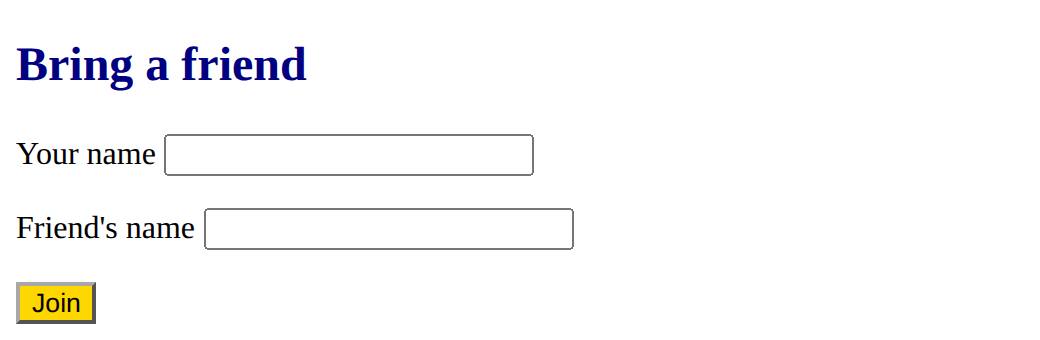
Link Friend's name to its own box, and colour the Join button with a class.
This ticks when your page has all of the above.
Make
Make a sign-up form for a school club or event: a heading, at least two labelled fields (one a drop-down), and a button. Click every label to check it is linked.
Need a hint?
Plan the fields first: what does the club need to know?
Another hint
Every label needs a for that matches its box's id, and each label and box goes in a <p>. Click each label to test it.
Show the expected result

Make a sign-up form with linked labels, a drop-down and a button.
This ticks when your page has all of the above.
For teachers
Students build a form from linked labels, boxes and a button, and find out that a form collects answers but does nothing with them on its own. About 45 minutes.
Open the teacher guide: answers, solutions, slides and a worksheet.
Students will be able to
- I can link a label to its box with a matching for and id.
- I can build a form with labels, boxes, a drop-down and a button.
- I can explain why a form on its own sends nowhere.
Before class
Read the unit primer "Parts of a page in 5 minutes", then do the Make task yourself (about 5 minutes).
The surprise for students: pressing Send does nothing. The playground shows a note saying so. A form is only the front: code behind it (JavaScript in the page, or a program on a server) has to collect what was typed and do something with it. That gap is the doorway to the JavaScript courses later. A label is linked to its box when the label's for matches the box's id: clicking the label then puts the cursor in the box, and screen readers read the label aloud for that box.
Each label and its box sit in a <p> so that every field starts on its own line. Making a form look like a card is Course B.
Running the lesson
- Predict: most students expect the form to send or save something. Nothing happens. Ask: what would have to exist for the name to reach the club?
- Run: click the label to see the cursor jump. That is the visible sign of a linked label.
- Investigate: the match task names each part. Then test every label by clicking it; the broken one has `id="mail"` where the label says `email`.
- Modify: one field at a time, clicking each new label to test it.
- Mix it up: two boxes share an id, so the Friend label finds the first box. This is the id lesson again, in a form.
The hard part (on purpose)
A form that does nothing, and labels linked by matching for and id. Let them click each label to test it, and ask which pair does not match.
When students get stuck
- Clicking a label does nothing. Ask: Does the label's for match the box's id exactly? Fix: Make them identical, for example for="email" and id="email".
- Two fields run together on one line. Ask: Is each label and its box inside its own paragraph? Fix: Wrap each label and its box in <p> and </p>.
- The drop-down is empty or shows tags as text. Ask: Is every choice between <option> and </option>, inside the select? Fix: Put each choice in its own <option> inside <select> and </select>.
Stretch and support
Stretch: Add a type="number" box for age and a textarea for a message. Try type="date" and type="color" and see the boxes the browser builds.
Support: Give students the Modify starter and do the first task together: copy the name paragraph, then change four things (the words, for, id and type).
Where it leads
Next is the Course A challenge: a club page with a jump-link menu, sections, a results table and a sign-up form. Course B lays the page out and styles the form as a card.
What each step is for
- Predict: Students assume a button sends or saves the answers by itself; committing to an answer first makes 'nothing happens' land.
- Run: A form is only the front of something. A linked label puts the cursor in its box.
- Investigate: Each part of a form has one job, and a label finds its box only when for matches id exactly.
- Modify: Building a form field by field, each label linked to its box, and testing each link by clicking.
- Mix it up: An id names one element, so two boxes with the same id send a label to the wrong one; a class colours only the elements that carry it.
- Link a label to its box with a matching for and id.
- Build a form with labels, boxes, a drop-down and a button.
- Explain why a form on its own sends nowhere.