Events and inputs
Run a function of your own when something is clicked, join a box to data with v-model, and change a ref's .value in the script.
Every sign-up form, search box and Add button is an event and some data. Vue joins them up for you.
Two new pieces join the page to the data.
Events: @click="addPlayer" runs a function when the button is clicked. The function lives in setup and is returned like the data:
function addPlayer() {
  players.value.push(newName.value);
  newName.value = "";
}
return { players, newName, addPlayer };
Inputs: v-model="newName" joins a box to a ref, both ways: typing changes the data, and changing the data changes the box. No .value of the box and no "input" event, as in the DOM course.
The hard part: on the page you write newName; in the script you write newName.value. A ref is a box, and in the script you open it yourself.
- Predict: Read the code and say what it will do before you run anything. A wrong guess is fine: it shows you what to look for.
- Run: Run it and compare the result with your prediction.
- Investigate: Trace how each line of code connects to what you see.
- Modify: Change the code on purpose and check the result.
- Make: Build something new using what you have learned. Expect a few tries; that is normal.
Make your prediction first. Help opens once you've locked it in.
Predict
<div id="app">
  <input v-model="name">
  <p>Hello, {{ name }}!</p>
</div>

<script src="vue.js"></script>
<script>
  const { createApp, ref } = Vue;
  createApp({
    setup() {
      const name = ref("friend");
      return { name };
    }
  }).mount("#app");
</script>
There is no event and no .value here, only v-model.
Run
Press Run, type a name and press Add. Then press Add with the box empty: nothing happens, because of the if.
<div id="app">
  <h1>Chess team</h1>
  <input v-model="newName" placeholder="A name">
  <button @click="addPlayer">Add</button>
  <p>Adding: {{ newName }}</p>
  <ul>
    <li v-for="name in players">{{ name }}</li>
  </ul>
</div>

<script src="vue.js"></script>
<script>
  const { createApp, ref } = Vue;
  createApp({
    setup() {
      const players = ref(["Ada", "Sam"]);
      const newName = ref("");
      function addPlayer() {
        if (newName.value !== "") {
          players.value.push(newName.value);
          newName.value = "";
        }
      }
      return { players, newName, addPlayer };
    }
  }).mount("#app");
</script>
Investigate
<div id="app">
  <h1>Chess team</h1>
  <input v-model="newName" placeholder="A name">
  <button @click="addPlayer">Add</button>
  <p>Adding: {{ newName }}</p>
  <ul>
    <li v-for="name in players">{{ name }}</li>
  </ul>
</div>

<script src="vue.js"></script>
<script>
  const { createApp, ref } = Vue;
  createApp({
    setup() {
      const players = ref(["Ada", "Sam"]);
      const newName = ref("");
      function addPlayer() {
        if (newName.value !== "") {
          players.value.push(newName.value);
          newName.value = "";
        }
      }
      return { players, newName, addPlayer };
    }
  }).mount("#app");
</script>
Box, button and function.
The page and the script.
The score will not change.
Match each part with what it does.
Clicking Add a point shows a red error, and the score stays at 0. Click the line that is wrong.
Modify
A function of your own.
Need a hint?
A function in setup, returned, and a button that names it.
Another hint
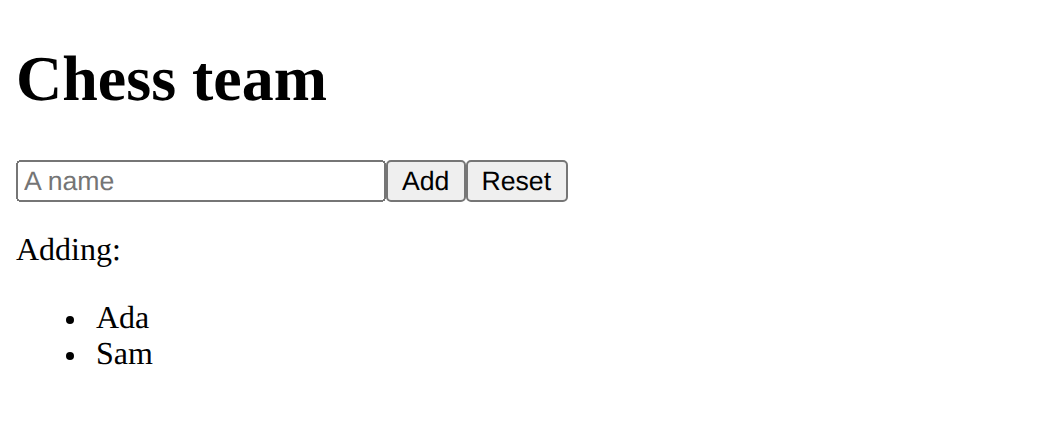
function reset() { players.value = ["Ada", "Sam"]; newName.value = ""; } then add reset to the return, and <button @click="reset">Reset</button>.
Show the expected result
A second box.
Need a hint?
A new box needs a new ref, returned, and v-model on the box.
Another hint
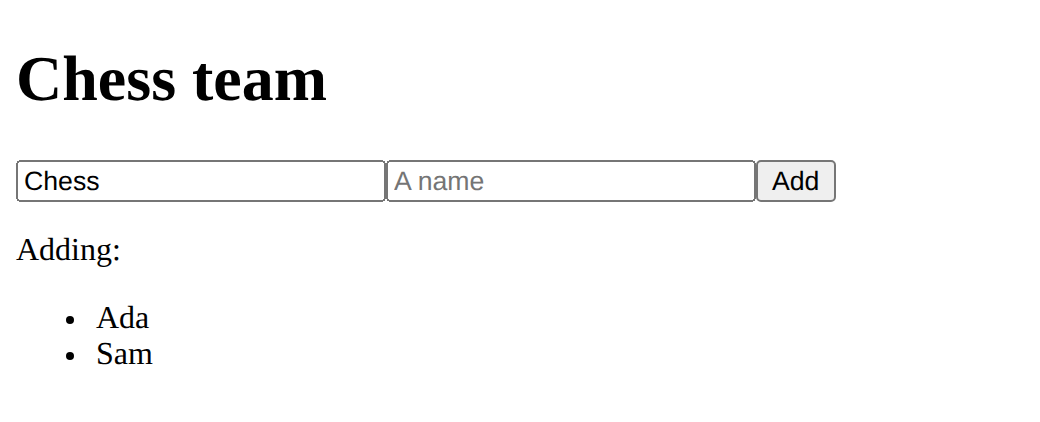
const club = ref("Chess");, club in the return, <input v-model="club">, and {{ club }} in the heading.
Show the expected result
Add a Reset button that puts the list back to Ada and Sam.
This ticks when your page has all of the above.
Add a box for the club's name, and show it in the heading.
This ticks when your page has all of the above.
A badge maker
Make a name badge: boxes for a name and a role joined with v-model, the badge shown with {{ }} in a bordered box, and a button that runs a function (make the name shout in capitals with toUpperCase(), or swap the two).
Make boxes with v-model, show them on a badge, and add a button that runs a function of your own.
This ticks when your page has all of the above.
Where this leads
Next: values worked out from data, with computed.
For teachers
Students predict that v-model follows each letter, add names with a function, match the parts, find score++ on a ref, add a Reset function and a second box, and make a badge maker. About 55 minutes.
Open the teacher guide: answers, solutions, slides and a worksheet.
Students will be able to
- I can run a function of my own when a button is clicked.
- I can join a box to data with v-model.
- I can change a ref in the script with .value.
Before class
Read the unit primer first. Two new pieces. @click="addPlayer" names a function to run on a click; the function is written in setup and returned with the data. v-model="newName" joins a box to a ref both ways: typing changes the ref, and setting the ref (to empty text, say) changes the box. Compare the DOM course, where students read box.value and listened for the "input" event themselves.
The hard part of the whole course: a ref is a box. On the page Vue opens it for you ({{ score }}, @click="score++"); in the script you open it yourself (score.value++). Writing score++ in a function gives a red error, "Assignment to constant variable", because the ref was made with const. The playground's hint names .value for this case. Expect it all lesson; it is also the planted bug.
Running the lesson
- Predict: ask what DOM-course students would have needed (an input event and box.value).
- Run: press Add with an empty box and ask which line stops it.
- Investigate: before the bug, ask students to underline every .value in the script and none on the page.
- Modify: a new function is three edits: write it, return it, name it in @click.
- Make: ask which ref each box changes, and what the button's function changes.
The hard part (on purpose)
Students mix up when to write .value. Ask "are you on the page or in the script?" every time, and let them answer before they type.
When students get stuck
- A red error: Assignment to constant variable. Ask: Is that a ref, changed in the script? Fix: Change its .value: score.value++.
- Clicking does nothing; the console warns a property is not defined. Ask: Is the function in the return? Fix: return { players, newName, addPlayer, reset };
- The box and the paragraph do not match. Ask: Does v-model name the same ref the paragraph shows? Fix: Use the same name in v-model and in {{ }}.
Stretch and support
Stretch: Add when Enter is pressed: @keyup.enter="addPlayer" on the box. Remove a player when their name is clicked (pass the name to a function).
Support: Give the Reset function written out; students return it and add the button.
Where it leads
Next lesson: computed values, worked out from data and kept up to date. Class idea: find an Add button on a real site and say which data it changes.
Sources
- Vue.js: Event handling (checked 12 October 2026)
- Vue.js: Form input bindings (v-model) (checked 12 October 2026)
What each step is for
- Predict: Students from the DOM course expect to need an input event; seeing the paragraph follow each letter shows that v-model joins box and data.
- Investigate: v-model joins box and data both ways; @click runs a returned function; in the script a ref's value is in .value.
- Modify: A new function is written in setup, returned, and named in @click; a new box is one v-model on a new ref.
- a badge maker: Goals only: boxes joined with v-model, the result shown with {{ }}, and a button that runs a function which changes .value.
- Run a function of my own when a button is clicked.
- Join a box to data with v-model.
- Change a ref in the script with .value.