A page that keeps score
Keep a number between clicks in a variable made above the handler, and use an if to decide when something happens.
A score, a basket count and a "5 likes" all work the same way: a variable that lives between clicks.
A page can remember things in variables, as your p5 sketches did. The rule is where you make them:
let clicks = 0;                       // made once, above the handler
button.addEventListener("click", function () {
  clicks = clicks + 1;                // changed on every click
  countEl.textContent = clicks;       // shown on the page
});
A variable made above the handler keeps its value between clicks. One made inside is made again on each click, so it starts over.
An if inside the handler decides when something happens, such as winning at 10.
The hard part is seeing that the number on the page is not the memory. The variable remembers; the page only shows it. Change the variable, then show it.
- Predict: Read the code and say what it will do before you run anything. A wrong guess is fine: it shows you what to look for.
- Run: Run it and compare the result with your prediction.
- Investigate: Trace how each line of code connects to what you see.
- Modify: Change the code on purpose and check the result.
- Make: Build something new using what you have learned. Expect a few tries; that is normal.
Make your prediction first. Help opens once you've locked it in.
Predict
<p>Clicks: <span id="count">0</span></p>
<button id="click">Click me</button>
<script>
  let clicks = 0;
  const countEl = document.querySelector("#count");
  document.querySelector("#click").addEventListener("click", function () {
    clicks = clicks + 1;
    countEl.textContent = clicks;
  });
</script>
Is clicks made once, or on every click?
Run
Press Run and click the button ten times. The if inside the handler decides when you win, and button.disabled = true stops the button.
<p>Clicks: <span id="count">0</span></p>
<button id="click">Click me</button>
<p id="message">Reach 10 clicks to win.</p>
<script>
  let clicks = 0;
  const countEl = document.querySelector("#count");
  const message = document.querySelector("#message");
  const button = document.querySelector("#click");
  button.addEventListener("click", function () {
    clicks = clicks + 1;
    countEl.textContent = clicks;
    if (clicks >= 10) {
      message.textContent = "You win!";
      button.disabled = true;
    }
  });
</script>
Investigate
<p>Clicks: <span id="count">0</span></p>
<button id="click">Click me</button>
<p id="message">Reach 10 clicks to win.</p>
<script>
  let clicks = 0;
  const countEl = document.querySelector("#count");
  const message = document.querySelector("#message");
  const button = document.querySelector("#click");
  button.addEventListener("click", function () {
    clicks = clicks + 1;
    countEl.textContent = clicks;
    if (clicks >= 10) {
      message.textContent = "You win!";
      button.disabled = true;
    }
  });
</script>
Memory, change and show.
The page is only a picture.
The count never gets past 1.
Match each line with what it does.
The page shows 1 on every click and never goes higher. There is no red error. Click the line that is wrong.
Modify
Put everything back.
Need a hint?
A reset button needs to put back everything the game changed.
Another hint
Set clicks back to 0, show it on the page, and also put the message and the button back.
Show the expected result
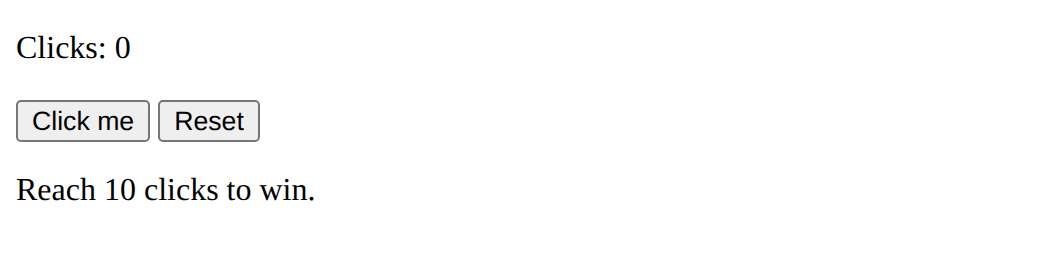
A second if.
Need a hint?
The game already has one if. A second if can look for a different number.
Another hint
if (clicks === 5) { message.textContent = "Halfway there!"; } inside the handler.
Show the expected result
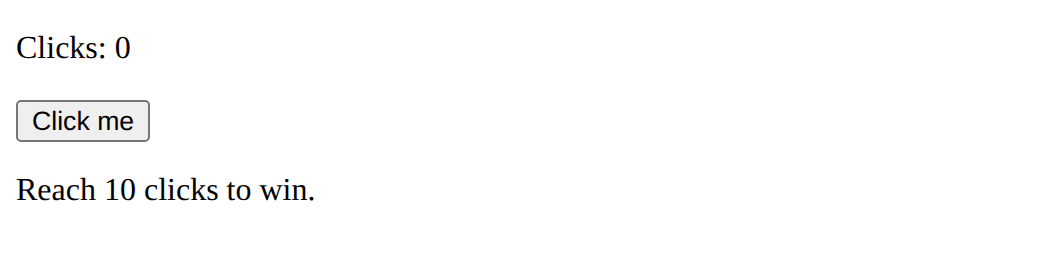
Add a Reset button that starts the game again.
This ticks when your page has all of the above.
Show Halfway there! when the count reaches 5.
This ticks when your page has all of the above.
A clicker game of your own
Make a small game: click a moving star, press as fast as you can, guess a number. It needs a score variable made above the handler, a goal or a time limit, and a message when you win or lose. The page on this lesson moves a star and stops after 10 seconds, using setInterval.
Where this leads
You can now keep a score. Next: the final challenge, a quiz page.
For teachers
Students keep a count in a variable made above a click handler, show it on the page, win at ten with an if, find a variable made inside the handler that starts over, and make a clicker game of their own. About 50 minutes.
Open the teacher guide: answers, solutions, slides and a worksheet.
Students will be able to
- I can keep a number between clicks in a variable.
- I can show a changing number on the page.
- I can use an if inside a handler to decide when something happens.
Before class
Read the unit primer first. This is the Python "global" and state idea in JavaScript: a variable made above a function is shared and kept; one made inside is made again each call. The p5 sketches kept values in let above draw; here the handler plays the part of draw. The page is only a picture of the variable: change the variable, then put it on the page. The bug has no red error. button.disabled = true is a property like textContent. The Make example uses setInterval (run a function every 1000 ms) and clearInterval; students can use it as a recipe, and a number of them will want it.
Running the lesson
- Predict: ask students to say "made once" or "made each click" about clicks.
- Run: ask where the number on the page comes from.
- Investigate: for the bug, ask "how many times is let clicks run?"
- Modify: ask what a reset must put back.
- Make: ask each student what the score is, what the goal is, and what happens at the end.
The hard part (on purpose)
The page shows the variable; it is not the variable. Ask "what does the page know about clicks?" and the answer is nothing.
When students get stuck
- The count stays at 1. Ask: Is the variable made inside the handler? Fix: Move let clicks = 0 above the handler.
- The count is right but the page does not change. Ask: Is the new value put on the page? Fix: Set countEl.textContent = clicks after changing clicks.
- Reset does not fully reset. Ask: What else did the game change besides clicks? Fix: Put back the message and enable the button.
- Cannot assign to a const. Ask: Is the variable made with const and then changed? Fix: Use let for a variable that changes.
Stretch and support
Stretch: Make the goal change each game (a random target), or keep a best score that survives a reset.
Support: Give the counter and ask students for only the win message.
Where it leads
Next lesson: the final challenge, a quiz page.
What each step is for
- Investigate: A variable made above the handler remembers between clicks, a variable made inside starts over; the page only shows the variable, so change it first, then show it.
- Modify: Reset puts the variable and the page back; a second if reacts to a different number.
- a clicker game of your own: Goals only: a score that keeps its value, a goal, and a message when you win or lose.
- Keep a number between clicks in a variable.
- Show a changing number on the page.
- Use an if inside a handler to decide when something happens.