Click events
Run a function when someone clicks a button: addEventListener, and the difference between handing over a function and running it.
A page that only changes when it loads is a poster. A page that changes when you click is an app.
Until now your script ran once, as the page loaded. To react to a click you give the button a function and say when to run it:
button.addEventListener("click", start);
Read it as "when this button is clicked, run start". "click" is the event. The function after it is the handler.
The hard part is the brackets. start hands the function over to be run later, on each click. start() runs it right now, once, and hands over whatever it returned, so the click does nothing.
- Predict: Read the code and say what it will do before you run anything. A wrong guess is fine: it shows you what to look for.
- Run: Run it and compare the result with your prediction.
- Investigate: Trace how each line of code connects to what you see.
- Modify: Change the code on purpose and check the result.
- Make: Build something new using what you have learned. Expect a few tries; that is normal.
Make your prediction first. Help opens once you've locked it in.
Predict
<h1 id="message">Ready?</h1>
<button id="go">Start</button>
<script>
  const message = document.querySelector("#message");
  const goButton = document.querySelector("#go");
  function start() {
    message.textContent = "Go!";
  }
  goButton.addEventListener("click", start);
</script>
Which line decides when start runs?
Run
Press Run, then click Start and Pause. The heading changes only when you click.
<h1 id="message">Ready?</h1>
<button id="go">Start</button>
<button id="pause">Pause</button>
<script>
  const message = document.querySelector("#message");
  const goButton = document.querySelector("#go");
  const pauseButton = document.querySelector("#pause");
  function start() {
    message.textContent = "Go!";
  }
  function pause() {
    message.textContent = "Paused";
  }
  goButton.addEventListener("click", start);
  pauseButton.addEventListener("click", pause);
</script>
Investigate
<h1 id="message">Ready?</h1>
<button id="go">Start</button>
<button id="pause">Pause</button>
<script>
  const message = document.querySelector("#message");
  const goButton = document.querySelector("#go");
  const pauseButton = document.querySelector("#pause");
  function start() {
    message.textContent = "Go!";
  }
  function pause() {
    message.textContent = "Paused";
  }
  goButton.addEventListener("click", start);
  pauseButton.addEventListener("click", pause);
</script>
Match code with meaning.
One line decides.
No error, and nothing works.
Match each piece with what it does.
This page says Go! as soon as it loads, and clicking does nothing. There is no red error. Click the line that is wrong.
Modify
Back to the beginning.
Need a hint?
A third button needs three things: the button in the HTML, a function, and a listener.
Another hint
Add <button id="reset">Reset</button>, a function reset that puts back "Ready?", and resetButton.addEventListener("click", reset).
Show the expected result
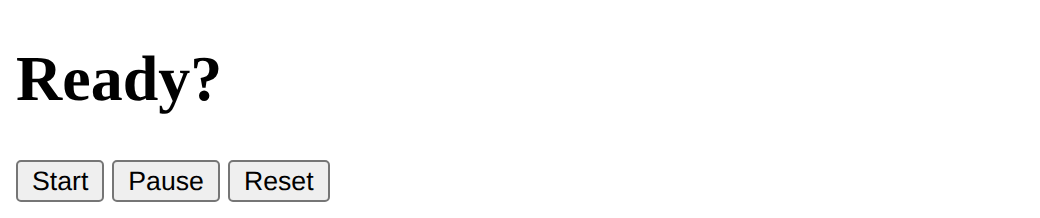
A handler can change two things.
Need a hint?
A handler can change more than one thing. What else about the heading can you change?
Another hint
Add message.style.color = "green"; inside start, and another colour inside pause.
Show the expected result
Add a Reset button that puts the heading back to Ready?
This ticks when your page has all of the above.
Make Start turn the heading green and Pause make it orange.
This ticks when your page has all of the above.
Buttons of your own
Start from the two buttons and make a page where each button changes something different: size, colour, words, or a picture. The page on this lesson makes a heading bigger, smaller or purple.
Where this leads
You can now run code on a click. Next: change how the whole page looks with classes.
For teachers
Students run a function when a button is clicked with addEventListener, tell handing over a function from running it, fix a listener written with brackets, add a Reset button, and make buttons that change different things. About 50 minutes.
Open the teacher guide: answers, solutions, slides and a worksheet.
Students will be able to
- I can run a function when someone clicks a button.
- I can say what the event name and the handler are.
- I can give a handler without running it straight away.
Before class
Read the unit primer first. This is the Python events lesson (a handler runs when something happens) in JavaScript, and the same lesson as p5's mousePressed, but the page picks the element and the event. addEventListener("click", start) hands the browser a function; start() calls it now. The bug has no red error, so students must look at the page: it says Go! straight away. Functions were taught in the p5.js course; if students skipped it, spend a minute on "a function is code with a name" first. IDs named like variables (message) are fine here because the script uses const.
Running the lesson
- Predict: ask what is different between writing a recipe and cooking it.
- Run: ask students to click each button and say which function ran.
- Investigate: for the bug, ask "when did the heading change, and why then?"
- Modify: ask where the third button is in the HTML, and where in the script.
- Make: ask each pair which button does what, before they test.
The hard part (on purpose)
Brackets: start hands the function over, start() runs it now. The page, not an error, shows the slip.
When students get stuck
- The heading says Go! at once and the button does nothing. Ask: Are there brackets after start in the listener? Fix: Remove them: addEventListener("click", start).
- Cannot read properties of null (reading addEventListener). Ask: Does the button id in the HTML match the selector? Fix: Match the id exactly, with # in the selector.
- Nothing happens when I click. Ask: Did you press Run, and is the button inside the page? Fix: Press Run again; check the id.
- The new button does nothing. Ask: Did you add a listener for it? Fix: Add its listener under the others.
Stretch and support
Stretch: Make one button toggle between two states using a variable, or make a button remove itself with button.remove().
Support: Give the whole Reset function and listener, and ask students to change what it says.
Where it leads
Next lesson: classes, to change how the whole page looks with one line.
What each step is for
- Investigate: addEventListener hands a function to the browser to run later, on each event; writing the function name with brackets runs it now instead.
- Modify: Each button needs its own function and its own listener; a handler can change more than one thing.
- buttons of your own: Goals only: at least two buttons that change different things, each with its own function.
- Run a function when someone clicks a button.
- Say what the event name and the handler are.
- Give a handler without running it straight away.