← micro:bit Foundations

micro:bit Foundations: recap

Answer each question in your head or on paper first, then check it.

Show and react

1. Pictures in order

Try firston start has: show icon heart, show icon sad face, show icon tick. What is on the screen at the end?

Check your answer

The tick. The blocks run once, top to bottom, and the last picture stays.

The micro:bit runs blocks in order, from top to bottom, one at a time.

Blocks in on start run once, when the micro:bit switches on. Each picture replaces the one before, so the last picture is the one that stays on.

So the order of the blocks is the order you see.
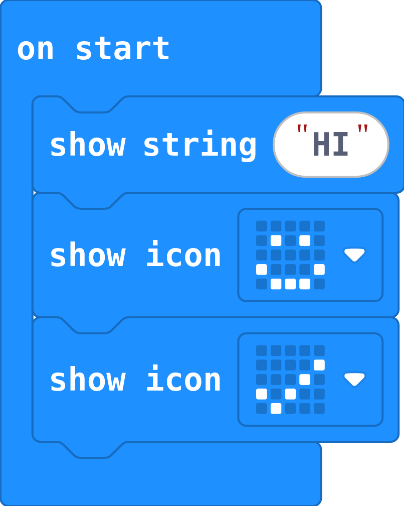
The program as blocks
Show as code
basic.showString("HI")
basic.showIcon(IconNames.Happy)
basic.showIcon(IconNames.Yes)
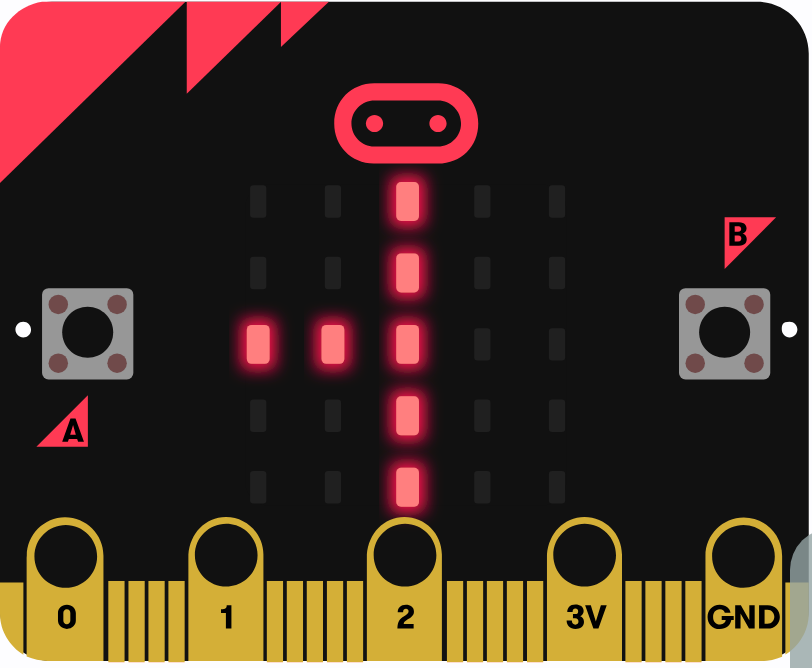
The example, as blocks
What this program shows in the micro:bit simulator
What it makes
The micro:bit runs blocks in order, top to bottom · Sound on for the voiceover
Open the lesson →

2. Again and again

Try firstYour animation has three pictures inside forever. What happens if you move them into on start?

Check your answer

They play once, and the last picture stays on.

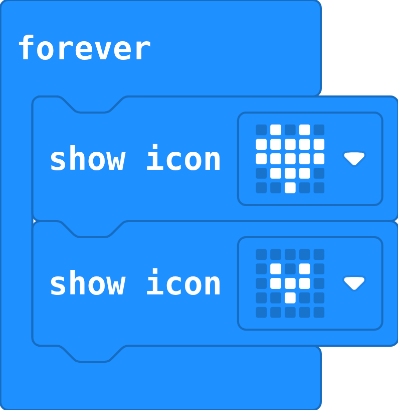
Blocks inside forever run again and again. When the last block finishes, forever starts again from the top. That is a loop, and it turns a few pictures into an animation.

pause keeps a picture on for longer, then the loop carries on. 1000 ms is one second.

Blocks in on start still run only once.

The program as blocks
Show as code
basic.forever(function () {
    basic.showIcon(IconNames.Heart)
    basic.showIcon(IconNames.SmallHeart)
})
The example, as blocks
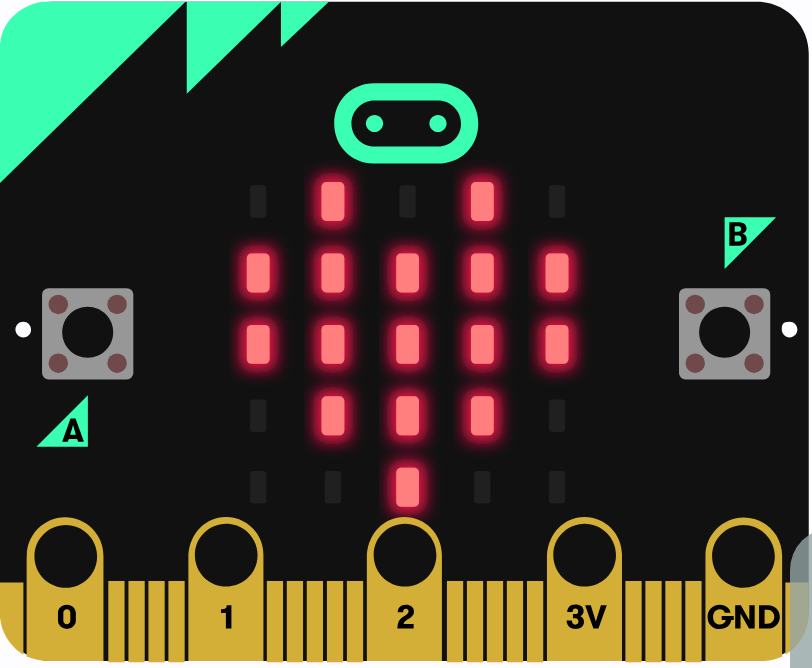
What this program shows in the micro:bit simulator
What it makes
forever runs its blocks again and again · Sound on for the voiceover
Open the lesson →

3. Wait for a press

Try firstWhy does 'if button A is pressed' in on start not work, when 'on button A pressed' does?

Check your answer

on start checks once, when the micro:bit switches on, before anyone presses. The event block waits and runs every time A is pressed.

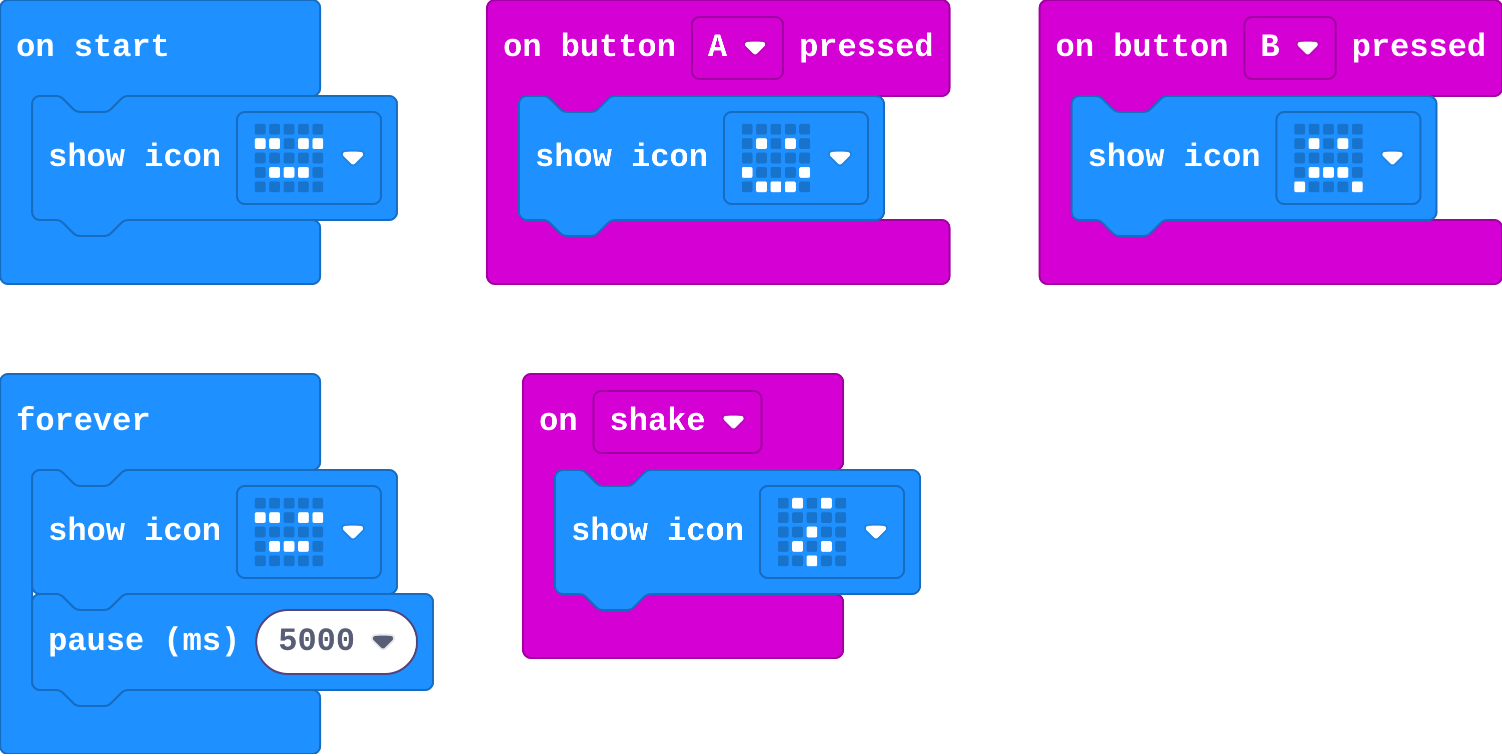
Some blocks wait. on button A pressed runs its blocks every time A is pressed, and never before. That is an event.

So a micro:bit program has three kinds of block holder:

  • on start: runs once, at the start
  • forever: runs again and again, by itself
  • on button pressed, on shake: runs each time that thing happens
The program as blocks
Show as code
basic.showIcon(IconNames.Asleep)
input.onButtonPressed(Button.A, function () {
    basic.showIcon(IconNames.Happy)
})
input.onButtonPressed(Button.B, function () {
    basic.showIcon(IconNames.Sad)
})
input.onGesture(Gesture.Shake, function () {
    basic.showIcon(IconNames.Surprised)
})
basic.forever(function () {
    basic.showIcon(IconNames.Asleep)
    basic.pause(5000)
})
The example, as blocks
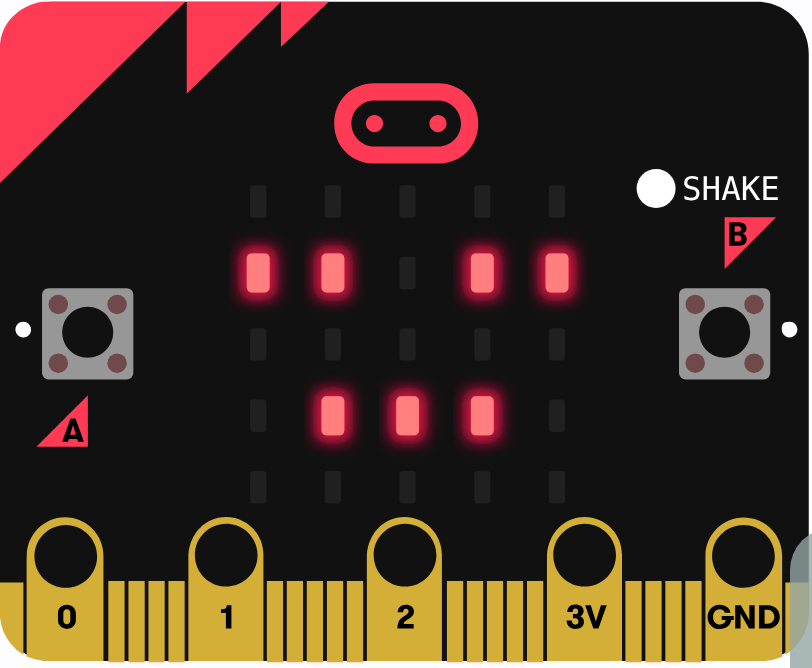
What this program shows in the micro:bit simulator
What it makes
Some blocks wait for an event · Sound on for the voiceover
Open the lesson →

Remember and sense

4. Count with a variable

Try firstWhat is the difference between set count to 0 and change count by 1?

Check your answer

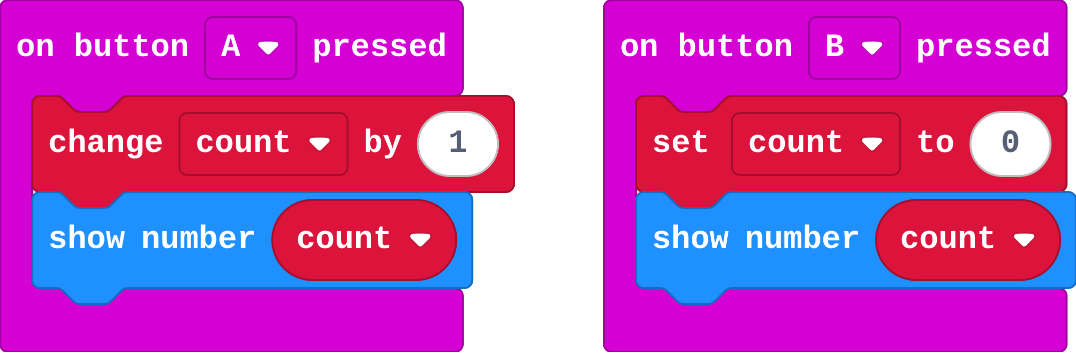
set count to 0 throws the old value away and puts 0 there. change count by 1 adds 1 to whatever count already is.

A variable is a named box that holds a value. count holds a number, and it keeps it between button presses.

  • set count to 0 puts 0 in the box (the old value is thrown away)
  • change count by 1 adds 1 to what is already there
  • show number count shows the value without changing it

Set the starting value in on start, so it happens once.

The program as blocks
Show as code
let count = 0
input.onButtonPressed(Button.A, function () {
    count += 1
    basic.showNumber(count)
})
input.onButtonPressed(Button.B, function () {
    count = 0
    basic.showNumber(count)
})
The example, as blocks
What this program shows in the micro:bit simulator
What it makes
A variable is a named box that holds a value · Sound on for the voiceover
Open the lesson →

5. Sensors are numbers

Try firstWhy does reading the temperature in on start not work for a thermometer?

Check your answer

on start reads it once, at the start. A thermometer must read it again and again, in forever.

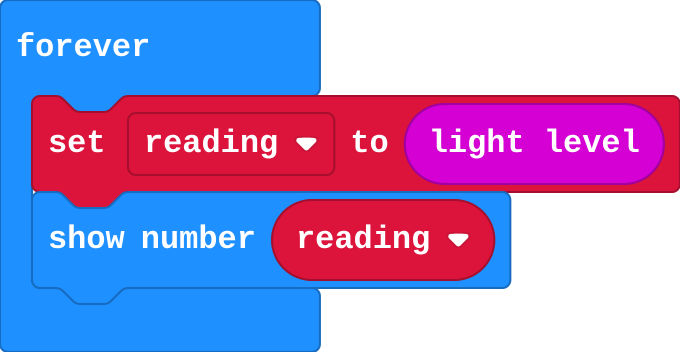
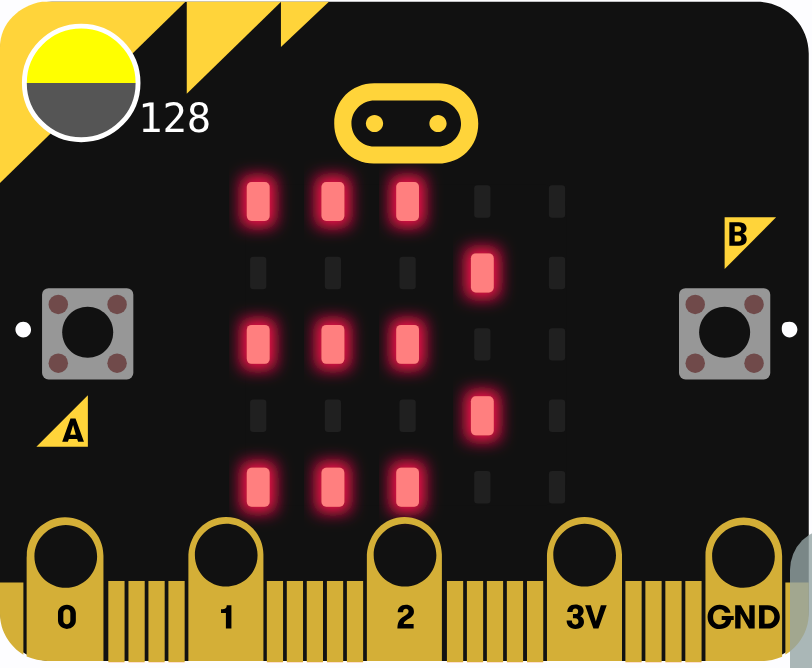
A sensor measures something and gives the program a number.

  • light level: 0 (dark) to 255 (bright)
  • temperature: degrees Celsius
  • acceleration x: tilt left (below 0) or right (above 0)

The world keeps changing the number, so read it again in forever (or when a button is pressed) to see the new value.

The program as blocks
Show as code
let reading = 0
basic.forever(function () {
    reading = input.lightLevel()
    basic.showNumber(reading)
})
The example, as blocks
What this program shows in the micro:bit simulator
What it makes
A sensor measures something and gives a number · Sound on for the voiceover
Open the lesson →

Decide

6. If

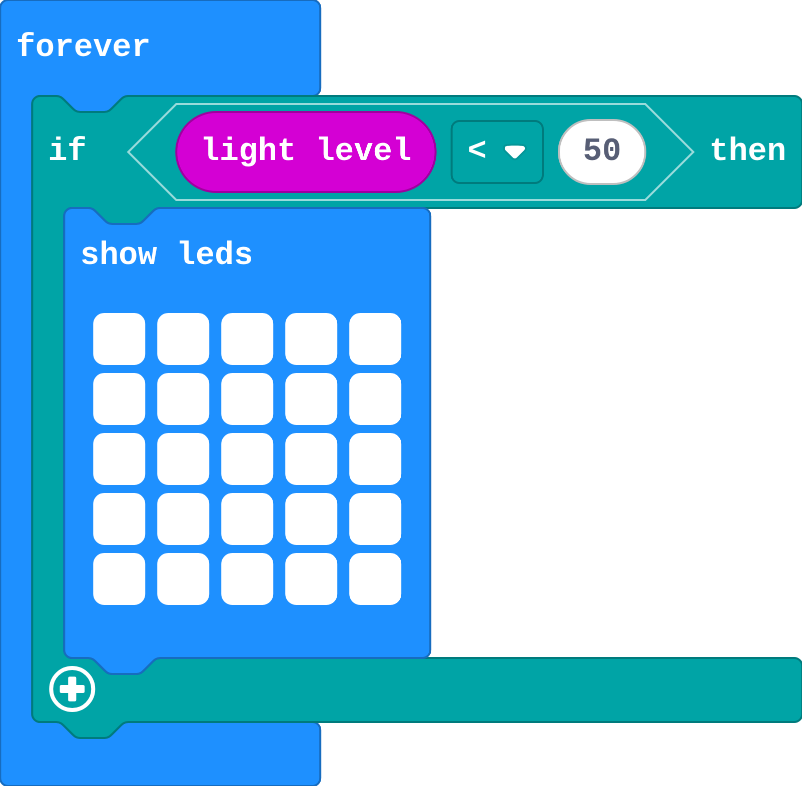
Try firstA night light uses only 'if light level < 50, show lights'. Why do the lights stay on in the morning?

Check your answer

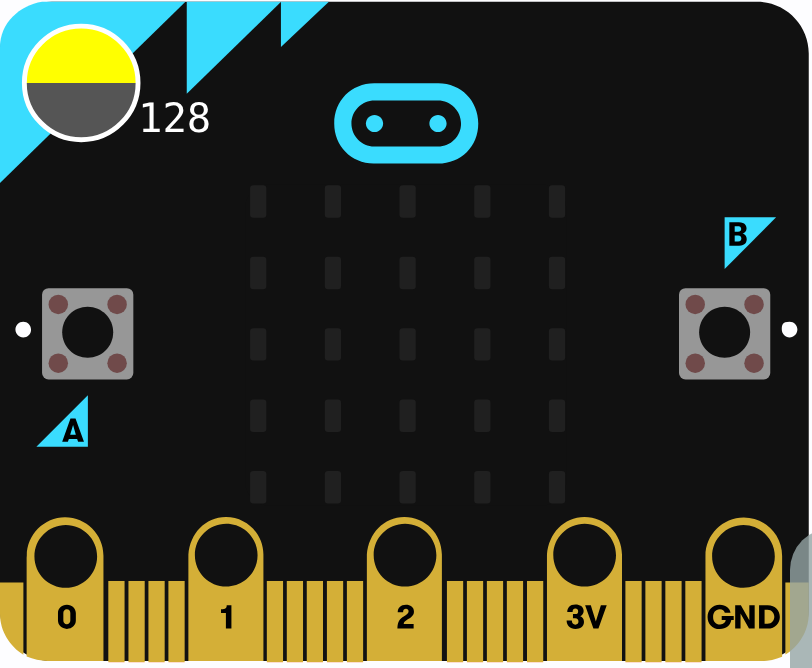
When it is bright the question is false, so the if does nothing. Nothing in the program turns the lights off.

An if asks a yes-or-no question, such as light level < 50.

  • True (yes): it runs the blocks inside.
  • False (no): it skips them and does nothing.

So an if can turn the lights on, but it cannot turn them off by itself. That needs another question: light level ≥ 50.

< means less than, > means greater than.

The program as blocks
Show as code
basic.forever(function () {
    if (input.lightLevel() < 50) {
        basic.showLeds(`
            # # # # #
            # # # # #
            # # # # #
            # # # # #
            # # # # #
            `)
    }
})
The example, as blocks
What this program shows in the micro:bit simulator
What it makes
An if asks a yes-or-no question · Sound on for the voiceover
Open the lesson →

7. If and else

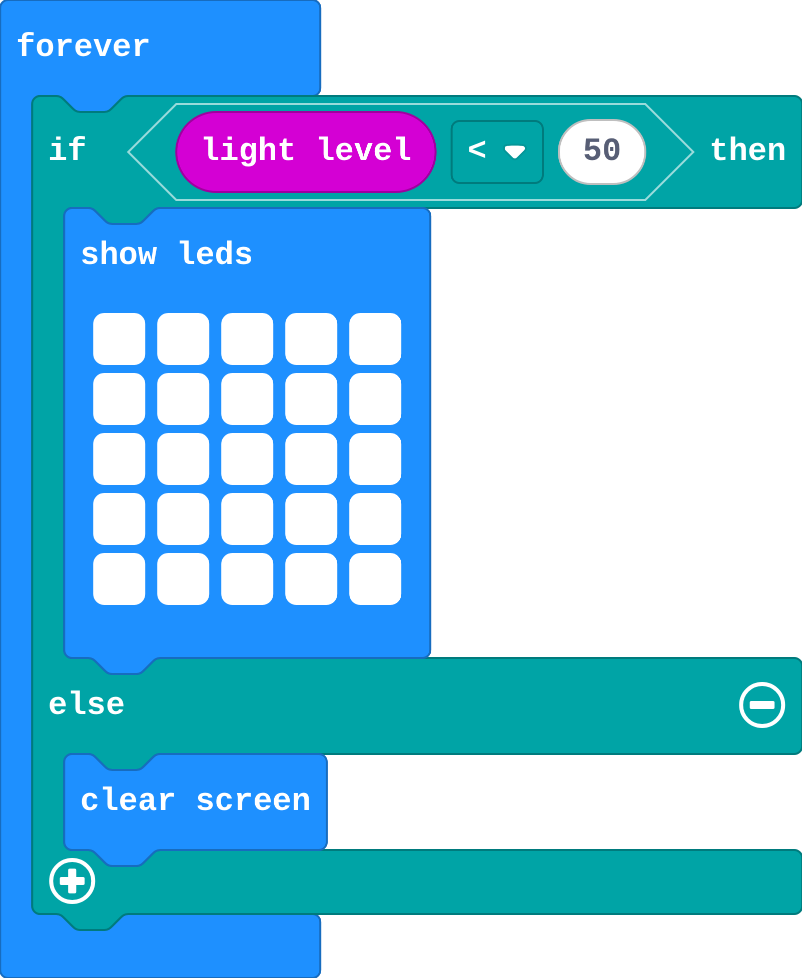
Try firstIn an if … else, when does the else part run?

Check your answer

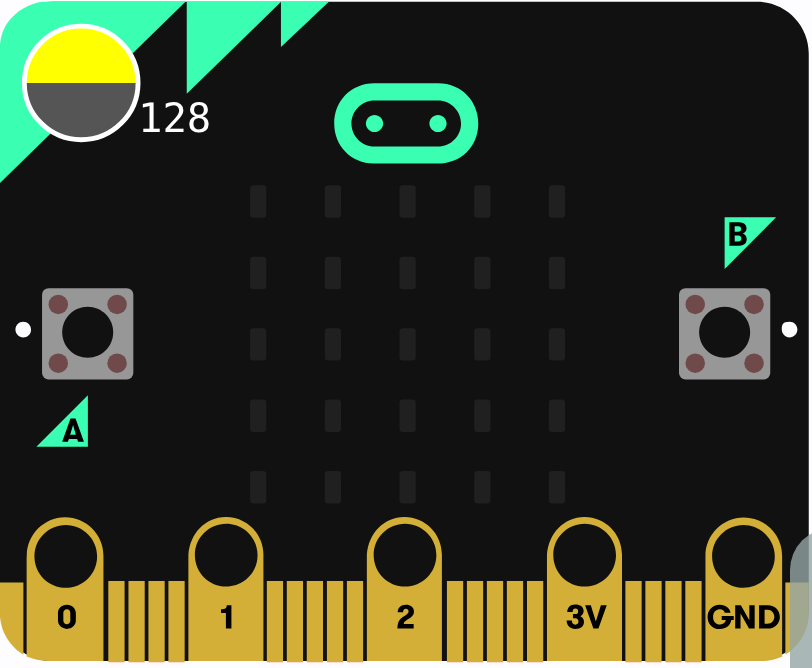
Only when the question is false. Exactly one of the two parts runs each time.

An if … else asks one question.

  • True: the first part runs.
  • False: the else part runs.

Exactly one part runs each time. Never both, never neither. So one if … else does the job of two ifs with opposite questions.

The program as blocks
Show as code
basic.forever(function () {
    if (input.lightLevel() < 50) {
        basic.showLeds(`
            # # # # #
            # # # # #
            # # # # #
            # # # # #
            # # # # #
            `)
    } else {
        basic.clearScreen()
    }
})
The example, as blocks
What this program shows in the micro:bit simulator
What it makes
if … else chooses between two things · Sound on for the voiceover
Open the lesson →

8. The first true question wins

Try firstif temperature > 0 … else if temperature > 30 … What shows at 35 degrees, and why?

Check your answer

The first part. 35 is more than 0, so the first question is true and the rest are skipped. Ask > 30 first.

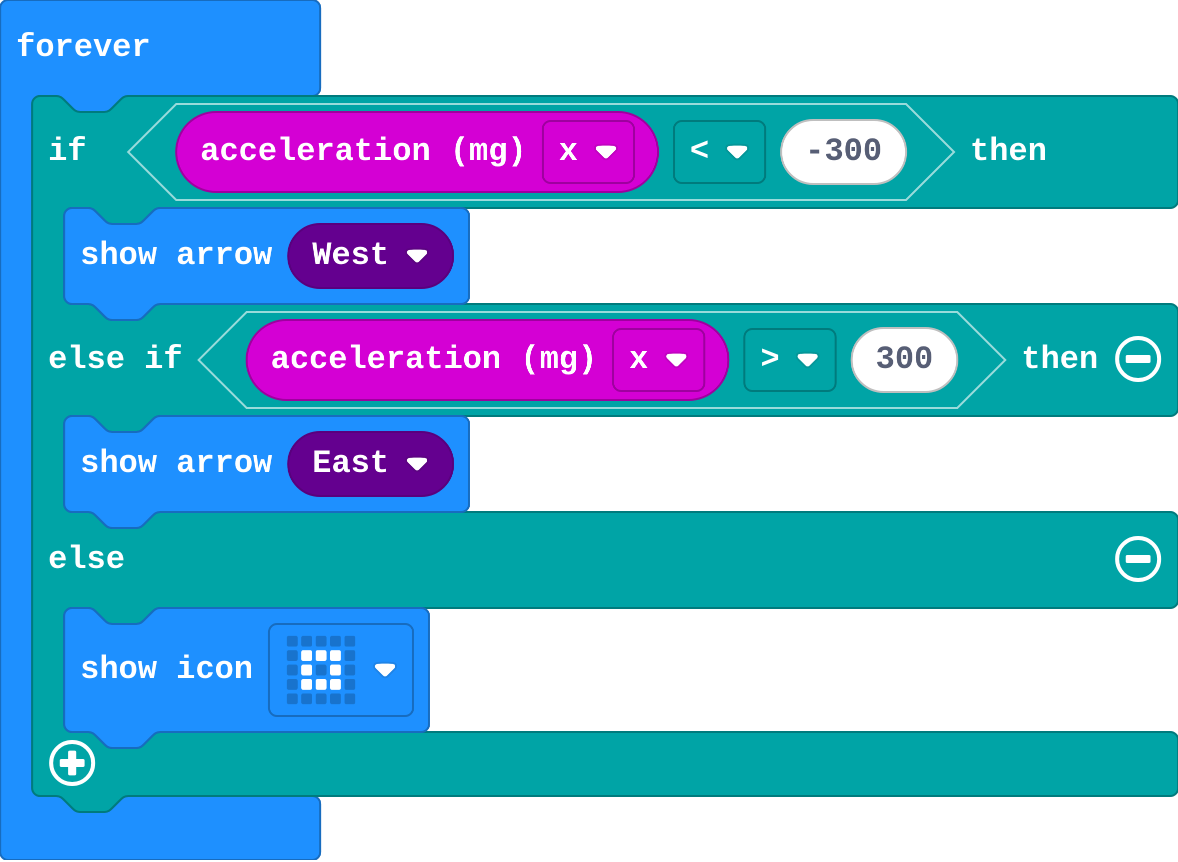
else if adds more questions to one if block. The micro:bit asks them from the top.

  • The first true question runs its part, and the rest are skipped.
  • else runs only when every question above it is false.

So the order of the questions decides the ranges: ask < 15, then < 25, and the second means 15 to 24.

The program as blocks
Show as code
basic.forever(function () {
    if (input.acceleration(Dimension.X) < -300) {
        basic.showArrow(ArrowNames.West)
    } else if (input.acceleration(Dimension.X) > 300) {
        basic.showArrow(ArrowNames.East)
    } else {
        basic.showIcon(IconNames.SmallSquare)
    }
})
The example, as blocks
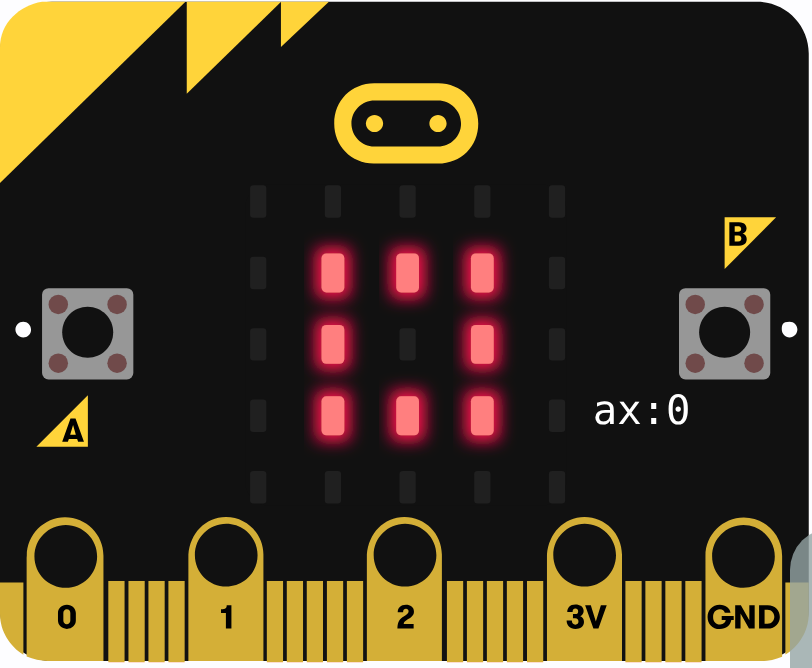
What this program shows in the micro:bit simulator
What it makes
else if adds more questions, asked from the top · Sound on for the voiceover
Open the lesson →

Lists

9. Lists

Try firstA list has Red, Green, Blue. What is at place 2, and what is at place 3?

Check your answer

Blue is at place 2. There is no place 3: three items use places 0, 1 and 2.

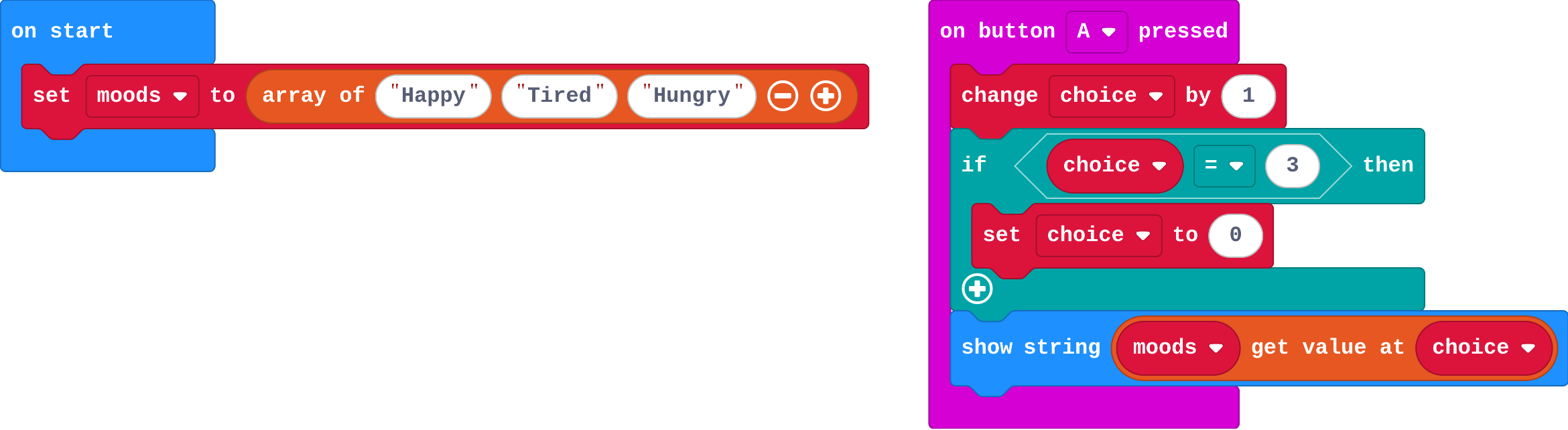
A list holds many values, in order, under one name.

Each item has a place, counted from 0. In Yes, No, Maybe: Yes is at 0, No at 1, Maybe at 2.

get value at takes out the item at a place. The last place is one less than the number of items.

The program as blocks
Show as code
let moods = ["Happy", "Tired", "Hungry"]
let choice = 0
input.onButtonPressed(Button.A, function () {
    choice += 1
    if (choice == 3) {
        choice = 0
    }
    basic.showString(moods[choice])
})
The example, as blocks
What this program shows in the micro:bit simulator
What it makes
A list holds many values, in order · Sound on for the voiceover
Open the lesson →

10. Pick from a list

Try firstA list has 6 items. What should pick random choose between, and why?

Check your answer

0 and 5 (0 to length − 1), because places start at 0, so the last of 6 items is at place 5.

pick random 0 to 2 gives 0, 1 or 2, a new one each time.

To pick an item at random, pick a place, then take the item at that place: get value at (pick random 0 to length − 1).

length of list counts the items. The last place is one less, because places start at 0. Using the length means the list can grow without changing anything else.

The program as blocks
Show as code
let answers = ["Yes", "No", "Maybe"]
input.onGesture(Gesture.Shake, function () {
    basic.showString(answers[randint(0, answers.length - 1)])
})
The example, as blocks
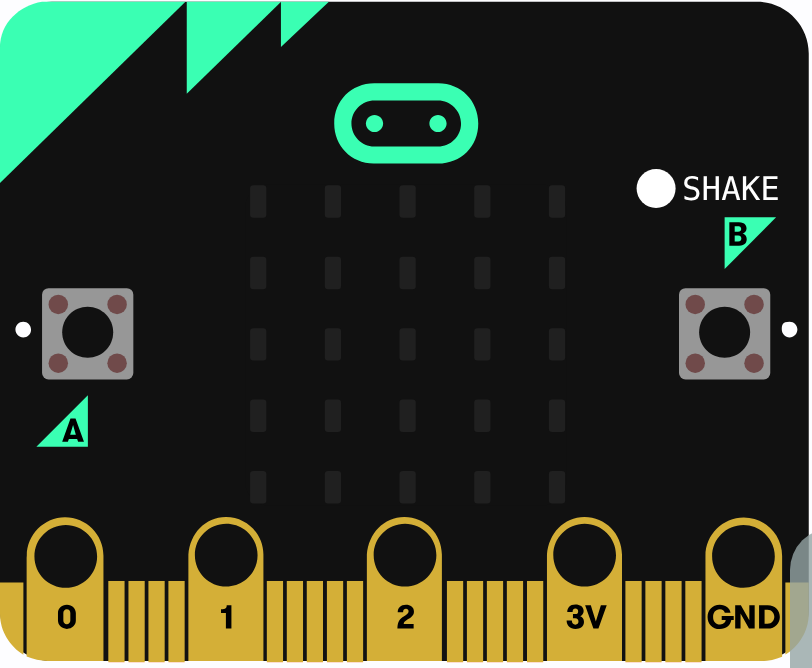
What this program shows in the micro:bit simulator
What it makes
Pick a random place, then take the item there · Sound on for the voiceover
Open the lesson →

Final challenge: Pocket pet

11. Pocket pet

Try firstYour pet has: if hunger < 6 tired, else if hunger < 3 happy, else sad. What does it show when hunger is 1, and why?

Check your answer

Tired. 1 is less than 6, so the first question is true and the rest are skipped. Ask < 3 first.

A pocket pet is a few ideas from the course working together:

  • forever with a pause makes hunger go up by itself.
  • on button A pressed brings it down, with an if so it never goes below 0.
  • if … else if … else turns the number into a face; the first true question wins.
  • on shake picks a trick from a list with pick random 0 to length − 1.
The program as blocks
Show as code
let tricks = ["SPIN", "JUMP", "WAVE"]
let hunger = 0
input.onButtonPressed(Button.A, function () {
    if (hunger > 0) {
        hunger += -1
    }
    basic.showIcon(IconNames.Heart)
})
input.onGesture(Gesture.Shake, function () {
    basic.showString(tricks[randint(0, tricks.length - 1)])
})
basic.forever(function () {
    basic.pause(3000)
    hunger += 1
    if (hunger < 3) {
        basic.showIcon(IconNames.Happy)
    } else if (hunger < 6) {
        basic.showIcon(IconNames.Asleep)
    } else {
        basic.showIcon(IconNames.Sad)
    }
})
The example, as blocks
What this program shows in the micro:bit simulator
What it makes
A pet is a number that time changes · Sound on for the voiceover
Open the lesson →