Wait for a press
Students make programs that wait for a button press or a shake, and see that an event block runs its blocks every time its event happens, and only then.
Classroom resources
Load these into Waypoints Prepare: choose Load URL and paste the copied address, or download the file and import it. In Prepare, the worksheet's Teacher edition shows the answers; the student copy hides them.
Students will be able to
- I can make the micro:bit react when a button is pressed or it is shaken.
- I can say when on start, forever and an event block each run.
- I can add a new event block to react to something new.
Timing
Predict and Run 10 min · Investigate 10 min · Modify 8 min · Mix it up 3 min · Make 10 min · Indicator 4 min
Before class
An event is something that happens: a button press, a shake. An event block (such as on button A pressed) holds blocks that run every time that event happens, and only then. Compare with the last two lessons: on start runs once, forever runs again and again by itself. In the simulator, students click the A and B buttons, and click SHAKE for a shake. Try the Make yourself: four event blocks, one picture in each.
Running the lesson
- Predict: ask which blocks run straight away and which wait. Many students expect the faces to show at the start.
- Run: press A, B, A. Say it plainly: nothing happens until a button is pressed, and each press runs its own blocks.
- Investigate: the match task names when each kind of block runs. Ben's button is the classic mistake: a check in on start happens once, before anyone presses.
- Modify: changing a face changes what an event does. Adding A+B is a new event block, not a change to an old one.
- Mix it up: a quick look back at forever and pause.
- Make: four event blocks. show arrow is under Basic › more.
In class
On the slides at these points. Students can do the whole lesson on their own; these are for the room. In the deck, the Run, Modify and Make slides have the live playground in them (the tutorial link is the backup), and the notes above are in each slide's speaker notes.
- Human micro:bit (investigate, 4 min)
One student is the micro:bit with a face card for each event. The class calls out "A", "B" or "shake"; the micro:bit shows only the card for that event.
When nobody calls anything, nothing happens. That is what waiting means.
The hard part (on purpose)
An event block runs only when its event happens. When a press does nothing, ask which block the picture is inside.
When students get stuck
| What you will see | A question to ask | The fix |
|---|---|---|
| Pressing a button does nothing. | Which block is your picture inside? | Put it inside 'on button A pressed' (from Input), not in on start. |
| A+B never fires: A or B fires instead. | Did you press both at once? | In the simulator, click the A+B button below the micro:bit. On a real micro:bit, press both together. |
| Two event blocks for the same button, and only one seems to work. | How many 'on button A pressed' blocks are there? | Keep one block per event, and put everything for that press inside it. |
Answers to the checks
- Predict: What does the micro:bit show when it starts, and then after you press B?
It shows the asleep face at the start, then waits. Pressing B runs only the blocks inside 'on button B pressed', so the sad face shows. - When does it run?: Match each block with when its blocks run.
on start → A. once, when the micro:bit switches on; forever → D. again and again, by itself; on button A pressed → B. each time A is pressed; on shake → C. each time the micro:bit is shaken - Count the presses: You press A four times. How many times does the happy face appear?
4
The blocks inside 'on button A pressed' run once for every press. - Ben's button: Ben wants A to show a heart. He put this in on start. He presses A and nothing happens. Why?
on start checks the button once, when the micro:bit switches on, before he presses it
on start runs once, at the very start. By the time Ben presses A, the check is long over. 'on button A pressed' waits for the press instead. - Mix it up: This animation runs in forever. Which picture stays on the longest each time round?
The tick
Each pause holds the picture just before it. The tick is followed by pause 1000, the longest pause, so it stays longest.
Solutions
One possible solution for each task. Other correct programs are fine.
Modify › Change the faces
Open task: any program that does what the step asks.
Modify › Press both
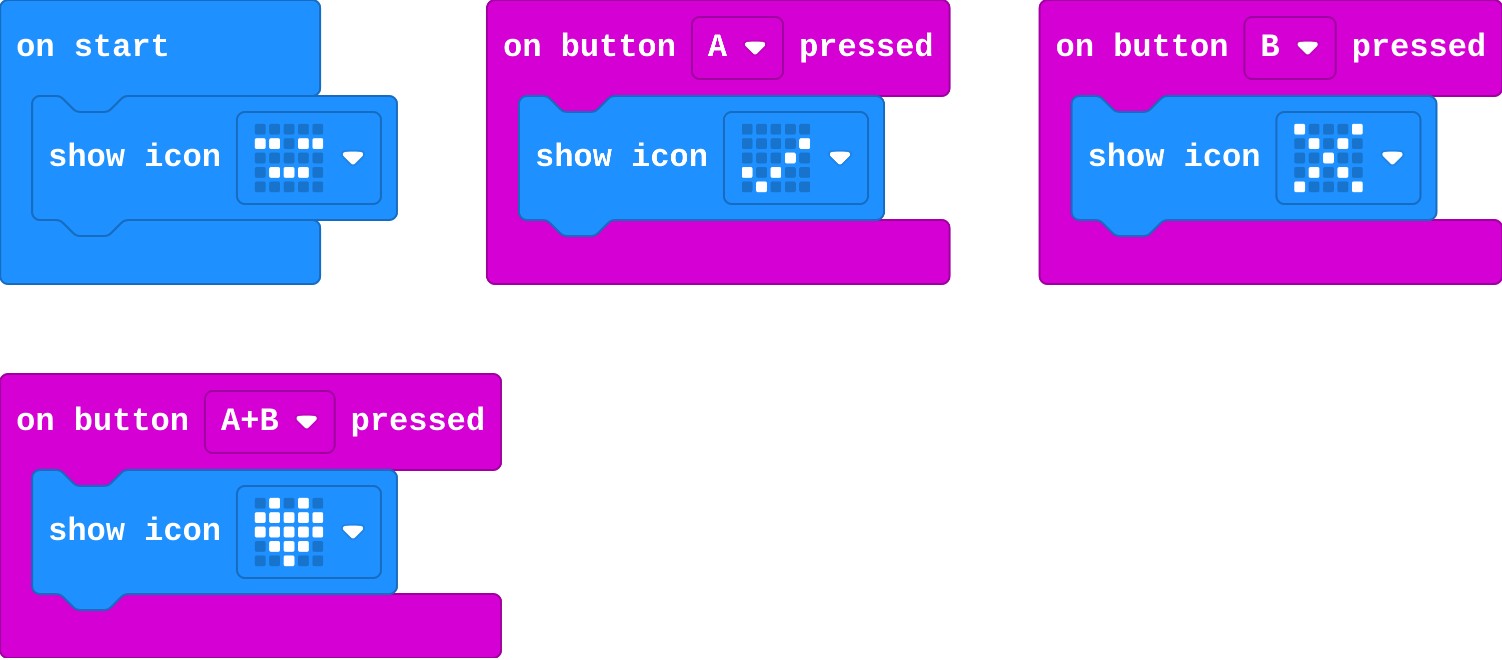
Show as code
basic.showIcon(IconNames.Asleep)
input.onButtonPressed(Button.A, function () {
    basic.showIcon(IconNames.Yes)
})
input.onButtonPressed(Button.B, function () {
    basic.showIcon(IconNames.No)
})
input.onButtonPressed(Button.AB, function () {
    basic.showIcon(IconNames.Heart)
})
Make
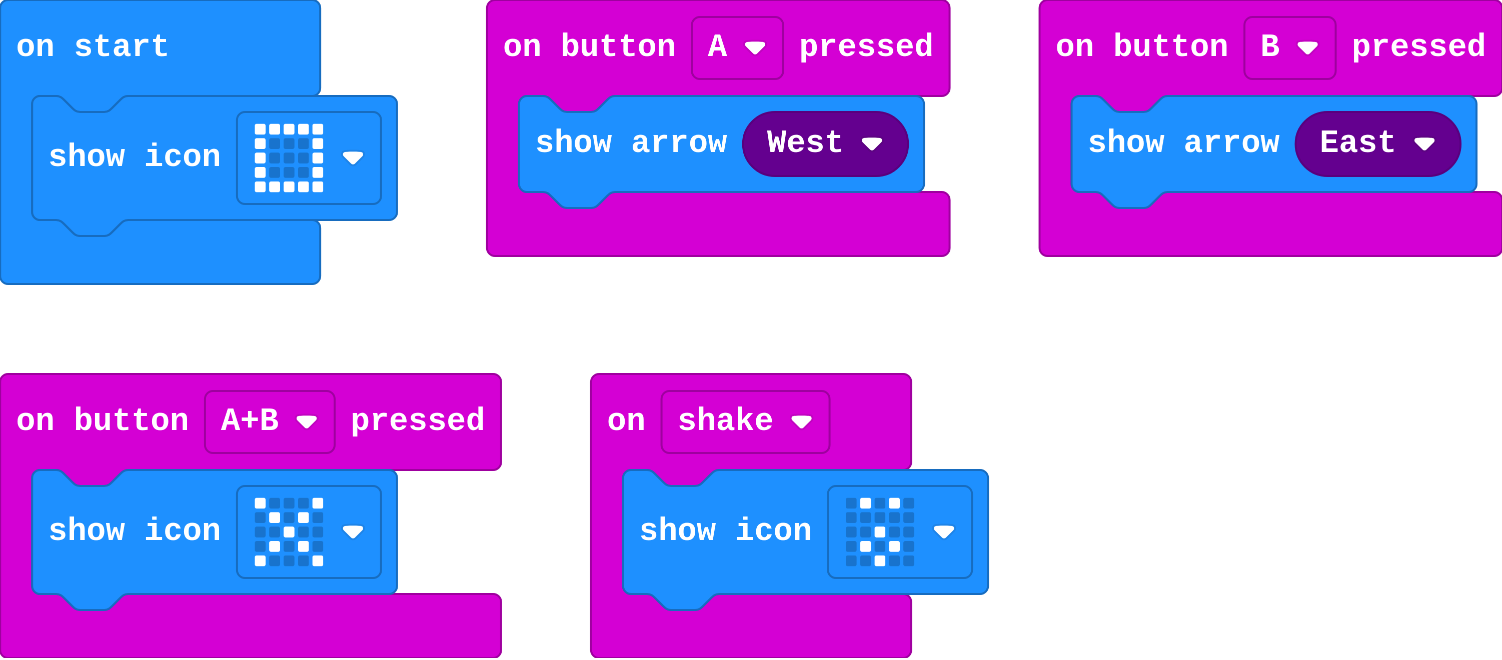
Show as code
basic.showIcon(IconNames.Square)
input.onButtonPressed(Button.A, function () {
    basic.showArrow(ArrowNames.West)
})
input.onButtonPressed(Button.B, function () {
    basic.showArrow(ArrowNames.East)
})
input.onButtonPressed(Button.AB, function () {
    basic.showIcon(IconNames.No)
})
input.onGesture(Gesture.Shake, function () {
    basic.showIcon(IconNames.Surprised)
})
Change a bike indicator
Open task: any program that does what the step asks.
Stretch and support
Stretch: Make the signal board flash each arrow three times, and have shake show a short animation of three frames.
Support: Give students the four event blocks already placed and empty, and ask them only to fill in the pictures.
Exit ticket
Why does 'if button A is pressed' in on start not work, when 'on button A pressed' does?
on start checks once, when the micro:bit switches on, before anyone presses. The event block waits and runs every time A is pressed.
What each step is for
- Investigate: An event block runs its blocks every time its event happens, and only then. on start and forever are not events you trigger: they run by themselves.
- Modify: To change what an event does, change the blocks inside it. To react to something new, add a new event block.
- Mix it up: forever goes round its blocks in order, and each pause sets how long that picture stays.
Where it leads
Next unit adds variables, so a button can count presses. Class ideas: a quiz buzzer where A and B are two teams. With real micro:bits: wear one on a bag strap as a bike signal.