Send data to the computer
Students make a micro:bit send sensor readings to the computer over USB as named lines of text, and watch them graphed.
Classroom resources
Load these into Waypoints Prepare: choose Load URL and paste the copied address, or download the file and import it. In Prepare, the worksheet's Teacher edition shows the answers; the student copy hides them.
Students will be able to
- I can send a sensor reading to the computer again and again.
- I can explain what travels down the cable (a named line of text).
- I can send two values and choose how often they are sent.
Timing
Predict and Run 8 min · On a real micro:bit 8 min (typical) · Investigate 8 min · Modify 10 min · Make 10 min
Before class
The idea: a micro:bit plugged into a computer can send text down the USB cable, one line at a time (this is called serial). serial write value sends a line such as light:128: a name, a colon and a number. Whatever is on the other end (MakeCode's Show data, the board in this lesson, a spreadsheet) turns those lines into a table or a graph.
Without micro:bits: the MakeCode simulator shows the values under Show data, so every required step works in the browser. The board step ("On a real micro:bit") is optional and needs a micro:bit, a data USB cable and Chrome or Edge.
With micro:bits: students download the program, leave the micro:bit plugged in, and click Connect a micro:bit on the board. Only one page can use the cable at a time, so if MakeCode is connected to the micro:bit, disconnect it there first.
Running the lesson
- Predict: most say a graph. Ask: who draws the graph, the micro:bit or the computer?
- Run: Show data appears under the simulator once values arrive.
- On a real micro:bit: covering it and shining a torch makes a clear graph.
- Investigate: Ben's logger is the on start versus forever slip from Foundations.
The hard part (on purpose)
The text format links the micro:bit and the board. When nothing shows, ask whether the program is running and the write block is inside forever.
When students get stuck
| What you will see | A question to ask | The fix |
|---|---|---|
| Show data never appears. | Is the program running? Is serial write value inside forever? | Restart the simulator; put the send inside forever. |
| Connect a micro:bit lists nothing. | Are you in Chrome or Edge, with a data cable? | Use Chrome or Edge; try another cable (some only charge). |
| Only one reading arrives. | Which block is the send in? | Move it into forever with a pause. |
Answers to the checks
- Predict: This program runs on a micro:bit plugged into a computer. What arrives at the computer every half second?
A line of text: the name light, a colon, and the reading. The computer draws the graph from the lines; the micro:bit only sends text. - On a real micro:bit: Download the program to a micro:bit, connect it, and collect at least 10 light readings.
- Names: Why does each line start with a name (light:)?
So the computer can tell different values apart when there are several
With light:128 and temperature:21 arriving on the same cable, the name says which is which. The graph draws one line per name. - No pause: You delete the pause. What happens?
Readings pour out as fast as the micro:bit can send them, far more than you need
Forever repeats as fast as it can. The pause sets how many readings a second you get: 500 ms is two a second. - Ben's logger: Ben's program sends one reading when the micro:bit starts, then nothing. Why?
The block is in on start, not in forever, so it runs only once
A logger has to read and send again and again: the send goes in forever, with a pause.
Solutions
One possible solution for each task. Other correct programs are fine.
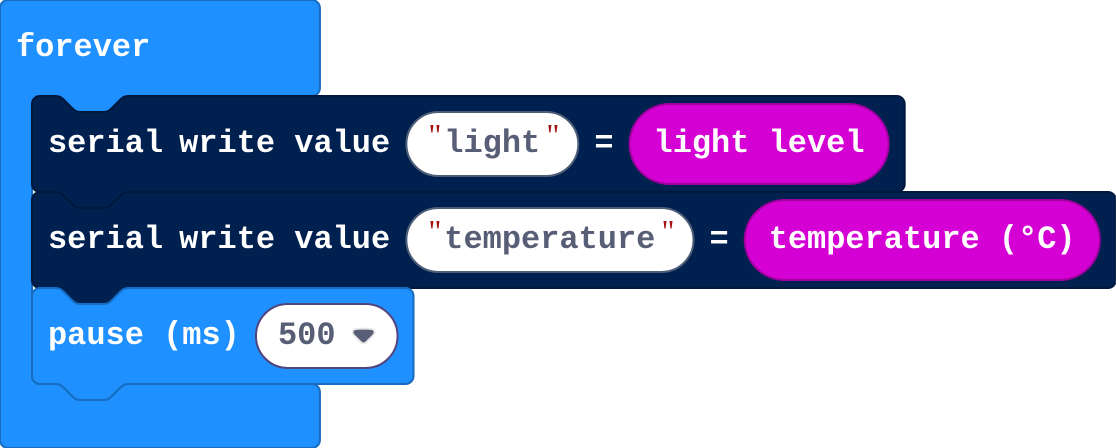
Modify › Two values
Show as code
basic.forever(function () {
    serial.writeValue("light", input.lightLevel())
    serial.writeValue("temperature", input.temperature())
    basic.pause(500)
})
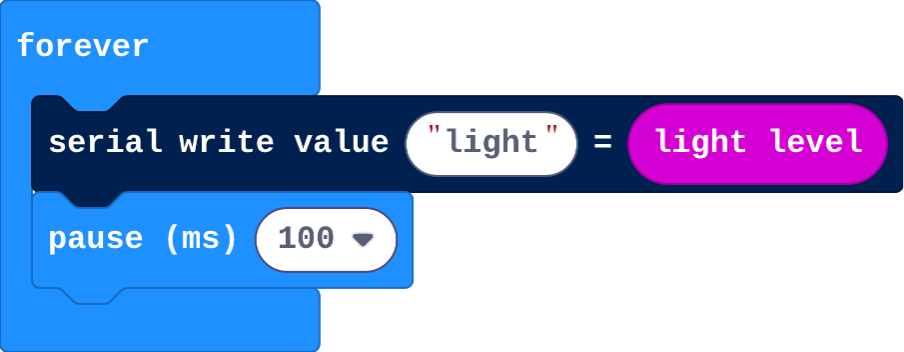
Modify › Faster
Show as code
basic.forever(function () {
    serial.writeValue("light", input.lightLevel())
    basic.pause(100)
})
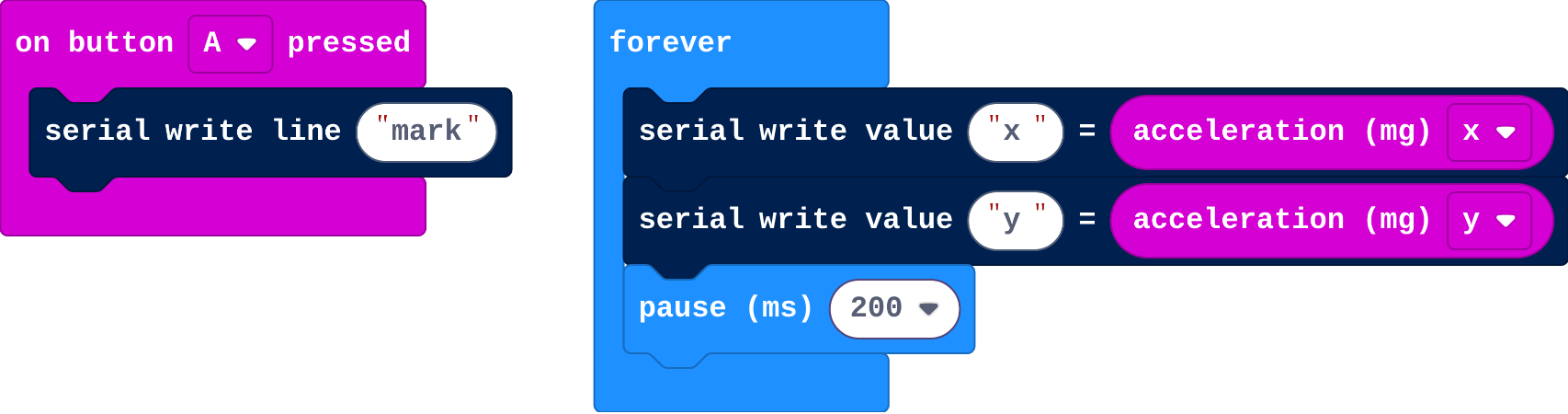
Make
Show as code
basic.forever(function () {
    serial.writeValue("x", input.acceleration(Dimension.X))
    serial.writeValue("y", input.acceleration(Dimension.Y))
    basic.pause(200)
})
input.onButtonPressed(Button.A, function () {
    serial.writeLine("mark")
})
Stretch and support
Stretch: Send the sound level too, and find out which is noisier: the classroom or the corridor.
Support: Give the Make program with x done; students add y and the button.
Exit ticket
What does the computer receive when the micro:bit runs serial write value light, light level?
A line of text: the name light, a colon and the reading, such as light:128.
What each step is for
- On a real micro:bit: The same lines arrive from a real micro:bit, and a different program (this board) can graph them: the text format is what connects the two.
- Investigate: Each reading is a named line of text sent again and again; the name tells values apart and the pause sets how often a reading is sent.
- Modify: A second named value appears as its own line on the graph; changing the pause changes how often readings arrive.
Where it leads
Next: the computer sends commands to the micro:bit. Real world: data loggers in science labs, weather stations and fitness trackers.