microStudio games reference
The microStudio commands and Python from Games with microStudio, each with what it does. Copy a card into your game.
Print a cheat sheet (the whole course or one unit, with a picture of what each command draws)
The game loop
def init():
    global x
    x = 0
Runs once, when the game starts. Give your variables their first values here. The engine calls it: you never do.
id: def-init
def update():
    global x
    x += 1
Runs 60 times a second. Move things, check keys and keep score here. A variable it changes needs a global line.
id: def-update
def draw():
    screen.clear("black")
    screen.fillRound(x, 0, 10, 10, "yellow")
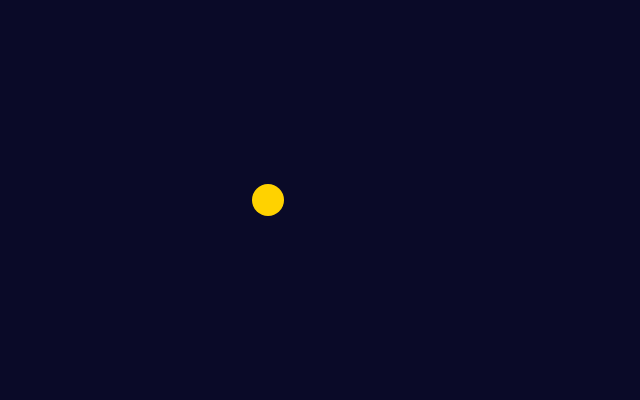
Example
x = -80

def update():
    global x
    x += 1

def draw():
    screen.clear("rgb(10,10,40)")
    screen.fillRound(x, 0, 16, 16, "rgb(255,210,0)")
Runs after each update. Clear the screen, then draw everything where it is now. Change nothing here.
id: def-draw
global score
The first line inside a function that changes a variable made outside it. Without it, Python stops with "cannot access local variable".
id: global
Drawing
screen.clear("rgb(10,10,40)")
Example
def draw():
    screen.clear("rgb(30,90,160)")
Fills the whole screen with one colour. Put it first in draw(), or the last frame stays on the screen.

id: screen-clear
screen.fillRect(x, y, width, height, "colour")
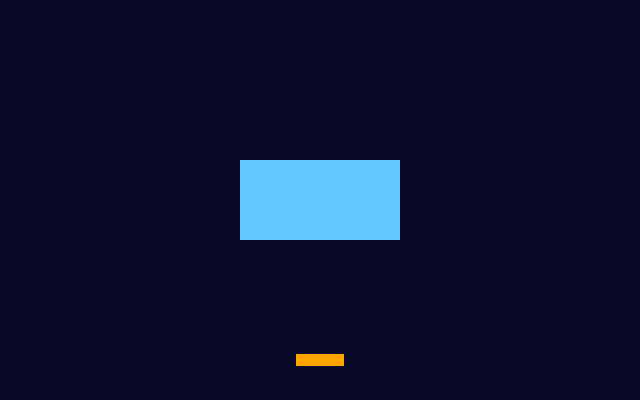
Example
def draw():
    screen.clear("rgb(10,10,40)")
    screen.fillRect(0, 0, 80, 40, "rgb(100,200,255)")
    screen.fillRect(0, -80, 24, 6, "orange")
A filled box. x and y are its middle: (0, 0) is the middle of the screen, y goes up to 100 at the top.
id: screen-fillrect
screen.fillRound(x, y, width, height, "colour")
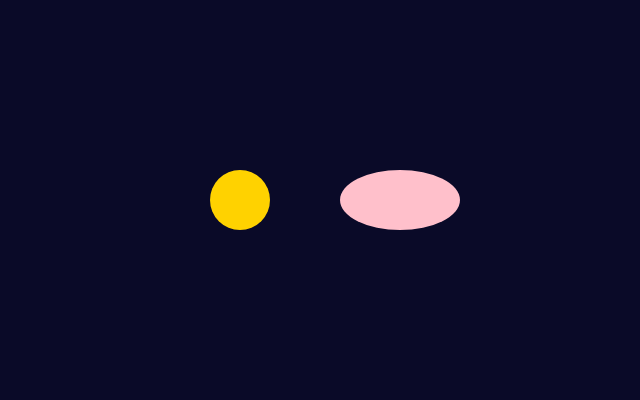
Example
def draw():
    screen.clear("rgb(10,10,40)")
    screen.fillRound(-40, 0, 30, 30, "rgb(255,210,0)")
    screen.fillRound(40, 0, 60, 30, "pink")
A filled circle or oval, centred on x and y. Same width and height for a circle.
id: screen-fillround
screen.drawRect(x, y, width, height, "colour")
screen.drawRound(x, y, width, height, "colour")
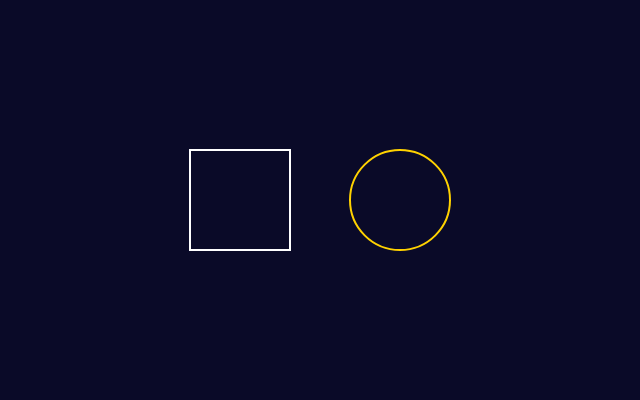
Example
def draw():
    screen.clear("rgb(10,10,40)")
    screen.drawRect(-40, 0, 50, 50, "white")
    screen.drawRound(40, 0, 50, 50, "rgb(255,210,0)")
Outlines only: the same as fillRect and fillRound, without filling the inside.
id: screen-drawrect-and-drawround
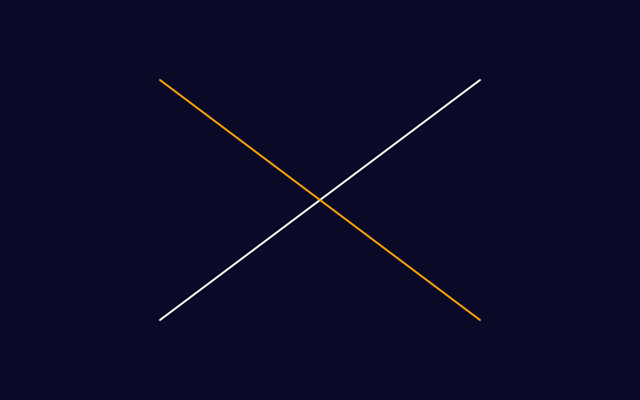
screen.drawLine(x1, y1, x2, y2, "colour")
Example
def draw():
    screen.clear("rgb(10,10,40)")
    screen.drawLine(-80, -60, 80, 60, "white")
    screen.drawLine(-80, 60, 80, -60, "orange")
A straight line from one point to another.
id: screen-drawline
screen.drawText(text, x, y, size, "colour")
Example
score = 3

def draw():
    screen.clear("rgb(10,10,40)")
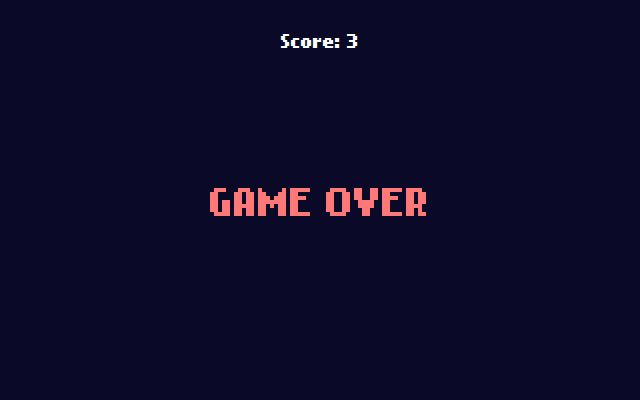
    screen.drawText("Score: " + str(score), 0, 80, 12, "white")
    screen.drawText("GAME OVER", 0, 0, 24, "rgb(255,120,120)")
Writes text centred on x and y. A number must be joined as text: "Score: " + str(score).
id: screen-drawtext
"red" "rgb(255,210,0)" "#40a0ff"
Example
def draw():
    screen.clear("rgb(10,10,40)")
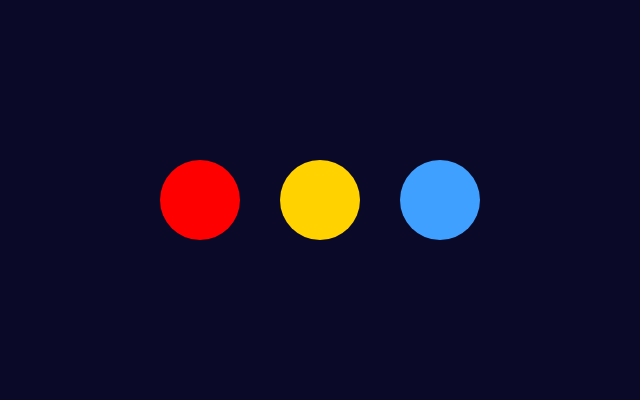
    screen.fillRound(-60, 0, 40, 40, "red")
    screen.fillRound(0, 0, 40, 40, "rgb(255,210,0)")
    screen.fillRound(60, 0, 40, 40, "#40a0ff")
A colour is text: a name, rgb(red, green, blue) with numbers from 0 to 255, or a hex code.
id: colours
screen.drawSprite("star", x, y, width, height)
Draws a picture you made in microStudio's Sprites tab, by its name. Sprites need microstudio.dev: in our playground nothing appears.
id: screen-drawsprite
Keys and mouse
def pressed(key):
    return hasattr(keyboard, key) and keyboard[key] != 0
Copy this helper into your game once. pressed("LEFT") is True while the key is held. Key names: LEFT, RIGHT, UP, DOWN, SPACE, A to Z.
id: pressed
if pressed("LEFT"):
    px -= 2
if pressed("RIGHT"):
    px += 2
Inside update(): a held key moves the player a little every frame, so it glides.
id: move-with-keys
if px < -150:
    px = -150
After moving, put the player back if it has gone past an edge. The top is y = 100 and the bottom is y = -100.
id: stay-on-the-screen
mouse.x mouse.y mouse.pressed
Where the mouse is, in the same coordinates as drawing. mouse.pressed is 1 while the button is held, else 0.
id: mouse
Sound
audio.beep("C E G")
Plays notes from text. Put it where something happens in update(), once, not in draw(). Try "duration 100 C E G" or "saw C2".
id: audio-beep
Objects and chance
class Star:
    def __init__(self, x):
        self.x = x
        self.y = 100

    def move(self):
        self.y -= 1

    def draw(self):
        screen.fillRound(self.x, self.y, 8, 8, "yellow")
Example
class Star:
    def __init__(self, x):
        self.x = x
        self.y = 60

    def draw(self):
        screen.fillRound(self.x, self.y, 10, 10, "rgb(255,210,0)")

stars = []
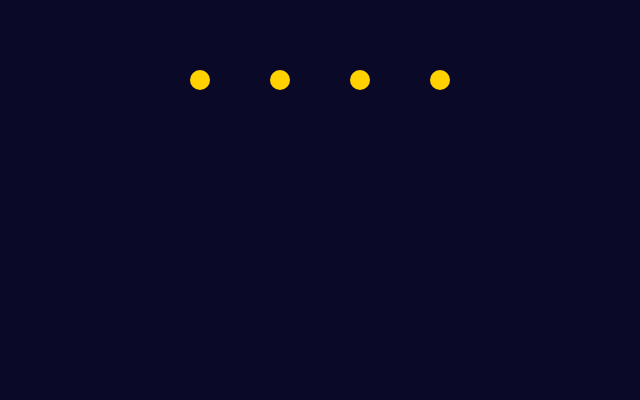
for i in range(4):
    stars.append(Star(-60 + i * 40))

def draw():
    screen.clear("rgb(10,10,40)")
    for star in stars:
        star.draw()
Each object keeps its own x and y in self, moves itself and draws itself.
id: class-with-move-and-draw
for star in stars:
    star.move()
In update(), tell every object to move; in draw(), tell every object to draw. The loop stays short however many there are.
id: a-list-of-objects
import random

random.randint(-90, 90)
A whole number picked at random from the first to the second, both included. import random goes at the top of the game.
id: random-randint
def touches(self, x, y):
    return abs(self.x - x) < 12 and abs(self.y - y) < 8
True when this object is close to (x, y) in both directions: abs() is the distance, whichever side it is on.
id: touches
print(score)
Writes in the console under the game: useful to check a value while the game runs.
id: print