Commands from the computer
Students program a micro:bit to act on words the computer sends over USB, reply to each one, and handle words it doesn't know.
Classroom resources
Load these into Waypoints Prepare: choose Load URL and paste the copied address, or download the file and import it. In Prepare, the worksheet's Teacher edition shows the answers; the student copy hides them.
Students will be able to
- I can make a micro:bit act on a line of text sent from the computer.
- I can explain why the words must match exactly.
- I can reply to each command, including words my program doesn't know.
Timing
Predict and Run 6 min · Send commands 8 min (typical) · Investigate 8 min · Modify 10 min · Make 10 min · Test the lamp 3 min (typical)
Before class
The idea: the computer sends a line of text; on serial data received runs once the whole line has arrived (it ends with a new line), and read line gives its text. The micro:bit's own program decides what each word means, so both sides must agree on every word, capital letters included. A reply (ok, or ? for an unknown word) tells the computer what happened.
Hardware: the simulator cannot receive lines from the computer, so the board steps need a micro:bit, a data USB cable and Chrome or Edge. They are marked typical: without micro:bits, students do Predict, Investigate, Modify and Make in the editor (code checks still tick) and talk through what would happen.
Only one page can use the cable at a time: if MakeCode is connected to the micro:bit, disconnect it there first.
Running the lesson
- Predict: many say a happy face. Ask: is Happy the same text as happy?
- Send commands: let students find that typed Happy does nothing before you explain.
- Investigate: Ben's comma is the delimiter idea; the board always ends lines with a new line.
- Modify: the ? reply is the important one: it makes unknown words visible.
The hard part (on purpose)
The micro:bit acts only on the exact words it checks for. When a word does nothing, ask them to compare it letter by letter with the program.
When students get stuck
| What you will see | A question to ask | The fix |
|---|---|---|
| Nothing happens when a button is pressed. | Is the board connected (the button says micro:bit connected)? Is MakeCode connected to the micro:bit in another tab? | Disconnect MakeCode, then Connect a micro:bit on the board. |
| Some words work and others don't. | Does the word you sent match the word in the if exactly? | Match spelling and capitals, or add a branch. |
| The micro:bit never reacts to anything. | Which delimiter does on serial data received wait for? | Use new line. |
Answers to the checks
- Predict: The computer sends the line Happy (with a capital H) to a micro:bit running this program. What does it show?
Nothing. The program checks for happy with a small h. Text must match exactly, so Happy matches neither branch. - Send commands: Send happy and sad with the buttons, then type Happy yourself.
- When it runs: When does on serial data received run?
Each time a whole line arrives (it ends with a new line)
It waits for the end of a line, then runs once. read line gives you that line, without its new line. - Ben's micro:bit: Ben's micro:bit never reacts, whatever the board sends. His program starts with on serial data received with delimiters comma. Why?
It waits for a comma, but the board ends each line with a new line, so it never runs
The delimiter is the character that ends a message. The board ends each line with a new line, so the micro:bit must wait for a new line. - Replies: Why is it useful for the micro:bit to send a reply, such as ok?
The computer then knows the command arrived and was understood
Without a reply the sender can't tell whether a command arrived, or whether it was a word the micro:bit doesn't know. - Test the lamp: Send on, off and count to your lamp, and get a count back.
Solutions
One possible solution for each task. Other correct programs are fine.
Modify › A new command
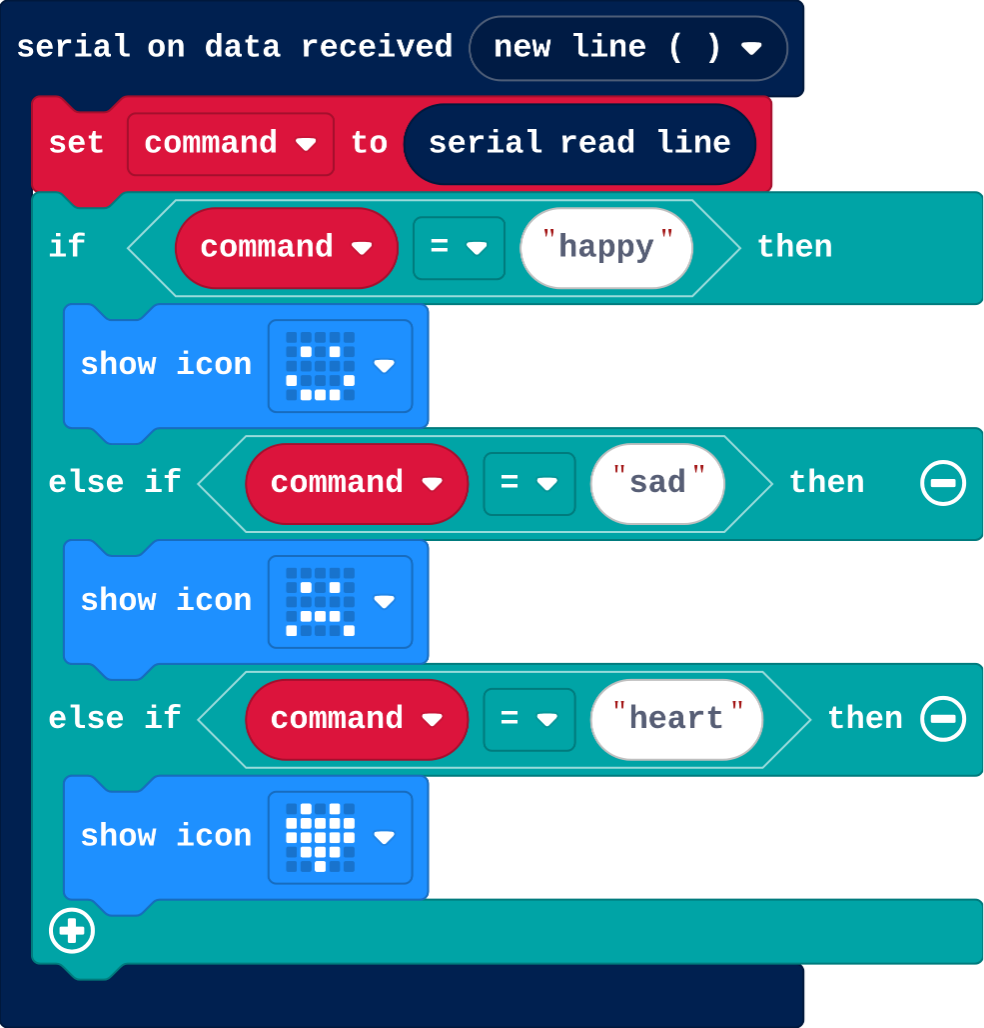
Show as code
serial.onDataReceived(serial.delimiters(Delimiters.NewLine), function () {
    command = serial.readLine()
    if (command == "happy") {
        basic.showIcon(IconNames.Happy)
    } else if (command == "sad") {
        basic.showIcon(IconNames.Sad)
    } else if (command == "heart") {
        basic.showIcon(IconNames.Heart)
    }
})
let command = ""
Modify › Reply
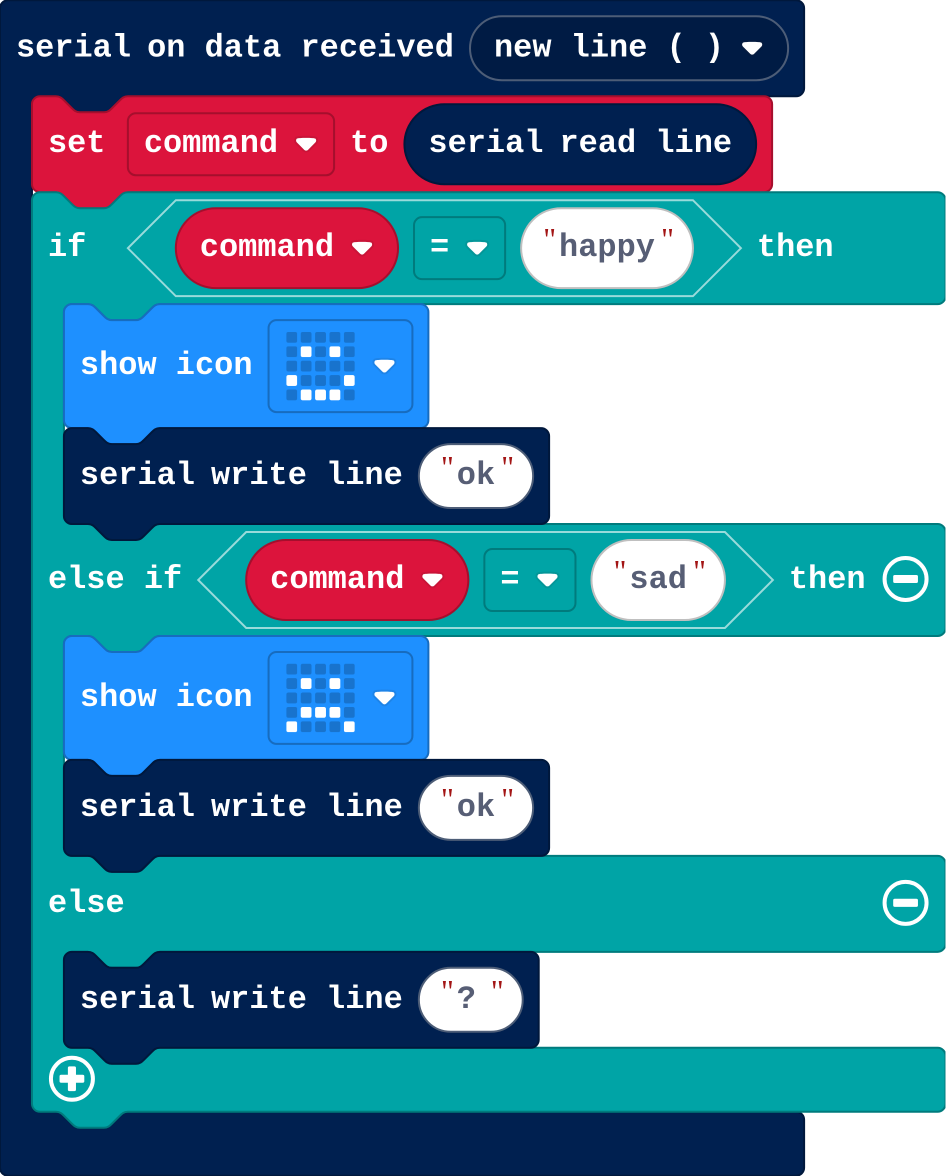
Show as code
serial.onDataReceived(serial.delimiters(Delimiters.NewLine), function () {
    command = serial.readLine()
    if (command == "happy") {
        basic.showIcon(IconNames.Happy)
        serial.writeLine("ok")
    } else if (command == "sad") {
        basic.showIcon(IconNames.Sad)
        serial.writeLine("ok")
    } else {
        serial.writeLine("?")
    }
})
let command = ""
Make
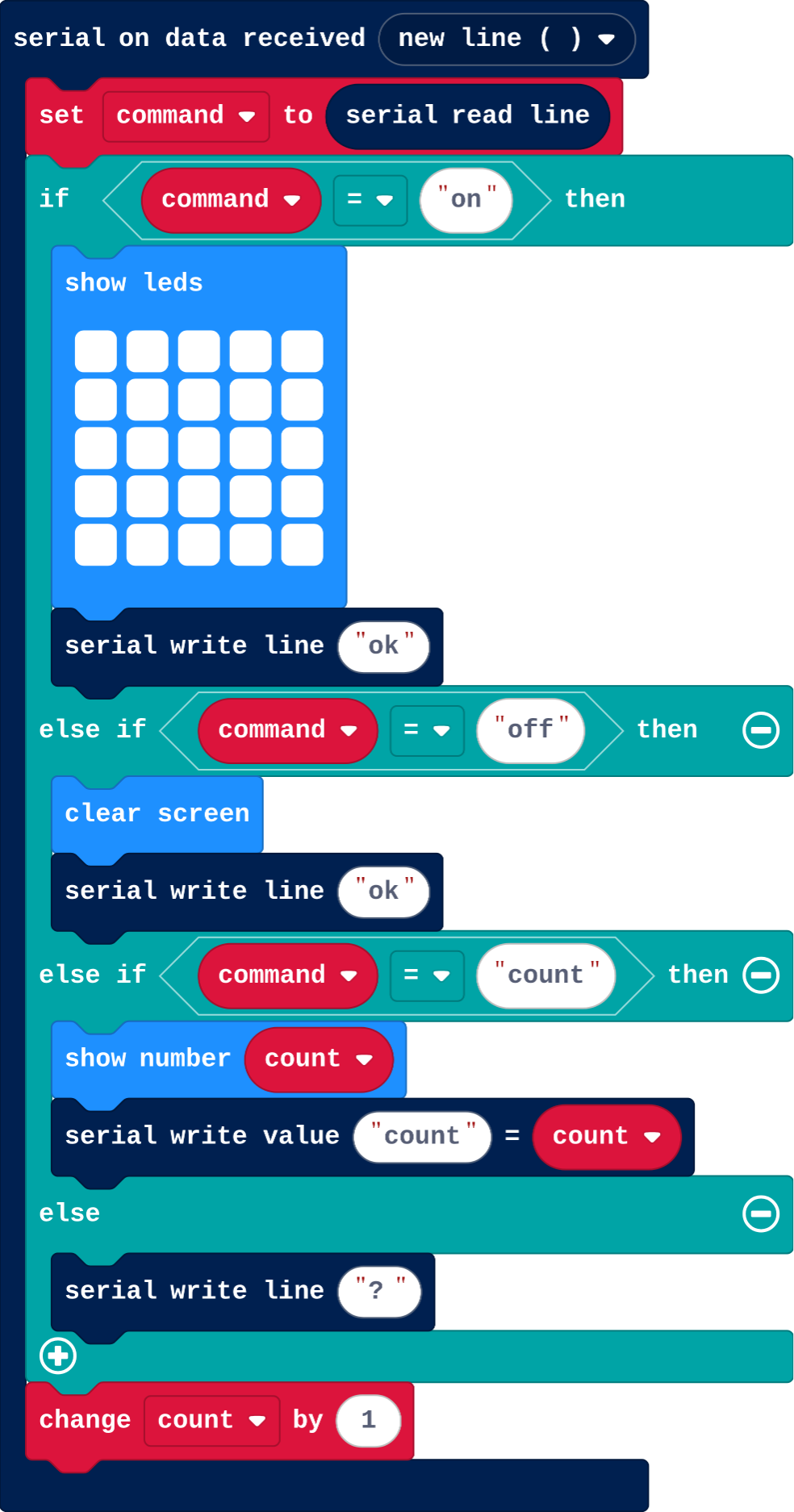
Show as code
serial.onDataReceived(serial.delimiters(Delimiters.NewLine), function () {
    command = serial.readLine()
    if (command == "on") {
        basic.showLeds(`
            # # # # #
            # # # # #
            # # # # #
            # # # # #
            # # # # #
            `)
        serial.writeLine("ok")
    } else if (command == "off") {
        basic.clearScreen()
        serial.writeLine("ok")
    } else if (command == "count") {
        basic.showNumber(count)
        serial.writeValue("count", count)
    } else {
        serial.writeLine("?")
    }
    count += 1
})
let count = 0
let command = ""
Stretch and support
Stretch: Add a command that takes a number, such as bright 50: check the line starts with bright, and use the rest as the brightness.
Support: Give the reply branch for happy; students copy the pattern for sad and add the else.
Exit ticket
The computer sends Stop but the micro:bit's program checks for stop. What happens, and how would you fix it?
Nothing matches, so nothing happens (or the else runs). Make both sides use exactly the same word.
What each step is for
- Send commands: Seeing which words work and which don't makes exact matching concrete: the micro:bit acts only on the words its program checks for.
- Investigate: on serial data received runs once per whole line; read line gives the line's text, and the program's if chooses what each word does.
- Modify: A new command needs a new branch; a reply for every line, including words the program doesn't know, tells the computer what happened.
Where it leads
Next: a radio bridge, so commands reach a micro:bit across the room. Real world: 3D printers and CNC machines take G-code, one command per line.