---
marp: true
theme: default
html: true
---

# Commands from the computer

micro:bit and the computer · Talk over USB

<!-- Speaker note: Students program a micro:bit to act on words the computer sends over USB, reply to each one, and handle words it doesn't know. About 45 minutes (Predict and Run 6 min · Send commands 8 min (typical) · Investigate 8 min · Modify 10 min · Make 10 min · Test the lamp 3 min (typical)). -->

---

## Today

**We are learning to** the computer can send lines of text too. The micro:bit reads each whole line and its program decides what the word means, so both sides must agree on every word.

- I can make a micro:bit act on a line of text sent from the computer.
- I can explain why the words must match exactly.
- I can reply to each command, including words my program doesn't know.

<!-- Speaker note: Before class: **The idea:** the computer sends a line of text; **on serial data received** runs once the whole line has arrived (it ends with a new line), and **read line** gives its text. The micro:bit's own program decides what each word means, so both sides must agree on every word, capital letters included. A reply (**ok**, or **?** for an unknown word) tells the computer what happened. **Hardware:** the simulator cannot receive lines from the computer, so the board steps need a micro:bit, a data USB cable and **Chrome or Edge**. They are marked typical: without micro:bits, students do Predict, Investigate, Modify and Make in the editor (code checks still tick) and talk through what would happen. Only one page can use the cable at a time: if MakeCode is connected to the micro:bit, disconnect it there first. Teacher: Send commands: let students find that typed Happy does nothing before you explain. -->

---

## Why it matters

> A 3D printer, a laser cutter and a robot arm in a factory all take orders from a computer as short lines of text: move here, heat up, stop. The machine's own program decides what each line means.

<!-- Speaker note: Last lesson the micro:bit sent lines to the computer. Now the computer sends lines to the micro:bit: the board has buttons that each send a word. **You need:** a micro:bit, a USB cable, and **Chrome or Edge**. The MakeCode simulator cannot receive lines from the computer, so this lesson runs on a real micro:bit. Without one, do the Predict, Investigate, Modify and Make steps in the editor and check them with a partner. -->

---

<span style="background:#dbeafe; color:#1a1a1a; border:1.5px solid #3b82f6; padding:6px 18px; border-radius:8px; font-size:1em; font-weight:500;">💬 Discussion</span>

## Predict

![h:360](https://studio.learningwaypoints.com/tutorials/_pictures/makecode/code/a2d1ac736d04.png?v=fa4f2bf6375a7178)

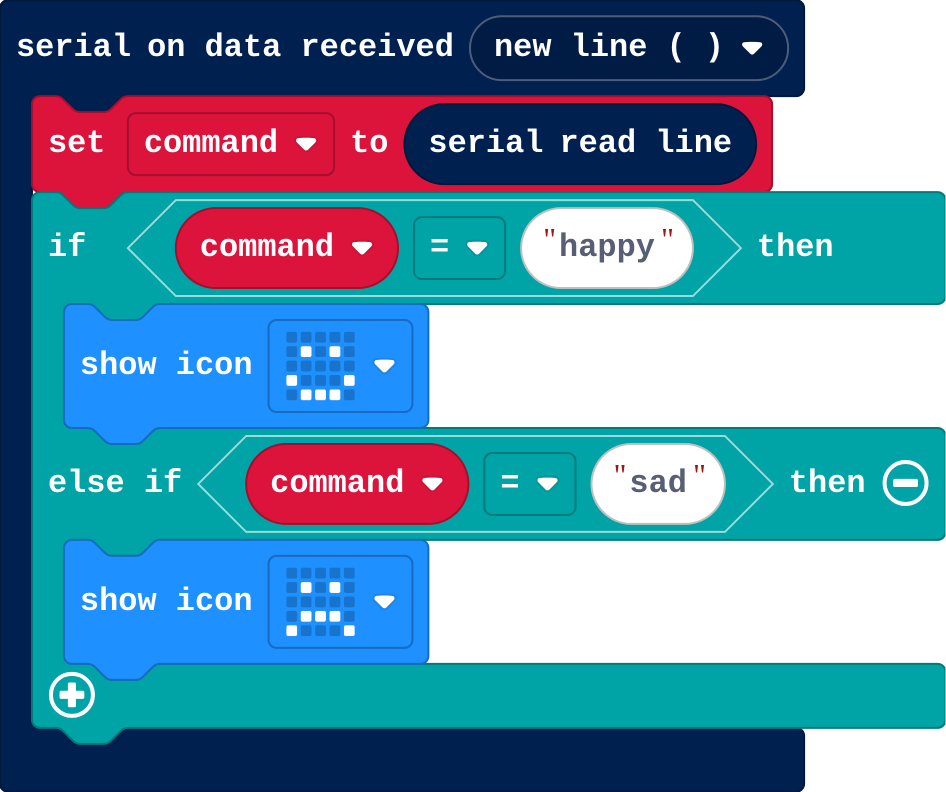
**The computer sends the line Happy (with a capital H) to a micro:bit running this program. What does it show?**

- A happy face
- The word Happy
- A sad face
- Nothing

<!-- Speaker note: What happens: Nothing. The program checks for happy with a small h. Text must match exactly, so Happy matches neither branch. Take two or three predictions before anyone runs it. -->

<!-- Speaker note: Teacher: many say a happy face. Ask: is Happy the same text as happy? -->

---

<span style="background:#dcfce7; color:#1a1a1a; border:1.5px solid #22c55e; padding:6px 18px; border-radius:8px; font-size:1em; font-weight:500;">✅ Check</span>

## What happened?

* Nothing. The program checks for happy with a small h. Text must match exactly, so Happy matches neither branch.

<!-- Speaker note: Reveal after running. Ask who predicted it, and what made them think so. -->

---

<span style="background:#fef3c7; color:#1a1a1a; border:1.5px solid #f59e0b; padding:6px 18px; border-radius:8px; font-size:1em; font-weight:500;">✍️ Activity</span>

## Run it

Open the lesson at this step and try it together.

[studio.learningwaypoints.com/tutorials/code/microbit-computer/commands/?full=step-2#step-2](https://studio.learningwaypoints.com/tutorials/code/microbit-computer/commands/?full=step-2#step-2)

<!-- Speaker note: Click **Download** and copy the program to your micro:bit. Leave it plugged in. If the editor is connected to the micro:bit, disconnect it there first. Students should be able to say: I downloaded the program to my micro:bit and left it plugged in. -->

---

<span style="background:#fef3c7; color:#1a1a1a; border:1.5px solid #f59e0b; padding:6px 18px; border-radius:8px; font-size:1em; font-weight:500;">✍️ Activity</span>

## Run it

{{embed: https://studio.learningwaypoints.com/tutorials/_playground-board/index.html?id=deck%2Fcode%2Fmicrobit-computer%2Fcommands%2Fstep-3&code=widget%3A+serial%0Abutton+Happy%3A+happy%0Abutton+Sad%3A+sad%0Atext%3A+on%0A&fresh=1}}

[Open this step in the tutorial](https://studio.learningwaypoints.com/tutorials/code/microbit-computer/commands/?full=step-3#step-3)

<!-- Speaker note: Click **Connect a micro:bit**, then the **Happy** and **Sad** buttons. Then type **Happy** in the box and send it. What happens? -->

<style scoped>pre, marp-pre { font-size: 0.5em; line-height: 1.25; } section { font-size: 25px; }</style>

---

<span style="background:#dbeafe; color:#1a1a1a; border:1.5px solid #3b82f6; padding:6px 18px; border-radius:8px; font-size:1em; font-weight:500;">💬 Discussion</span>

## Investigate

![h:360](https://studio.learningwaypoints.com/tutorials/_pictures/makecode/code/a2d1ac736d04.png?v=fa4f2bf6375a7178)

<!-- Speaker note: What this step is for: on serial data received runs once per whole line; read line gives the line's text, and the program's if chooses what each word does. -->

<!-- Speaker note: Teacher: Ben's comma is the delimiter idea; the board always ends lines with a new line. -->

---

<span style="background:#dcfce7; color:#1a1a1a; border:1.5px solid #22c55e; padding:6px 18px; border-radius:8px; font-size:1em; font-weight:500;">✅ Check</span>

## When it runs

**When does on serial data received run?**

- Each time a whole line arrives (it ends with a new line)
- When a button on the micro:bit is pressed
- Every half second
- Only when the micro:bit starts

* Answer: Each time a whole line arrives (it ends with a new line)

<!-- Speaker note: It waits for the end of a line, then runs once. read line gives you that line, without its new line. -->

---

<span style="background:#dcfce7; color:#1a1a1a; border:1.5px solid #22c55e; padding:6px 18px; border-radius:8px; font-size:1em; font-weight:500;">✅ Check</span>

## Ben's micro:bit

![h:278](https://studio.learningwaypoints.com/tutorials/_pictures/makecode/code/806696a7939d.png?v=586802d837e622ff)

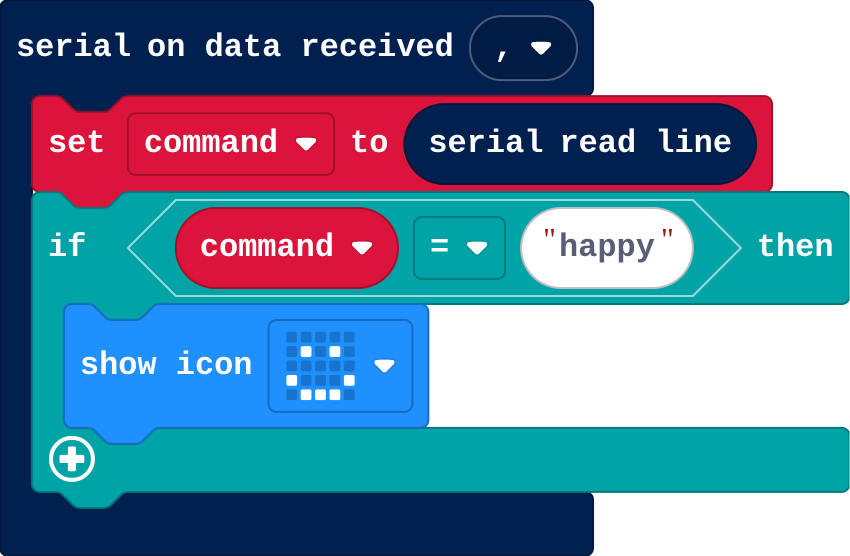
**Ben's micro:bit never reacts, whatever the board sends. His program starts with on serial data received with delimiters comma. Why?**

- He needs a forever block
- The cable is too slow
- It waits for a comma, but the board ends each line with a new line, so it never runs
- Commas are not allowed in serial

* Answer: It waits for a comma, but the board ends each line with a new line, so it never runs

<!-- Speaker note: The delimiter is the character that ends a message. The board ends each line with a new line, so the micro:bit must wait for a new line. -->

<style scoped>pre, marp-pre { font-size: 0.5em; line-height: 1.25; } section { font-size: 23px; }</style>

---

<span style="background:#dcfce7; color:#1a1a1a; border:1.5px solid #22c55e; padding:6px 18px; border-radius:8px; font-size:1em; font-weight:500;">✅ Check</span>

## Replies

**Why is it useful for the micro:bit to send a reply, such as ok?**

- Replies are needed for the LEDs to work
- Replies make the cable faster
- The micro:bit forgets the command otherwise
- The computer then knows the command arrived and was understood

* Answer: The computer then knows the command arrived and was understood

<!-- Speaker note: Without a reply the sender can't tell whether a command arrived, or whether it was a word the micro:bit doesn't know. -->

<style scoped>pre, marp-pre { font-size: 0.5em; line-height: 1.25; } section { font-size: 27px; }</style>

---

<span style="background:#fef3c7; color:#1a1a1a; border:1.5px solid #f59e0b; padding:6px 18px; border-radius:8px; font-size:1em; font-weight:500;">✍️ Activity</span>

## Modify


- **A new command:** Add a **heart** command. On the board, type **heart** in the box to test it.
- **Reply:** Make the micro:bit **reply**: **ok** when it knows the word, **?** when it doesn't. The board shows the replies.

[Open this step](https://studio.learningwaypoints.com/tutorials/code/microbit-computer/commands/?full=step-5#step-5)

<!-- Speaker note: What this step is for: A new command needs a new branch; a reply for every line, including words the program doesn't know, tells the computer what happened. Hints, in order: Add an else if: command = heart, then show icon heart. / serial write line is in Serial. / Add an else at the end for any other word: serial write line ? For students who need more support: Give the reply branch for happy; students copy the pattern for sad and add the else. For early finishers: Add a command that takes a number, such as bright 50: check the line starts with bright, and use the rest as the brightness. The hard part, on purpose: The micro:bit acts only on the exact words it checks for. When a word does nothing, ask them to compare it letter by letter with the program. When students get stuck: Nothing happens when a button is pressed. Ask: Is the board connected (the button says micro:bit connected)? Is MakeCode connected to the micro:bit in another tab? Fix: Disconnect MakeCode, then Connect a micro:bit on the board. / Some words work and others don't. Ask: Does the word you sent match the word in the if exactly? Fix: Match spelling and capitals, or add a branch. / The micro:bit never reacts to anything. Ask: Which delimiter does on serial data received wait for? Fix: Use new line. -->

<!-- Speaker note: Teacher: the ? reply is the important one: it makes unknown words visible. -->

---

<span style="background:#fef3c7; color:#1a1a1a; border:1.5px solid #f59e0b; padding:6px 18px; border-radius:8px; font-size:1em; font-weight:500;">✍️ Activity</span>

## Make

Make a **desk lamp** the computer controls. **on** lights every LED, **off** clears the screen, **count** shows (and sends back) how many commands it has had. Reply **ok** to on and off and **?** to anything else.

[Open this step](https://studio.learningwaypoints.com/tutorials/code/microbit-computer/commands/?full=step-6#step-6)

<!-- Speaker note: Hints, in order: Three branches: on, off and count; an else for anything else. / on: show leds with every LED lit; off: clear screen; count: show number and send it back with serial write value. -->

---

## Test the lamp

Download your lamp to a micro:bit, connect it, and use the buttons. Type a word it doesn't know, too.

---

<span style="background:#dcfce7; color:#1a1a1a; border:1.5px solid #22c55e; padding:6px 18px; border-radius:8px; font-size:1em; font-weight:500;">✅ Check</span>

## Exit ticket

**The computer sends Stop but the micro:bit's program checks for stop. What happens, and how would you fix it?**

* Nothing matches, so nothing happens (or the else runs). Make both sides use exactly the same word.

<!-- Speaker note: Students answer on paper or a mini whiteboard before the reveal. Anyone who cannot answer needs the main idea again next lesson. Where this leads: Next: a radio bridge, so commands reach a micro:bit across the room. Real world: 3D printers and CNC machines take G-code, one command per line. -->