<p> paragraph
A paragraph of text.
<p>Some text</p>Example
<p>We meet on Tuesdays.</p>
<p>Everyone is welcome.</p>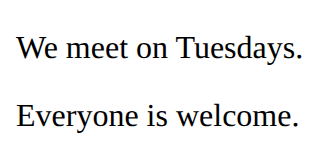
Apps with Vue · In any playground, open Reference to copy these.
A paragraph of text.
<p>Some text</p><p>We meet on Tuesdays.</p>
<p>Everyone is welcome.</p>A note that the browser ignores.
<!-- A note to yourself --><p>You can see this.</p>
<!-- You cannot see this. -->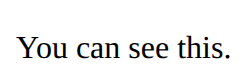
Read what someone typed into the box with id="name".
const name = document.querySelector('#name').value;Vue looks after everything inside the div with id app. setup makes the data and functions, and returns the names the page can use. vue.js sits beside the page.
<div id="app">
  the page
</div>

<script src="vue.js"></script>
<script>
  const { createApp, ref, computed } = Vue;
  createApp({
    setup() {
      data and functions
      return { names };
    }
  }).mount("#app");
</script><div id="app">
<p>Today: {{ temp }} °C</p>
</div>
<script src="vue.js"></script>
<script>
const { createApp, ref } = Vue;
createApp({
setup() {
const temp = ref(21);
return { temp };
}
}).mount("#app");
</script>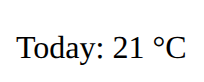
Shows the tag only while the condition is true. v-else on the next tag shows when it is false.
<p v-if="players.length === 0">No players yet.</p>Joins a box to a ref, both ways: typing changes the data, and changing the data changes the box. On a tick box it is true or false.
<input v-model="newName">A function the page can run (return it from setup). In the script, a ref's value is in .value.
function addPoint() {
  score.value++;
}A bulleted list. Each item is an <li>.
<ul>
  <li>First</li>
  <li>Second</li>
</ul><ul>
<li>Apples</li>
<li>Pears</li>
<li>Plums</li>
</ul>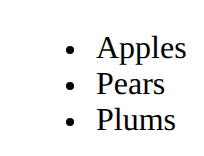
Style every element matching the selector.
p {
  color: blue;
}<style>
li {
color: teal;
}
</style>
<ul>
<li>One</li>
<li>Two</li>
</ul>
Data that Vue watches: when it changes, the page follows. Return it from setup. In the script its value is score.value; on the page, just score.
const score = ref(0);Shows a value from setup on the page, and keeps it up to date. Any short expression works: {{ score * 2 }}.
{{ score }}Runs a function from setup when the button is clicked. A short change works too: @click="score++".
<button @click="addPoint">Add</button>Makes this tag once for each item in the list. Put it on the tag you want more of (the li, not the ul).
<li v-for="name in players">{{ name }}</li><ul id="app">
<li v-for="fruit in fruits">{{ fruit }}</li>
</ul>
<script src="vue.js"></script>
<script>
const { createApp, ref } = Vue;
createApp({
setup() {
const fruits = ref(["Apple", "Pear", "Plum"]);
return { fruits };
}
}).mount("#app");
</script>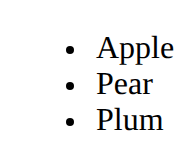
The biggest heading. Use it once for the page title.
<h1>Heading</h1><h1>Robotics Club</h1>
Space outside an element, between it and its neighbours.
margin: 10px;<style>
p {
border: 1px solid gray;
margin: 20px;
}
</style>
<p>One</p>
<p>Two</p>
A value worked out from other data. Vue works it out again whenever that data changes, so it never goes stale. Never set it yourself.
const total = computed(() => adults.value * 12);Headings are the page's outline: one h1, then h2 for each part, h3 inside those. Never pick a level for its size; set the size with CSS.
<h1>Page title</h1>
<h2>A part of the page</h2>
<h3>A part of that part</h3>Space inside an element, between its edge and its content.
padding: 10px;<style>
p {
background-color: lightblue;
padding: 20px;
}
</style>
<p>Room inside</p>
A line around an element: thickness, style, colour.
border: 2px solid black;<style>
p {
border: 2px solid black;
}
</style>
<p>Boxed</p>
A tag of your own, made once and used many times: <player-card :name="p.name"></player-card>. The colon passes a value. Make the app with const app = createApp(...), add components, then app.mount("#app").
app.component("player-card", {
  props: ["name"],
  template: `<p>{{ name }}</p>`
});A smaller heading for a section.
<h2>Subheading</h2><h1>Robotics Club</h1>
<h2>This term</h2>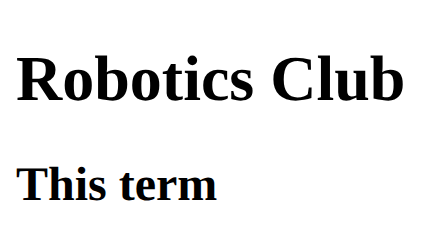
Preact and React state: the value, and a function to change it. Always give it a new value: setStars([...stars, item]), never stars.push.
const [stars, setStars] = useState([]);Svelte's data that changes, and a value worked out from it. Change $state data directly (count++, list.push). Show it with {count}; choose with {#if …} … {/if}.
let count = $state(0);
let double = $derived(count * 2);
Preact works like React. A component is a function that returns its page, written in html`…` (htm). Preact runs the function again after every change.
<div id="app"></div>
<script src="preact.js"></script>
<script>
  const { html, render, useState } = htmPreact;
  function App() {
    state and functions
    return html`the page`;
  }
  render(html`<${App} />`, document.querySelector("#app"));
</script>Here a Svelte component sits in a hidden textarea and svelte.js compiles it in the page. In a real project it is its own file, App.svelte.
<textarea data-svelte hidden>
  <script>
    state and functions
  </script>
  the page
</textarea>
<script src="svelte.js"></script><textarea data-svelte hidden>
<script>
let name = $state("world");
</script>
<p>Hello, {name}!</p>
</textarea>
<script src="svelte.js"></script>