---
marp: true
theme: default
html: true
---

# Count with a variable

micro:bit Foundations · Remember and sense

<!-- Speaker note: Students use a variable to count button presses and shakes, and see the difference between setting a variable and changing it. About 45 minutes (Predict and Run 8 min · Investigate 12 min · Modify 8 min · Mix it up 3 min · Make 10 min · Scoreboard 4 min). -->

---

## Today

**We are learning to** use a variable to remember a number, and change it each time a button is pressed.

- I can make a variable and set its starting value.
- I can change a variable when an event happens, and show it.
- I can explain the difference between set and change.

<!-- Speaker note: Before class: A **variable** is a named box that holds a value, such as `count`. Make one in **Variables › Make a Variable**. Two blocks matter: **set** puts a new value in the box (throwing the old one away) and **change** adds to what is already there. Where the set block goes matters: in **on start** it runs once; in **forever** it runs again and again and wipes the count. Numbers above 9 scroll across the screen, so ask students to wait before pressing again. Teacher: Mix it up: a look back at events, with no variables. -->

---

## Why it matters

> A step counter, a scoreboard, a ticket machine at the deli: each one remembers a number and changes it when something happens.

<!-- Speaker note: So far the micro:bit has shown pictures but forgotten everything straight away. To count, it needs to **remember** a number. A **variable** is a named place to keep a value, such as `count`. You find variable blocks in **Variables**. -->

---

<span style="background:#dbeafe; color:#1a1a1a; border:1.5px solid #3b82f6; padding:6px 18px; border-radius:8px; font-size:1em; font-weight:500;">💬 Discussion</span>

## Predict

![h:176](https://studio.learningwaypoints.com/tutorials/_pictures/makecode/code/6f9232320634.png?v=b858b183b8ec44eb)

**You press A three times. What number is on the screen?**

- 0
- 1
- 3
- 4

<!-- Speaker note: What happens: 3. count starts at 0, and each press of A changes it by 1 and shows it: 1, then 2, then 3. Take two or three predictions before anyone runs it. -->

<!-- Speaker note: Teacher: most students say 3. Some say 1 (change sets it to 1). Ask what count is before the second press. Ask the students who chose 1 what change count by 1 does to a count that is already 1. -->

---

<span style="background:#dcfce7; color:#1a1a1a; border:1.5px solid #22c55e; padding:6px 18px; border-radius:8px; font-size:1em; font-weight:500;">✅ Check</span>

## What happened?

* 3. count starts at 0, and each press of A changes it by 1 and shows it: 1, then 2, then 3.

<!-- Speaker note: Reveal after running. Ask who predicted it, and what made them think so. -->

---

<span style="background:#fef3c7; color:#1a1a1a; border:1.5px solid #f59e0b; padding:6px 18px; border-radius:8px; font-size:1em; font-weight:500;">✍️ Activity</span>

## Run it

Open the lesson at this step and try it together.

[studio.learningwaypoints.com/tutorials/code/microbit/microbit-counting/?full=step-2#step-2](https://studio.learningwaypoints.com/tutorials/code/microbit/microbit-counting/?full=step-2#step-2)

<!-- Speaker note: Press **A** slowly three times. Wait for each number to show before you press again. Students should be able to say: I pressed A three times and compared the number with my prediction. -->

<!-- Speaker note: Teacher: press slowly. Point out that the number is remembered between presses: that is the variable. -->

---

<span style="background:#dbeafe; color:#1a1a1a; border:1.5px solid #3b82f6; padding:6px 18px; border-radius:8px; font-size:1em; font-weight:500;">💬 Discussion</span>

## Investigate

![h:176](https://studio.learningwaypoints.com/tutorials/_pictures/makecode/code/71a2f5bcbb75.png?v=1ff083b75df9f3c7)

<!-- Speaker note: Here is a counter with a reset button. What this step is for: A variable keeps its value between events. change adds to it; set replaces it. Setting it again and again in forever wipes it out. -->

<!-- Speaker note: Teacher: the trace shows set (B) throwing the value away. Mia's counter is the most common mistake this lesson: set inside forever. -->

---

<span style="background:#dcfce7; color:#1a1a1a; border:1.5px solid #22c55e; padding:6px 18px; border-radius:8px; font-size:1em; font-weight:500;">✅ Check</span>

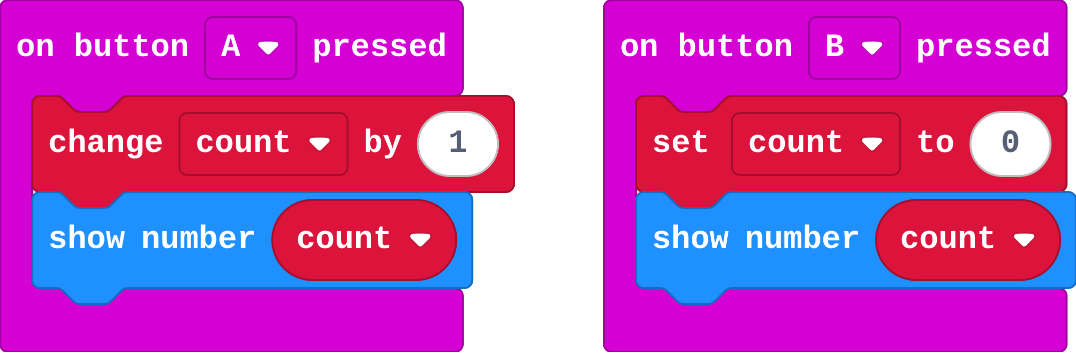
## Trace the presses

**This program counts with A and resets with B. Fill in count after each press.**

| press | count after |
|---|---|
| (start) | 0 |
| A | ? |
| A | ? |
| B | ? |
| A | ? |

* Answer: 1, 2, 0, 1

<!-- Speaker note: change count by 1 adds one to whatever count is now. set count to 0 throws the old value away. -->

<style scoped>pre, marp-pre { font-size: 0.5em; line-height: 1.25; } section { font-size: 22px; }</style>

---

<span style="background:#dcfce7; color:#1a1a1a; border:1.5px solid #22c55e; padding:6px 18px; border-radius:8px; font-size:1em; font-weight:500;">✅ Check</span>

## Mia's counter

Mia's program:

![h:176](https://studio.learningwaypoints.com/tutorials/_pictures/makecode/code/355e719a9da4.png?v=1bff64a4ee46acd9)

**Mia built this counter. However fast she presses A, it always shows 0. Why?**

- forever sets count back to 0 again and again
- show number cannot show numbers above 0
- count needs to start at 1
- A is not connected to count

* Answer: forever sets count back to 0 again and again

<!-- Speaker note: The press does add 1, but forever runs set count to 0 straight after, many times a second. Setting the start value belongs in on start, which runs once. -->

<style scoped>pre, marp-pre { font-size: 0.5em; line-height: 1.25; } section { font-size: 24px; }</style>

---

<span style="background:#dcfce7; color:#1a1a1a; border:1.5px solid #22c55e; padding:6px 18px; border-radius:8px; font-size:1em; font-weight:500;">✅ Check</span>

## Set, change, show

**Match each block with what it does to count.**

| | |
|---|---|
| `set count to 0` | A. throws the old value away and puts 0 there |
| `change count by 1` | B. adds 1 to whatever count is now |
| `show number count` | C. shows count, without changing it |

* Answer: set count to 0 → A. throws the old value away and puts 0 there; change count by 1 → B. adds 1 to whatever count is now; show number count → C. shows count, without changing it

<!-- Speaker note:  -->

<style scoped>pre, marp-pre { font-size: 0.5em; line-height: 1.25; } section { font-size: 24px; }</style>

---

<span style="background:#fef3c7; color:#1a1a1a; border:1.5px solid #f59e0b; padding:6px 18px; border-radius:8px; font-size:1em; font-weight:500;">✍️ Activity</span>

## The box on the desk <span style="font-size:.6em;color:#64748b">(4 min)</span>

A student holds a box with a number card in it. The class calls "A" (add one: swap for the next card) or "B" (set to 0: swap for the 0 card).

<!-- Speaker note: The box keeps its card between calls. That is what remembering means. -->

---

<span style="background:#fef3c7; color:#1a1a1a; border:1.5px solid #f59e0b; padding:6px 18px; border-radius:8px; font-size:1em; font-weight:500;">✍️ Activity</span>

## Modify


- **Count in twos:** Make **A** count up by 2: 2, 4, 6.
- **Count down:** Add an event for **B** that counts down by 1 and shows the number.

[Open this step](https://studio.learningwaypoints.com/tutorials/code/microbit/microbit-counting/?full=step-4#step-4)

<!-- Speaker note: What this step is for: change can add any amount, including a negative one, which counts down. Hints, in order: Click the 1 in change count by 1 and type a new number. / Drag in on button B pressed from Input. / change count by -1 counts down. Then show number count. For students who need more support: Give students the step counter's three event blocks already in place, and ask them only to fill in set, change and show. For early finishers: Make the scoreboard show both scores on A+B, one after the other. The hard part, on purpose: Telling set from change. Ask what count was before the press, and what it is after. When students get stuck: The number always shows 0. Ask: Where is your set count to 0 block? Fix: Move it into on start. In forever it resets the count all the time. / The count goes up but nothing shows. Ask: Which block shows the number, and when does it run? Fix: Add show number count inside the button event, after the change block. / Numbers above 9 seem to go missing. Ask: What happens when the screen is still scrolling? Fix: Wait for the number to finish scrolling, or press more slowly. -->

<!-- Speaker note: Teacher: change by -1 counts down. Negative numbers show with a minus sign. -->

---

<span style="background:#dbeafe; color:#1a1a1a; border:1.5px solid #3b82f6; padding:6px 18px; border-radius:8px; font-size:1em; font-weight:500;">💬 Discussion</span>

## Investigate: Mix it up

![h:204](https://studio.learningwaypoints.com/tutorials/_pictures/makecode/code/bb614b294ec4.png?v=7e7c9294229ba865)

<!-- Speaker note: Ravi's signal board, with no variables at all. What this step is for: Each event block holds the blocks for its own event, and runs only when that event happens. -->

---

<span style="background:#dcfce7; color:#1a1a1a; border:1.5px solid #22c55e; padding:6px 18px; border-radius:8px; font-size:1em; font-weight:500;">✅ Check</span>

## Mix it up

**Ravi's signal board shows the surprised face once, when it starts, and never when he shakes it. Why?**

- The surprised face is in on start, not inside on shake
- A and B are taking the shake
- He needs a pause after the face
- Shake only works on a real micro:bit

* Answer: The surprised face is in on start, not inside on shake

<!-- Speaker note: on start runs once, at the start. To react to every shake, the face goes inside an on shake block. What this step is for: Each event block holds the blocks for its own event, and runs only when that event happens. -->

<style scoped>pre, marp-pre { font-size: 0.5em; line-height: 1.25; } section { font-size: 27px; }</style>

---

<span style="background:#fef3c7; color:#1a1a1a; border:1.5px solid #f59e0b; padding:6px 18px; border-radius:8px; font-size:1em; font-weight:500;">✍️ Activity</span>

## Make

Build a **step counter**. Each step shakes the micro:bit a little.

- **Shake** adds one step.
- **A** shows how many steps.
- **B** sets the steps back to 0.

In the simulator, click **SHAKE** for each step.

[Open this step](https://studio.learningwaypoints.com/tutorials/code/microbit/microbit-counting/?full=step-6#step-6)

<!-- Speaker note: Hints, in order: You need three events: shake, A and B. The variable steps is already made. / Shake changes steps by 1. A shows it. B sets it back to 0. -->

<!-- Speaker note: Teacher: three events and one variable. steps is already made for them. -->

---

<span style="background:#fef3c7; color:#1a1a1a; border:1.5px solid #f59e0b; padding:6px 18px; border-radius:8px; font-size:1em; font-weight:500;">✍️ Activity</span>

## Change a scoreboard

This scoreboard keeps two variables, one for each team. Make each goal worth 2 points, then make a shake reset both scores to 0.

[Open this step](https://studio.learningwaypoints.com/tutorials/code/microbit/microbit-counting/?full=step-7#step-7)

---

<span style="background:#fef3c7; color:#1a1a1a; border:1.5px solid #f59e0b; padding:6px 18px; border-radius:8px; font-size:1em; font-weight:500;">✍️ Activity</span>

## Count check <span style="font-size:.6em;color:#64748b">(3 min)</span>

Swap step counters with the next pair. Shake five times, then check with A.

---

<span style="background:#dcfce7; color:#1a1a1a; border:1.5px solid #22c55e; padding:6px 18px; border-radius:8px; font-size:1em; font-weight:500;">✅ Check</span>

## Exit ticket

**What is the difference between set count to 0 and change count by 1?**

* set count to 0 throws the old value away and puts 0 there. change count by 1 adds 1 to whatever count already is.

<!-- Speaker note: Students answer on paper or a mini whiteboard before the reveal. Anyone who cannot answer needs the main idea again next lesson. Where this leads: Next lesson: sensors give numbers too, but the micro:bit updates them by itself. Class ideas: a class tally of votes with A and B; count the steps between classrooms with a real micro:bit in a pocket. -->