---
marp: true
theme: default
html: true
---

# Code with ML blocks

micro:bit and the computer · AI on the micro:bit

<!-- Speaker note: Students code with CreateAI's Machine Learning blocks (in the simulator with practice actions, then on their own model) to build an activity tracker. About 45 minutes (Predict and Run 8 min · Investigate 8 min · Modify 12 min · Make 12 min · Own model 5 min). -->

---

## Today

**We are learning to** the Machine Learning blocks run code when the model's estimated action changes. on ML start runs once when an action begins, not again while it carries on, and unknown means no action is sure enough.

- I can run code when a model's estimated action starts or stops.
- I can explain why on ML start runs once per stretch of an action.
- I can handle unknown, when no action is certain enough.

<!-- Speaker note: Before class: **The idea:** the model estimates an action several times a second. **on ML … start** runs when the estimate **changes** to that action (once per stretch, not once per jump); **on ML … stop** runs when it changes away, with how long it lasted; **unknown** is the estimate when no action reaches its **recognition point** (CreateAI's word for the confidence threshold). **is ML … detected** and **certainty** are there for programs that check in forever. **Practice actions:** a trained model only exists inside the project CreateAI makes, so this lesson's editor loads the Machine Learning blocks with six practice actions (from this site's own small extension) and the simulator's ML panel lets students choose the action. Real models use the same blocks with the actions students trained. Running the model on a micro:bit needs a **V2**. This lesson has not yet been tried in the live MakeCode editor: check the ML panel appears beside the simulator before class. -->

---

## Why it matters

> A fitness band buzzes when you've been sitting for an hour and counts each rep at the gym. Its model says what you're doing; its program decides what to do about it.

<!-- Speaker note: CreateAI's **Edit in MakeCode** button opens your model in MakeCode with a **Machine Learning** blocks category. The blocks run your code when the model's **estimated action** changes. Here, the editor has **practice actions** (still, walking, running, jumping, waving, clapping) instead of a trained model. In the simulator, a panel beside the micro:bit lets you **choose the action** the model "sees". On a real micro:bit, you put the same code into the project CreateAI opens for your own model. -->

---

<span style="background:#dbeafe; color:#1a1a1a; border:1.5px solid #3b82f6; padding:6px 18px; border-radius:8px; font-size:1em; font-weight:500;">💬 Discussion</span>

## Predict

![h:176](https://studio.learningwaypoints.com/tutorials/_pictures/makecode/code/1722ead4bc15.png?v=ba79a030a26b6ad1)

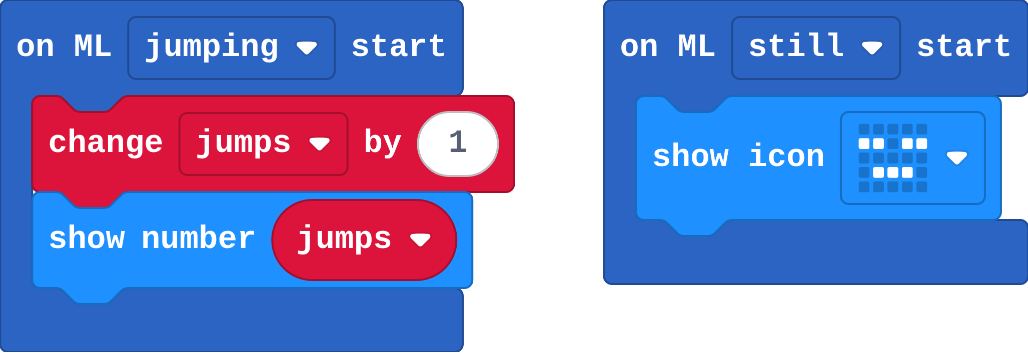
**You do three jumps without stopping, and the model estimates jumping the whole time. What does the micro:bit show?**

- 1
- 3
- Lots of numbers, counting up fast
- Nothing

<!-- Speaker note: What happens: 1. on ML jumping start runs once, when the estimated action changes to jumping. Three jumps in a row are one stretch of jumping. Take two or three predictions before anyone runs it. -->

<!-- Speaker note: Teacher: many say 3. Ask: how many times did the estimate change? -->

---

<span style="background:#dcfce7; color:#1a1a1a; border:1.5px solid #22c55e; padding:6px 18px; border-radius:8px; font-size:1em; font-weight:500;">✅ Check</span>

## What happened?

* 1. on ML jumping start runs once, when the estimated action changes to jumping. Three jumps in a row are one stretch of jumping.

<!-- Speaker note: Reveal after running. Ask who predicted it, and what made them think so. -->

---

<span style="background:#fef3c7; color:#1a1a1a; border:1.5px solid #f59e0b; padding:6px 18px; border-radius:8px; font-size:1em; font-weight:500;">✍️ Activity</span>

## Run it

Open the lesson at this step and try it together.

[studio.learningwaypoints.com/tutorials/code/microbit-computer/createai-code/?full=step-2#step-2](https://studio.learningwaypoints.com/tutorials/code/microbit-computer/createai-code/?full=step-2#step-2)

<!-- Speaker note: In the ML panel beside the simulator, choose **jumping**, then **still**, then **jumping** again. When does the count go up? Students should be able to say: I chose jumping, then still, then jumping again in the simulator's ML panel, and watched the count. -->

<!-- Speaker note: Teacher: choose actions in the ML panel; count aloud. -->

---

<span style="background:#dbeafe; color:#1a1a1a; border:1.5px solid #3b82f6; padding:6px 18px; border-radius:8px; font-size:1em; font-weight:500;">💬 Discussion</span>

## Investigate

![h:176](https://studio.learningwaypoints.com/tutorials/_pictures/makecode/code/1722ead4bc15.png?v=ba79a030a26b6ad1)

<!-- Speaker note: What this step is for: Start and stop events mark changes in the estimated action; unknown is what the model says when no action reaches its recognition point, and it needs a sensible response too. -->

<!-- Speaker note: Teacher: the counting-jumps question is the subtle one; link unknown to Unsure in AI robots. -->

---

<span style="background:#dcfce7; color:#1a1a1a; border:1.5px solid #22c55e; padding:6px 18px; border-radius:8px; font-size:1em; font-weight:500;">✅ Check</span>

## Counting jumps

**To count every jump in a long stretch of jumping, what would you need?**

- A model trained on single jumps, with something else (such as still) between them
- is ML jumping detected in forever, adding 1 each time round
- Nothing: on ML start already counts every jump
- A faster micro:bit

* Answer: A model trained on single jumps, with something else (such as still) between them

<!-- Speaker note: The model estimates an action several times a second; the start event fires only when it changes. Counting each jump means each jump must be its own change. is detected in forever would count many times per jump. -->

<style scoped>pre, marp-pre { font-size: 0.5em; line-height: 1.25; } section { font-size: 25px; }</style>

---

<span style="background:#dcfce7; color:#1a1a1a; border:1.5px solid #22c55e; padding:6px 18px; border-radius:8px; font-size:1em; font-weight:500;">✅ Check</span>

## Unknown

**What does the unknown action mean?**

- A new action the model has learned by itself
- The micro:bit is broken
- No action is certain enough (above its recognition point)
- The model is still training

* Answer: No action is certain enough (above its recognition point)

<!-- Speaker note: Like Unsure in the AI robots lessons: when nothing is certain enough, the estimate is unknown. Your program can show it, or do nothing. -->

---

<span style="background:#dcfce7; color:#1a1a1a; border:1.5px solid #22c55e; padding:6px 18px; border-radius:8px; font-size:1em; font-weight:500;">✅ Check</span>

## Stop and duration

**on ML running stop gives a duration. What is it?**

- How far you ran
- How many milliseconds running lasted, just now
- The certainty of running
- How many times you ran

* Answer: How many milliseconds running lasted, just now

<!-- Speaker note: When the estimate changes away from running, the stop event runs and tells you how long running was the estimate. Add the durations up for total running time. -->

---

<span style="background:#fef3c7; color:#1a1a1a; border:1.5px solid #f59e0b; padding:6px 18px; border-radius:8px; font-size:1em; font-weight:500;">✍️ Activity</span>

## Modify


- **Running time:** Keep a **total of running time** and show it in seconds when **A** is pressed. Test it: choose running, wait, then still.
- **Not sure:** Show **?** when the model isn't sure of any action (**unknown**).

[Open this step](https://studio.learningwaypoints.com/tutorials/code/microbit-computer/createai-code/?full=step-4#step-4)

<!-- Speaker note: What this step is for: Stop events with a duration turn a stream of estimates into totals; handling unknown makes the display honest. Hints, in order: on ML stop (with duration) is in Machine Learning. Choose running. / Inside it: change running by duration. On button A: show number running ÷ 1000 (rounded). / on ML start, then choose unknown in the dropdown: show string ? For students who need more support: Give the jump count; students add the other actions. For early finishers: Use certainty (%) ML jumping in forever to show a bar of how sure the model is. The hard part, on purpose: Start and stop events, and a sensible response to unknown. Ask what the program should do when the model isn't sure. When students get stuck: There is no ML panel. Ask: Is the editor full screen? Is the simulator running? Fix: Open the editor full screen and restart the simulator. / The count goes up only once. Ask: Did the action change between jumps? Fix: Choose another action (still) in between. / Running time stays 0. Ask: Did running stop? The stop event runs when the estimate changes away. Fix: Choose running, then still, then press A. -->

---

<span style="background:#fef3c7; color:#1a1a1a; border:1.5px solid #f59e0b; padding:6px 18px; border-radius:8px; font-size:1em; font-weight:500;">✍️ Activity</span>

## Make

Make an **activity tracker**: a picture for **still**, **walking** and **running**, a **jump count**, a blank screen for **unknown**, total **running time**, and button **A** sends the jumps and running seconds to the computer (as in Send data to the computer).

[Open this step](https://studio.learningwaypoints.com/tutorials/code/microbit-computer/createai-code/?full=step-5#step-5)

<!-- Speaker note: Hints, in order: One on ML start for each action: still, walking, running, jumping, and unknown. / Jumps and running time from earlier. Button A: serial write value jumps, and running (in seconds). -->

<!-- Speaker note: Teacher: the tracker reuses serial write value from the first unit. -->

---

## On your own model

- Open your model from last lesson in CreateAI and click **Edit in MakeCode**. Your actions are named as you trained them, so choose them in the dropdowns.
- Copy your tracker's blocks across (or rebuild them), **Download** to a **V2** micro:bit, unplug it, add the battery pack: it runs with no computer.
- Plug it back in and press **A** with the board from **Send data to the computer** open to see the totals.

---

<span style="background:#dcfce7; color:#1a1a1a; border:1.5px solid #22c55e; padding:6px 18px; border-radius:8px; font-size:1em; font-weight:500;">✅ Check</span>

## Exit ticket

**Why does on ML jumping start run once during three jumps in a row?**

* It runs when the estimated action changes to jumping; three jumps in a row are one stretch of jumping.

<!-- Speaker note: Students answer on paper or a mini whiteboard before the reveal. Anyone who cannot answer needs the main idea again next lesson. Where this leads: Next: the capstone, your own AI sorter. Real world: fitness trackers, fall detection, sports coaching sensors. -->