---
marp: true
theme: default
html: true
---

# Sprites on the screen

Arcade Foundations · Sprites and movement

<!-- Speaker note: Students place sprites on the Arcade screen and see that x counts across from the left and y counts down from the top. About 45 minutes (Predict and Run 10 min · Investigate 10 min · Modify 10 min · Make 10 min · Start screen 5 min). -->

---

## Today

**We are learning to** put pictures called sprites on the game screen, and place each one with x and y.

- I can make a sprite and draw its picture.
- I can place a sprite with x and y, and say where on the screen a position is.
- I can explain why a bigger y is lower on a game screen.

<!-- Speaker note: Before class: A **sprite** is a small picture the game can place, move and test (characters, coins, clouds). The Arcade screen is **160 pixels across and 120 down**. A position is **(x, y)**: x counts across from the **left** edge, and y counts **down** from the **top** edge, so (0, 0) is the top left corner and (80, 60) is the middle. This is the opposite of a maths graph, where y counts up; nearly every computer screen works this way. Each sprite block says **of kind Player**: ignore the kind for now, it matters from lesson 4. Try the Make task yourself: four sprites, two blocks each. Teacher: Start screen: no new ideas, just practice reading and changing positions. -->

---

## Why it matters

> Every 2D game you have played, from Pac-Man to Mario, is pictures placed on a grid of tiny squares, then moved.

<!-- Speaker note: In Arcade, every character, coin and cloud is a **sprite**: a small picture the game can place, move and test. You program with **blocks**, and the **simulator** (the little game console beside the blocks) runs your game straight away. The screen is **160** squares (pixels) across and **120** down. A sprite's place is two numbers: **x** (across) and **y** (down). -->

---

<span style="background:#dbeafe; color:#1a1a1a; border:1.5px solid #3b82f6; padding:6px 18px; border-radius:8px; font-size:1em; font-weight:500;">💬 Discussion</span>

## Predict

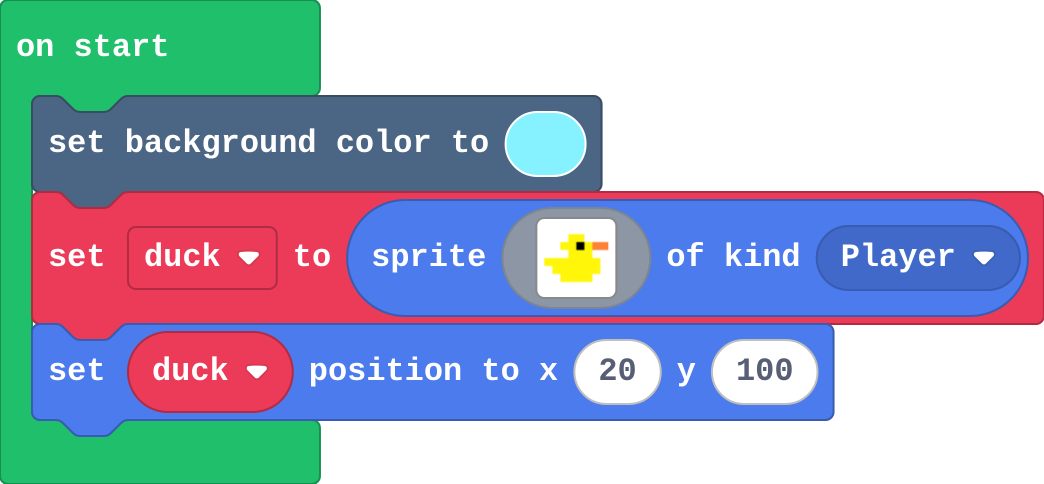
![h:242](https://studio.learningwaypoints.com/tutorials/_pictures/makecode/code/3fd4b78d6435.png?v=07f3ce6345b8b9cb)

**The duck is set to x 20, y 100. Where on the screen does it appear?**

- Near the bottom left
- Near the bottom right
- Near the top left
- In the middle

<!-- Speaker note: What happens: Near the bottom left. x 20 is near the left edge. y counts down from the top, so y 100 is near the bottom (the screen is 120 tall). Take two or three predictions before anyone runs it. -->

<!-- Speaker note: Teacher: most students who know graphs put the duck near the top. Let them commit, then Run. -->

---

<span style="background:#dcfce7; color:#1a1a1a; border:1.5px solid #22c55e; padding:6px 18px; border-radius:8px; font-size:1em; font-weight:500;">✅ Check</span>

## What happened?

* Near the bottom left. x 20 is near the left edge. y counts down from the top, so y 100 is near the bottom (the screen is 120 tall).

<!-- Speaker note: Reveal after running. Ask who predicted it, and what made them think so. -->

---

<span style="background:#fef3c7; color:#1a1a1a; border:1.5px solid #f59e0b; padding:6px 18px; border-radius:8px; font-size:1em; font-weight:500;">✍️ Activity</span>

## Run it

Open the lesson at this step and try it together.

[studio.learningwaypoints.com/tutorials/code/arcade/arcade-sprites/?full=step-2#step-2](https://studio.learningwaypoints.com/tutorials/code/arcade/arcade-sprites/?full=step-2#step-2)

<!-- Speaker note: Find the duck. Was it where you predicted? Students should be able to say: I found the duck in the simulator and compared it with my prediction. -->

<!-- Speaker note: Teacher: point at the duck and say it plainly: y counts down from the top. -->

---

<span style="background:#dbeafe; color:#1a1a1a; border:1.5px solid #3b82f6; padding:6px 18px; border-radius:8px; font-size:1em; font-weight:500;">💬 Discussion</span>

## Investigate

![h:360](https://studio.learningwaypoints.com/tutorials/_pictures/makecode/code/c19f6dce2d51.png?v=7bc0b835ec1610b8)

<!-- Speaker note: This scene has a sun, a cloud and the duck. Change the numbers in the playground to test your answers. What this step is for: x counts across from the left edge (0 to 160) and y counts down from the top edge (0 to 120), so (0, 0) is the top left corner and a bigger y is lower on the screen. -->

<!-- Speaker note: Teacher: the match builds a mental map of the screen. Mia's sun is the graph habit (bigger y is higher); have students fix it in the playground. -->

---

<span style="background:#dcfce7; color:#1a1a1a; border:1.5px solid #22c55e; padding:6px 18px; border-radius:8px; font-size:1em; font-weight:500;">✅ Check</span>

## Where is it?

**Match each position with where a sprite there appears.**

| | |
|---|---|
| `(0, 0)` | A. the bottom right corner |
| `(80, 60)` | B. the middle of the screen |
| `(160, 120)` | C. near the top right corner |
| `(80, 110)` | D. near the bottom, halfway across |
| `(150, 10)` | E. the top left corner |

* Answer: (0, 0) → E. the top left corner; (80, 60) → B. the middle of the screen; (160, 120) → A. the bottom right corner; (80, 110) → D. near the bottom, halfway across; (150, 10) → C. near the top right corner

<!-- Speaker note:  -->

<style scoped>pre, marp-pre { font-size: 0.5em; line-height: 1.25; } section { font-size: 21px; }</style>

---

<span style="background:#dcfce7; color:#1a1a1a; border:1.5px solid #22c55e; padding:6px 18px; border-radius:8px; font-size:1em; font-weight:500;">✅ Check</span>

## Down by how much?

**A sprite is at (80, 60). You change its y to 90. How many pixels does it move down?**

* Answer: 30

<!-- Speaker note: y counts down, so 90 is 30 more than 60: the sprite moves 30 pixels down the screen. -->

---

<span style="background:#dcfce7; color:#1a1a1a; border:1.5px solid #22c55e; padding:6px 18px; border-radius:8px; font-size:1em; font-weight:500;">✅ Check</span>

## Mia's sun

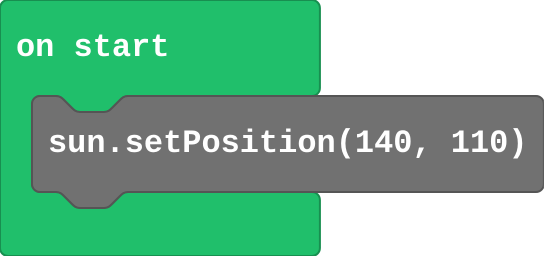
Mia changed one block:

![h:128](https://studio.learningwaypoints.com/tutorials/_pictures/makecode/code/6c3ce6cd00bf.png?v=364611dfd768a47d)

**Mia wants her sun high in the sky. She sets its position to (140, 110), because 'a bigger y is higher'. Where does her sun appear?**

- In the middle
- High in the top right
- Off the screen
- Low, near the bottom right

* Answer: Low, near the bottom right

<!-- Speaker note: On a game screen y counts down from the top, so 110 is near the bottom. For a sun high in the sky, Mia needs a small y, such as 15. -->

<style scoped>pre, marp-pre { font-size: 0.5em; line-height: 1.25; } section { font-size: 24px; }</style>

---

<span style="background:#fef3c7; color:#1a1a1a; border:1.5px solid #f59e0b; padding:6px 18px; border-radius:8px; font-size:1em; font-weight:500;">✍️ Activity</span>

## Human screen <span style="font-size:.6em;color:#64748b">(4 min)</span>

The classroom floor is the screen: the front left corner is (0, 0). The teacher calls a position; a student walks there.

<!-- Speaker note: Call (80, 110): the student walks to the back. y counts down from the front. -->

---

<span style="background:#fef3c7; color:#1a1a1a; border:1.5px solid #f59e0b; padding:6px 18px; border-radius:8px; font-size:1em; font-weight:500;">✍️ Activity</span>

## Modify


- **Change the sky:** Pick a new sky colour, and move the sun to the other top corner.
- **Add your own sprite:** Draw a third sprite (a flower, a rock, a bug) and place it near the bottom. Give it its own name: click the variable's name in its block and choose **New variab

[Open this step](https://studio.learningwaypoints.com/tutorials/code/arcade/arcade-sprites/?full=step-4#step-4)

<!-- Speaker note: What this step is for: Changing x moves a sprite across; changing y moves it up or down. Each new sprite needs its own create and set position blocks. Hints, in order: Click the colour in set background color to choose another. / The other top corner is near x 20, y 15. / Drag in another set mySprite to sprite of kind Player block from Sprites, then click its picture to draw. / Then drag in set mySprite position from Sprites, and choose your new sprite's name in its dropdown. For students who need more support: Give students a grid sketch of the screen with (0, 0), (80, 60) and (160, 120) marked, and let them plan positions on paper first. For early finishers: Make a scene that tells a tiny story with five sprites, and place one sprite exactly in the middle of the screen. The hard part, on purpose: y counts down from the top on a game screen, the opposite of maths graphs. Ask them to predict where a sprite will go before placing it. When students get stuck: A sprite ends up near the bottom when the student wanted it at the top. Ask: Which way does y count on a game screen? Fix: Down from the top. Use a small y (about 15) to go near the top. / Adding a new sprite makes an old one vanish. Ask: What is the new sprite's variable called? Fix: Both use the same name, so the new one replaces the old one. Click the name and choose New variable. / A sprite cannot be seen. Ask: What are its x and y? Fix: x must be between 0 and 160 and y between 0 and 120, or it is off the screen. Also check the picture is not the same colour as the background. -->

<!-- Speaker note: Teacher: each new sprite needs a new variable name, or it replaces the old one. Show the dropdown on the variable name. -->

---

<span style="background:#fef3c7; color:#1a1a1a; border:1.5px solid #f59e0b; padding:6px 18px; border-radius:8px; font-size:1em; font-weight:500;">✍️ Activity</span>

## Make

Make a **scene at the pond** (or anywhere you like):

- something in the **sky**, near the top
- something on the **ground**, near the bottom
- something in the **middle**
- something tucked into a **corner**

[Open this step](https://studio.learningwaypoints.com/tutorials/code/arcade/arcade-sprites/?full=step-5#step-5)

<!-- Speaker note: Hints, in order: Each sprite needs two blocks: set … to sprite of kind Player, then set … position. / Near the top means a small y (about 10 to 25). Near the bottom means a big y (about 100 to 115). -->

<!-- Speaker note: Teacher: four sprites, each with create and set position. The sprite picture editor opens when you click the picture. -->

---

<span style="background:#fef3c7; color:#1a1a1a; border:1.5px solid #f59e0b; padding:6px 18px; border-radius:8px; font-size:1em; font-weight:500;">✍️ Activity</span>

## Change a start screen

This game's start screen is upside down: the title sits at the bottom and the characters float at the top. Move the title near the top, and stand the hero and the monster near the bottom, facing each other.

[Open this step](https://studio.learningwaypoints.com/tutorials/code/arcade/arcade-sprites/?full=step-6#step-6)

---

<span style="background:#fef3c7; color:#1a1a1a; border:1.5px solid #f59e0b; padding:6px 18px; border-radius:8px; font-size:1em; font-weight:500;">✍️ Activity</span>

## Guess the coordinates <span style="font-size:.6em;color:#64748b">(3 min)</span>

Show your scene to the next pair. They guess each sprite's x and y before you show the blocks.

---

<span style="background:#dcfce7; color:#1a1a1a; border:1.5px solid #22c55e; padding:6px 18px; border-radius:8px; font-size:1em; font-weight:500;">✅ Check</span>

## Exit ticket

**A sprite is at (80, 20). Is it near the top or near the bottom? How do you know?**

* Near the top. y counts down from the top edge, and 20 is small, so it is close to the top.

<!-- Speaker note: Students answer on paper or a mini whiteboard before the reveal. Anyone who cannot answer needs the main idea again next lesson. Where this leads: Next lesson the sprites move: with the controller, and with a speed. Class ideas: recreate a famous painting or a classroom layout as a scene; a 'where is it?' game where a partner guesses a position from the screen. -->